Leaderboard


Popular Content
Showing content with the highest reputation on 08/01/23 in all areas
-
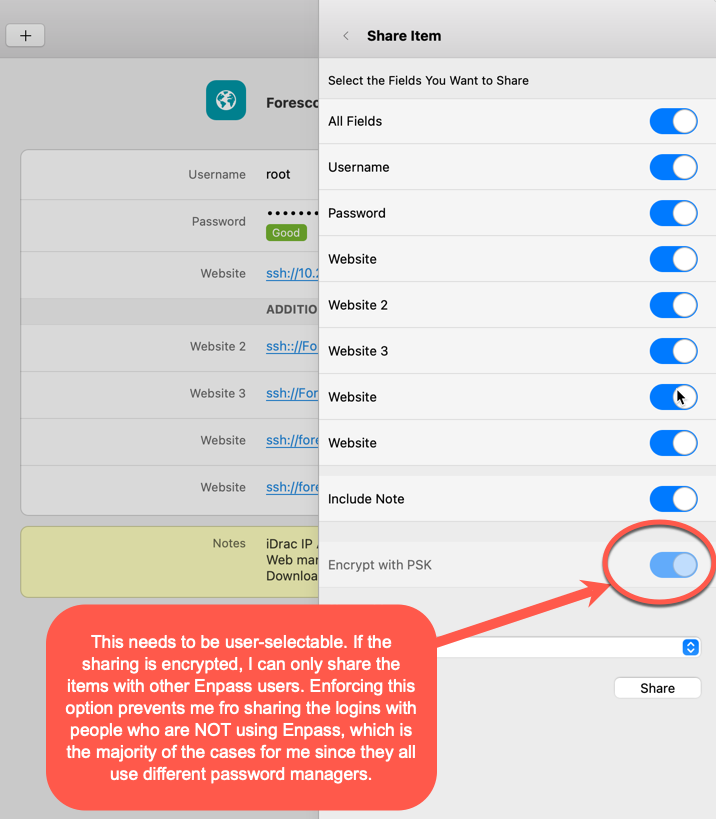
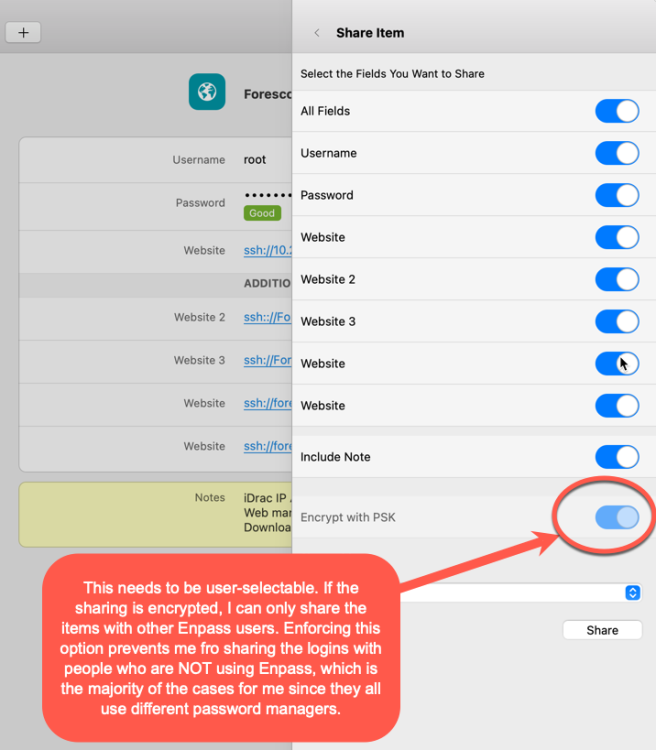
A recent change in the MacOS and iOS app now makes impossible to share items unless they are encrypted with a pre-shared key. This means that now we can only share passwords with other users who are using Enpass. If they are using other password managers as is usually the case we can't share items with them anymore. A common scenario is the sharing of an account to another coworker via Signal - we do that often since Signal is encrypted and super-secure. But no... now we can't do that anymore as we can't share the clear-text version of the account anymore. And no - I can't just copy/paste the password as there's often multiple entries and notes that go along with the login - see screenshot. It's a pain to copy/paste them all. Why in the world are you forcing me to do that??? This option needs to be user-selectable. Whoever came up with the stupid idea of making this option not changeable needs to realize we don't live in a world where everyone uses Enpass. Do you think we are all so dumb and ignorant we can't decide for ourselves? It's my choice to decide if I need to transfer the items encrypted or in clear text over another secure transport such as Signal. It's not your choice to make. Please allow us to decide if we need to encrypt the data when sharing.
 1 point
 -
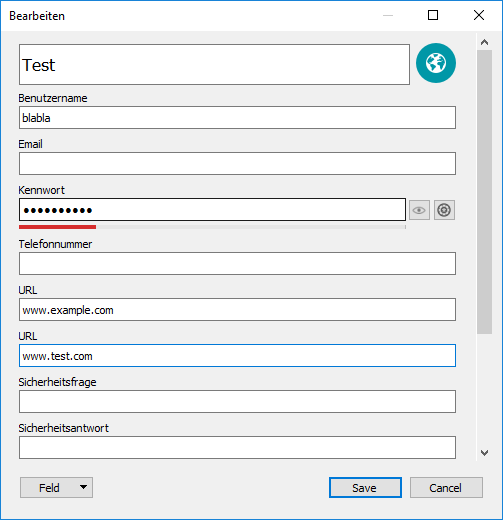
1 pointSo far I have done it in this way: Add a new Field Select Type URL and Name it Add the URL in the new created Field Afterwards it looks similar to the screenshot below Cheers, edenhaus
 1 point