

Leaderboard


Popular Content
Showing content with the highest reputation on 03/12/24 in all areas
-
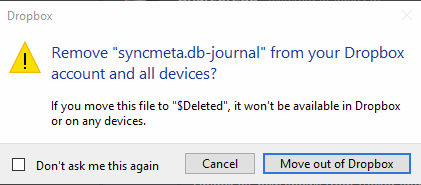
I am having the exact same issue. Enpass was setup directly with dropbox. There is no folder encrypted folder stored locally in documents folder. Enpass and dropbox are run across 3 devices and all devices experience the same issue. I can confirm this is being generated from enpass adding and removing files from dropbox every time a backup file is created This issue started around the same time as the OP I would expect a higher level of support to be provided as the current enpass team trying to respond and taking weeks to reply are still unable to understand the request from OP. If anything they are providing misguided, unrelated and incorrect information. Questions that need to be answered 1/ Please confirm what process is generating the request from dropbox to remove "syncmeta.db"? 2/ What would be out outcome if "syncmeta.db" was removed from dropbox and all locations? 3/ How to stop this request being generated across all devices running enpass?
 1 point
 -
I doubt that pretty highly. Anyway........ Anyhow, the answer turns out to be pretty simple. DO NOT install via Flatpack. It doesn't have permissions to connect. DO install using the instructions provided Here. Your browser extensions will work going that route. At least they did for me after i uninstalled the Flatpak version and followed them. Can't blame Enpass for this as they DO NOT provide the Flatpak version. @ivarson was 100% correct all along.1 point