PGTipz
Members
-
Joined
-
Last visited
-
Ok thank you. Most devices don't have TPM and my HP laptop does but it's version 1.2 so that will explain that. Will there be support for older TPM versions?
-
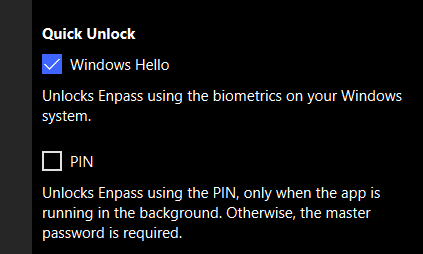
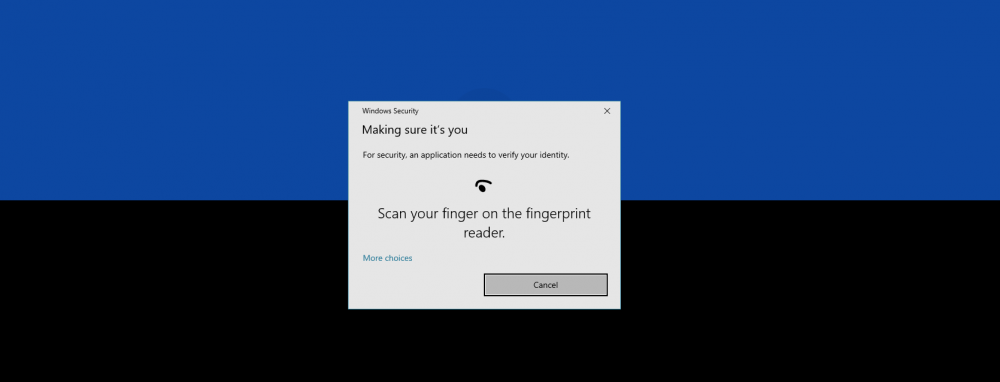
Hi @Garima Singh I have downloaded the Windows desktop version which does not show the message "Master password is required every time you restart Enpass" but this also does not allow Windows Hello at startup or restart of Enpass (see the 3rd screenshot where i close then re-open Enpass). I have checked my devices (one currently using a HP Zbook 15 G3 Windows Enterprise) all with latest Windows Updates are not the affected on the TPM list so unsure how to fix it.

-
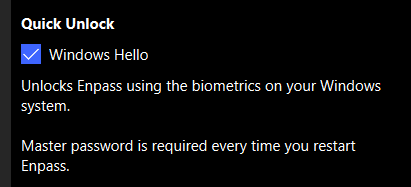
I have a few devices and other family members with Enpass on Windows with the latest 6.5.0 version (via the Windows store) and when the devices restart or if i close/re-open Enpass it doesn't offer Windows Hello. I maybe mistaken, but i was under the impression this was a feature in the new version. I have Windows Hello on but says Master password is required every time you restart - is there a setting i am missing?