


Walter
Members
-
Joined
-
Last visited
-
Hello and sorry, that i could not reply earlier. After deleting Enpass on my MacBook Pro and new download from the App Store and making a new installation this message does not appear any longer. This is only for information reasons. Thanks
-
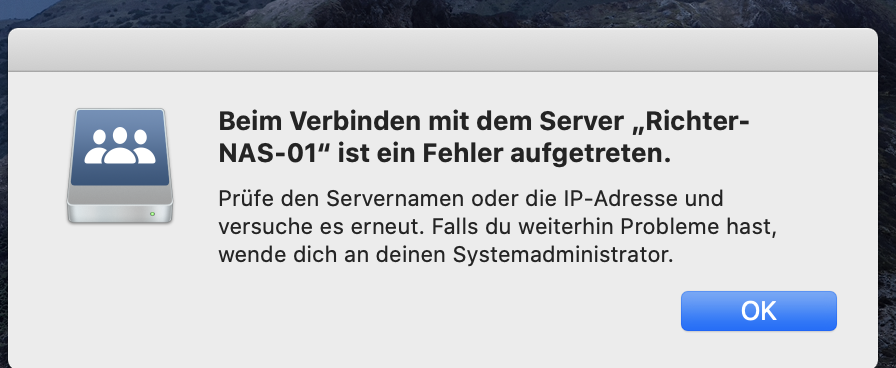
Hello, in the uploaded imgage is the message (in german) I mentioned before. Walter
-
Walter joined the community
-
Hello, I am using Enpass on a Mac. I used and still I am using WebDAV to save the safe on my QSync-NAS (xxx-NAS-01) and to sync with my iPhone. Everythink worked fine. Than I had to switch to another QSync-NAS (xxx-NAS-02) of mine. Everything is still working fine with the exception, that by starting the first time a complete shutdown (command + Q) Enpass tries to find the NAS-01 not longer used. I have click on "OK" that the NAS-01 is not found, than Enpass will start (Sorry, I cannot describe the last sentence better in english). Is there a point in the "MAC-Registry", where the former NAS-01 is still listed? Thanks
