robbie
Members
-
Joined
-
Last visited
-
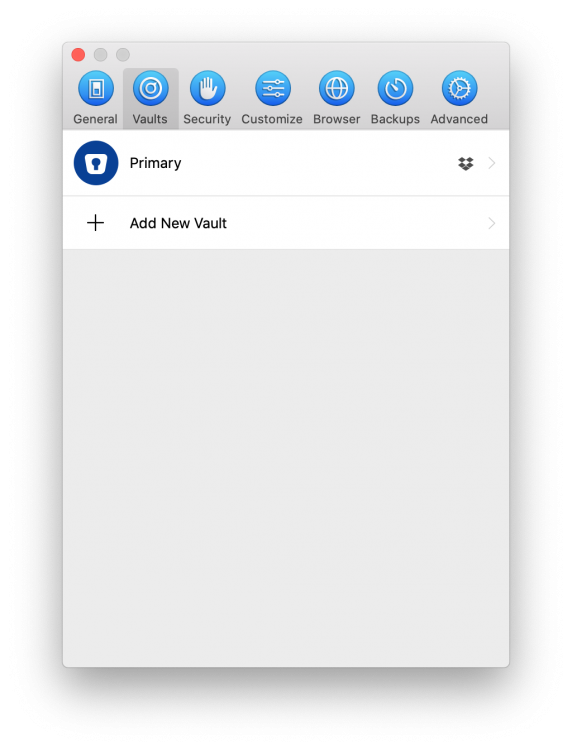
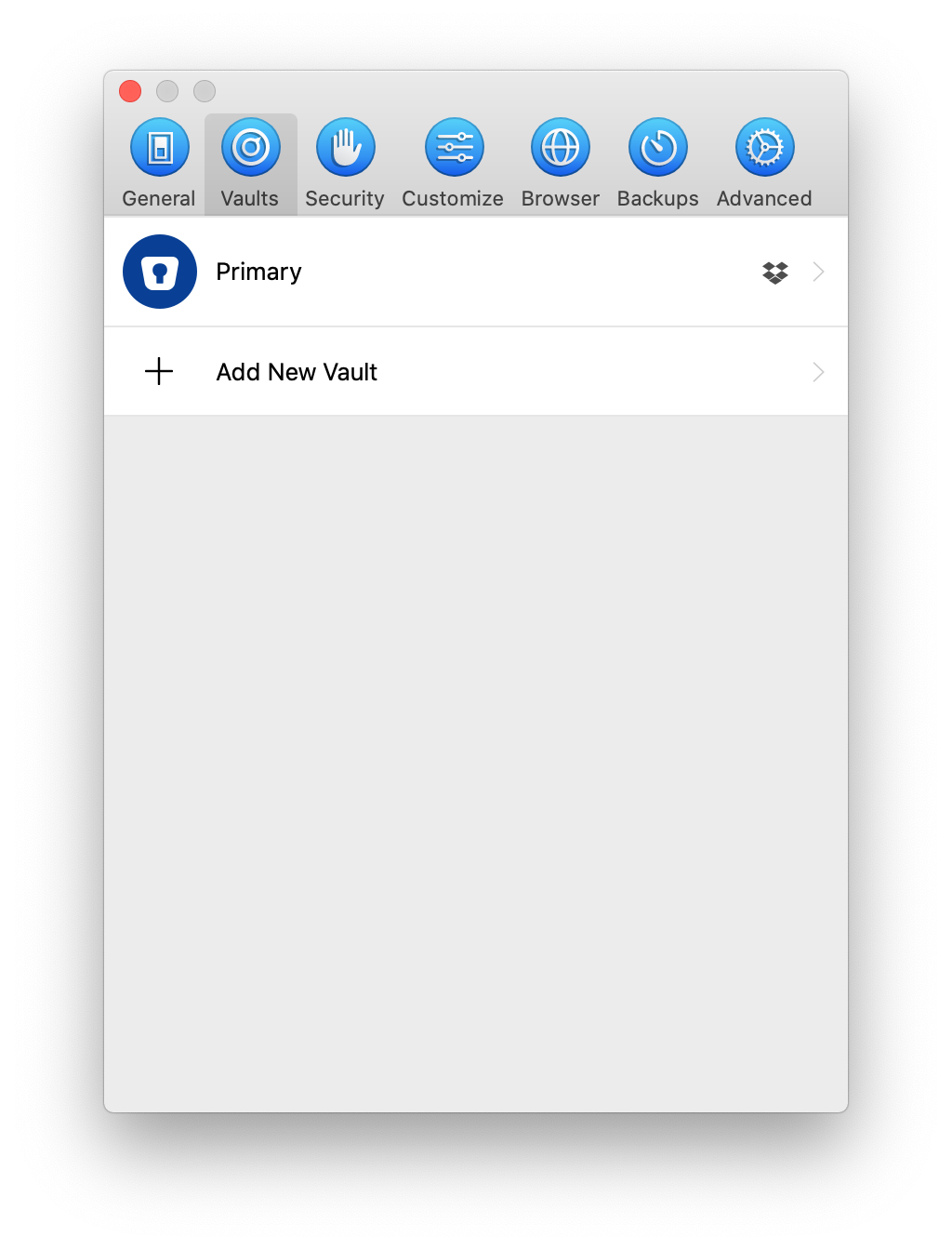
I recently bought a new computer, and was setting up Enpass. I have 2 vaults. I imported the first vault from Dropbox without any problems: The second vault I needed to import was from iCloud. The sign-in process seemed to work just fine. A browser window opened, I signed into Apple, the browser prompted me for permission to "open Enpass". I clicked OK, Enpass app re-appeared, and the import process seemed to be working. The Enpass window displayed the message "Restoring data from iCloud...", and there was a spinner (progress animation). But after a few seconds, the spinner froze. The app froze. My computer CPU was at 100%. I thought maybe it would finish. But after letting the app continue for 60 seconds, it was still frozen with 100% CPU. So I had to force-quit the app. (The vault I was trying to import from iCloud has less than 40 items.) Upon re-launching Enpass, my Primary vault was fine. But my iCloud vault didn't import. I went thru the process again several more times. Every time I had the same result. I tried different browsers. It didn't matter if I used Safari or Brave (Chrome), the result was the same. Then I tried something else. When prompted to enter the vault name, I had been using the name "4th-A Technologies". However, on my 6th attempt, I tried the name "4thA". This time I didn't have any problems importing the vault. It worked perfectly. Is it possible there's a bug importing a vault with a hyphen? Or a space? I'm using Enpass Desktop, v6.5.0 on macOS 10.15.7.