Skip to content
View in the app

A better way to browse. Learn more.

Enpass Discussion Forum

A full-screen app on your home screen with push notifications, badges and more.

To install this app on iOS and iPadOS
  1. Tap the Share icon in Safari
  2. Scroll the menu and tap Add to Home Screen.
  3. Tap Add in the top-right corner.
To install this app on Android
  1. Tap the 3-dot menu (⋮) in the top-right corner of the browser.
  2. Tap Add to Home screen or Install app.
  3. Confirm by tapping Install.

Odin

Members
  • Joined

  • Last visited

  1. Odin replied to Odin's topic in Windows
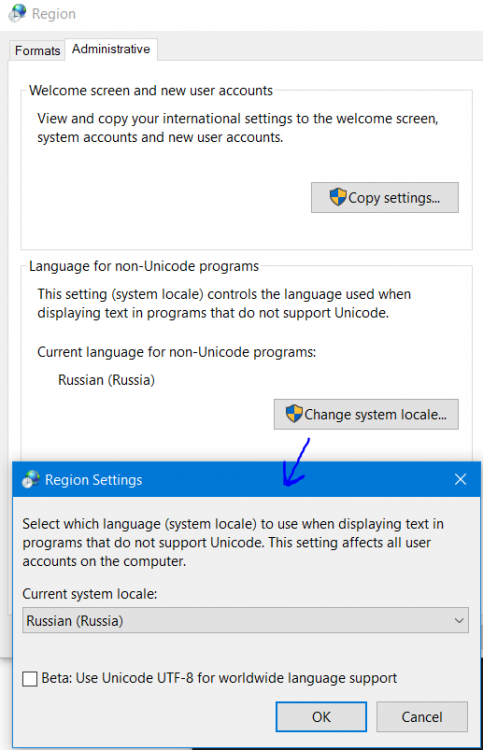
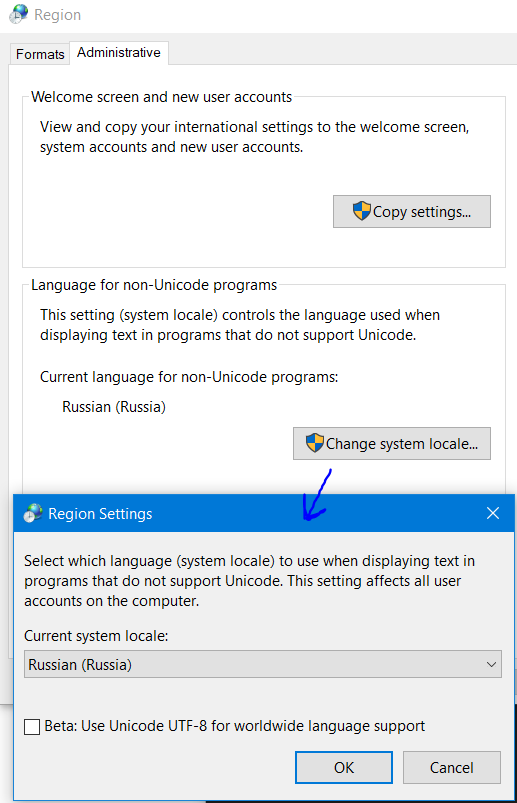
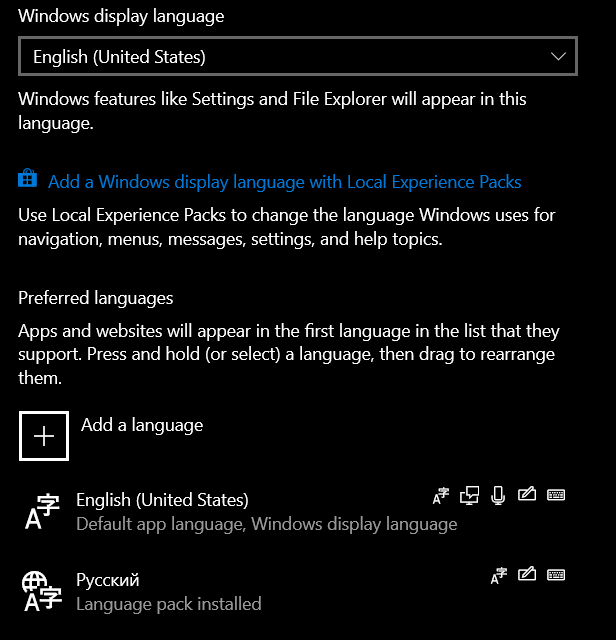
    Thanks for your reply! Perhaps i should mention that i'm originally from Russia. But installed English version of the Windows 10. Than i added Russian localization through steps like in your link. So i have now two language packs on my computer. But still have the issue with fonts. Except Enpass there are no any other apps with this kind of issue. All screens are in the attach. Also i must noticed that this is my first time i use English windows 10. Before that i used to use Russian one and there was no issues with fonts.
  2. Odin posted a topic in Windows
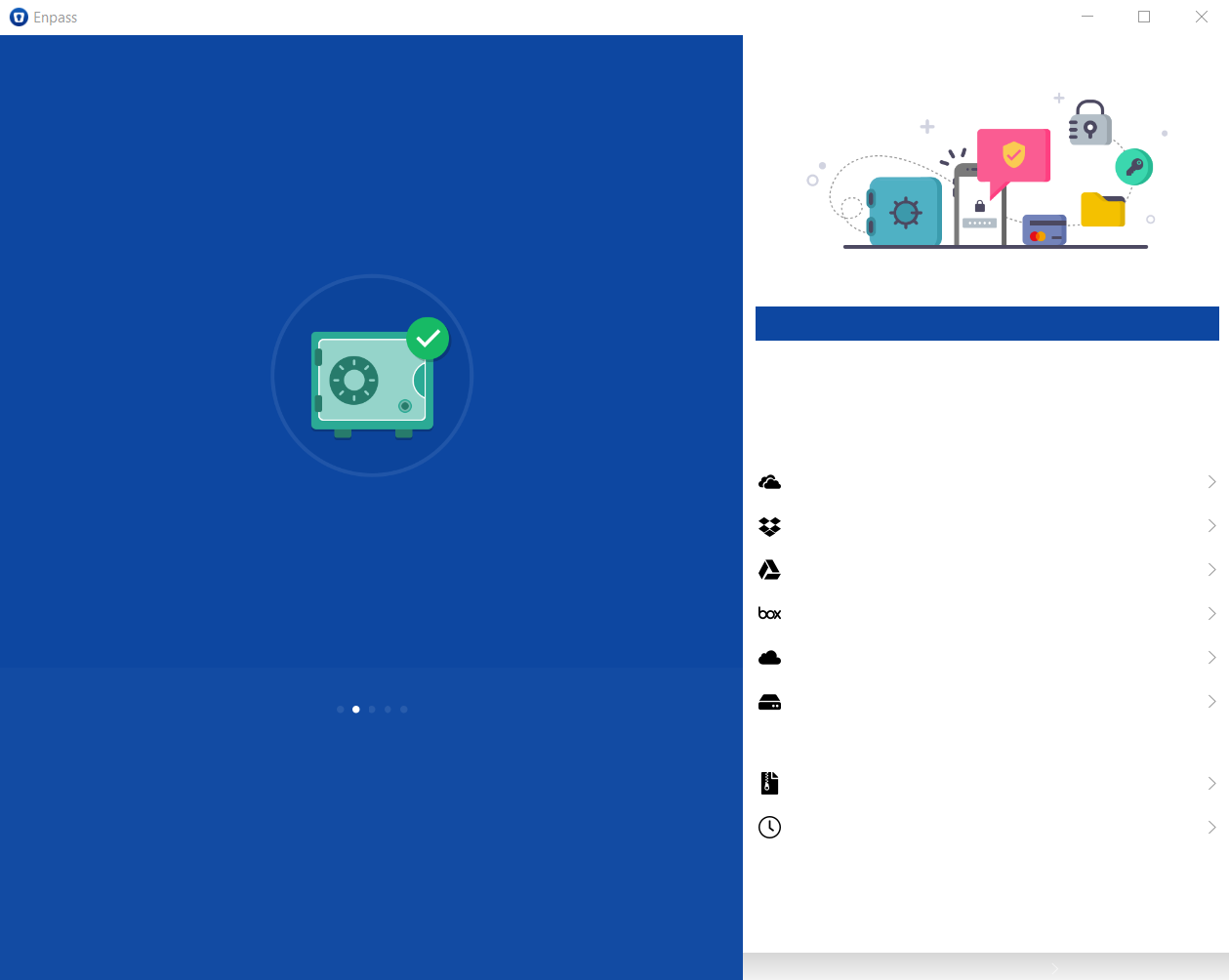
    Hi! I've finished to install Windows 10 english localization and after that installed Enpass from the Store. And at the first screen i encountered that there are no any text at all. Next screens are the same. What am i doing wrong?

Account

Navigation

Search

Search

Configure browser push notifications

Chrome (Android)
  1. Tap the lock icon next to the address bar.
  2. Tap Permissions → Notifications.
  3. Adjust your preference.
Chrome (Desktop)
  1. Click the padlock icon in the address bar.
  2. Select Site settings.
  3. Find Notifications and adjust your preference.