Asperson
Members
-
Joined
-
Last visited
Everything posted by Asperson
-
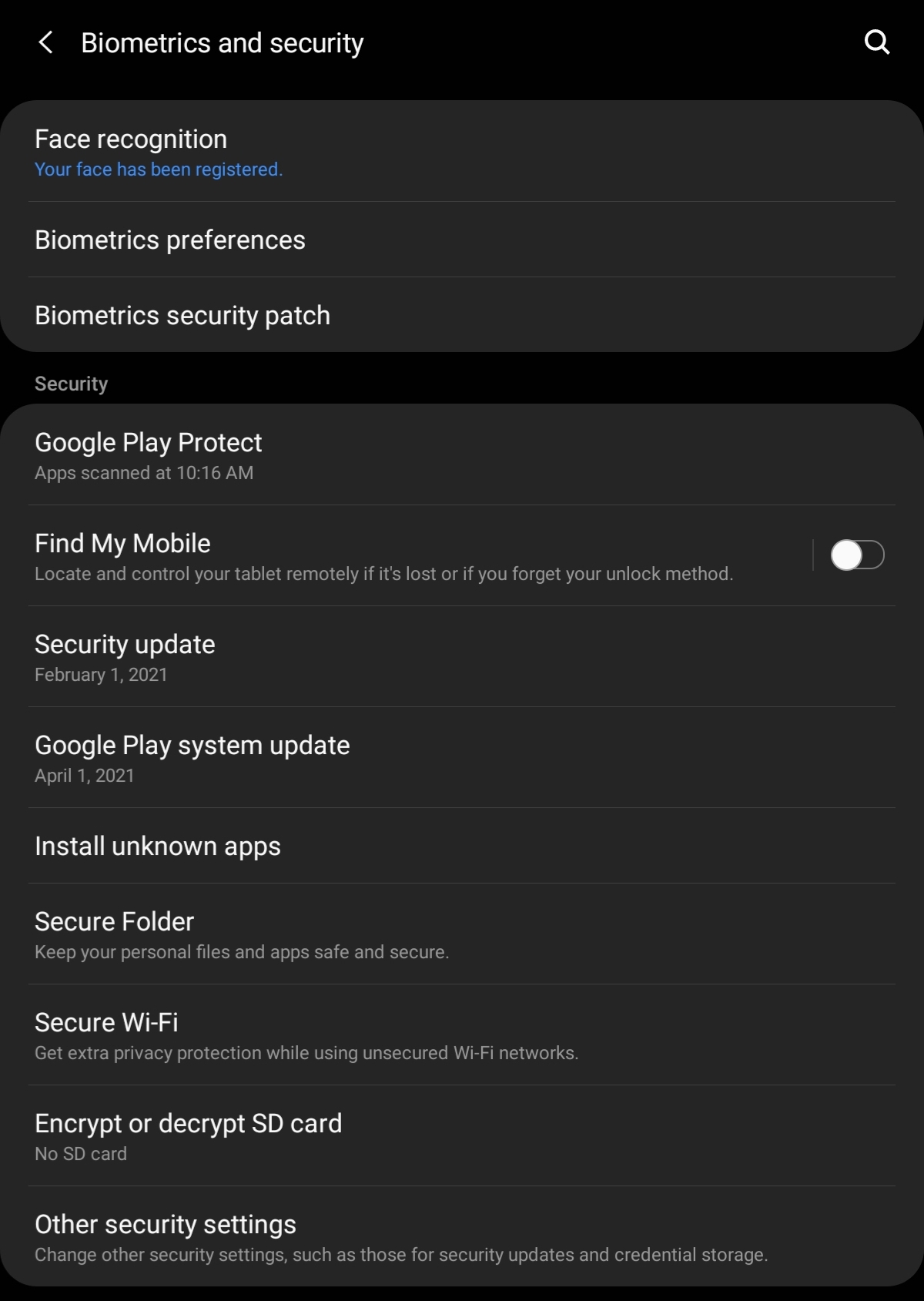
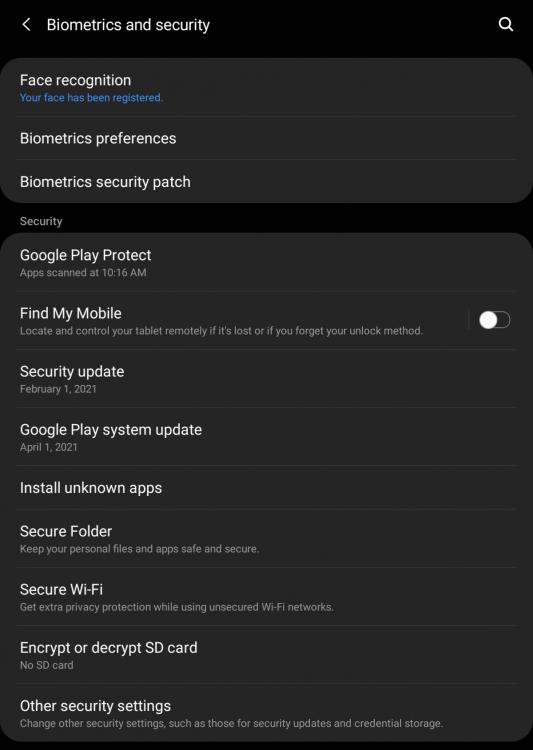
Thank you for such quick reply. Unfortunately, my model doesn't have any other biometrics, but face recognition - screen shot attached.
-
Hi! I just got SAMSUNG Galaxy Tab A 8.4" (2020) and enpass somehow misses that biometrics (face recognition) there, it says "Please enroll any biometrics with the device first." Also, even when I set up PIN, it requires to enter main password all the time. Btw, Bitwarden works fine with face recognition on the same tablet ;)
-
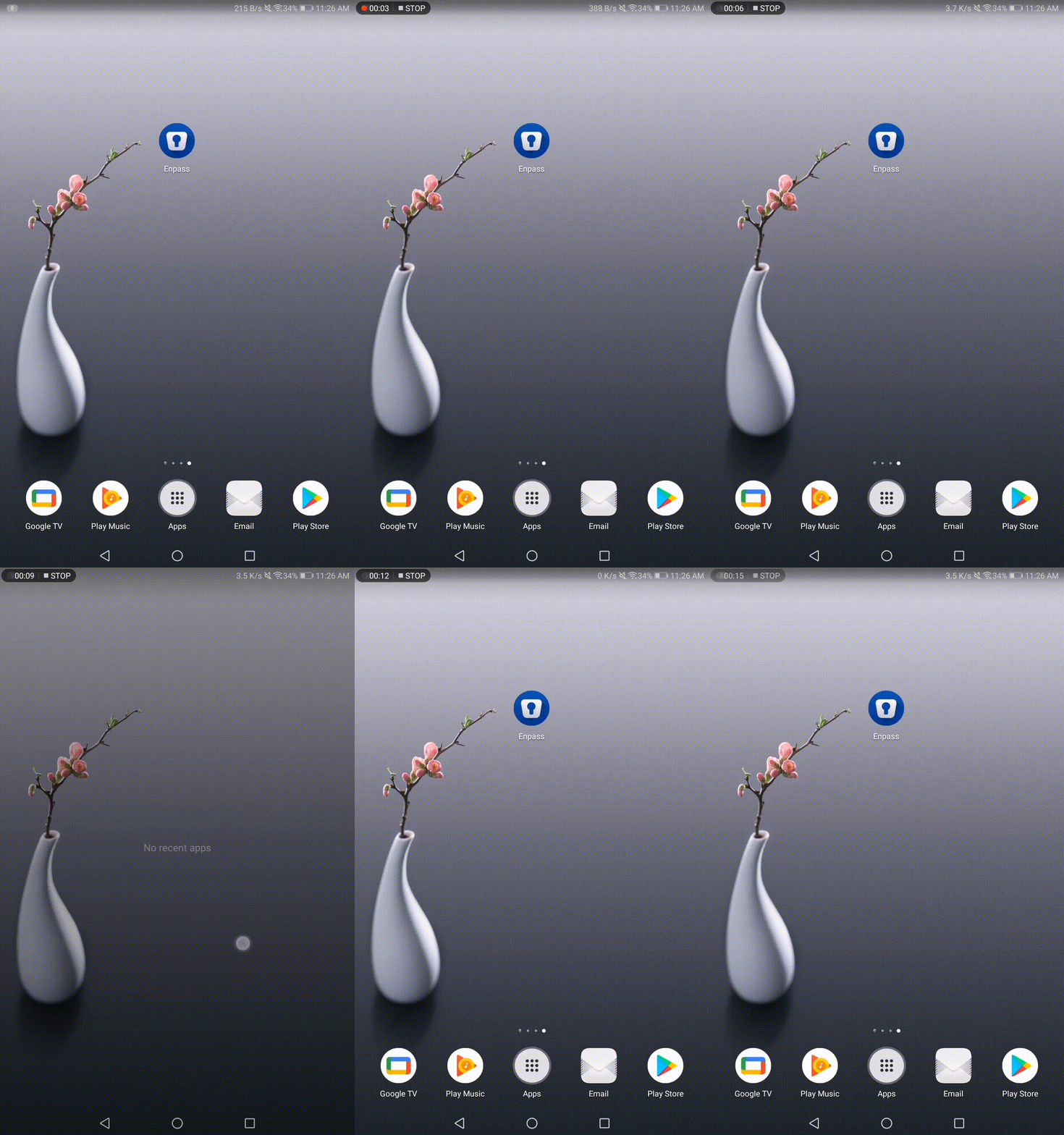
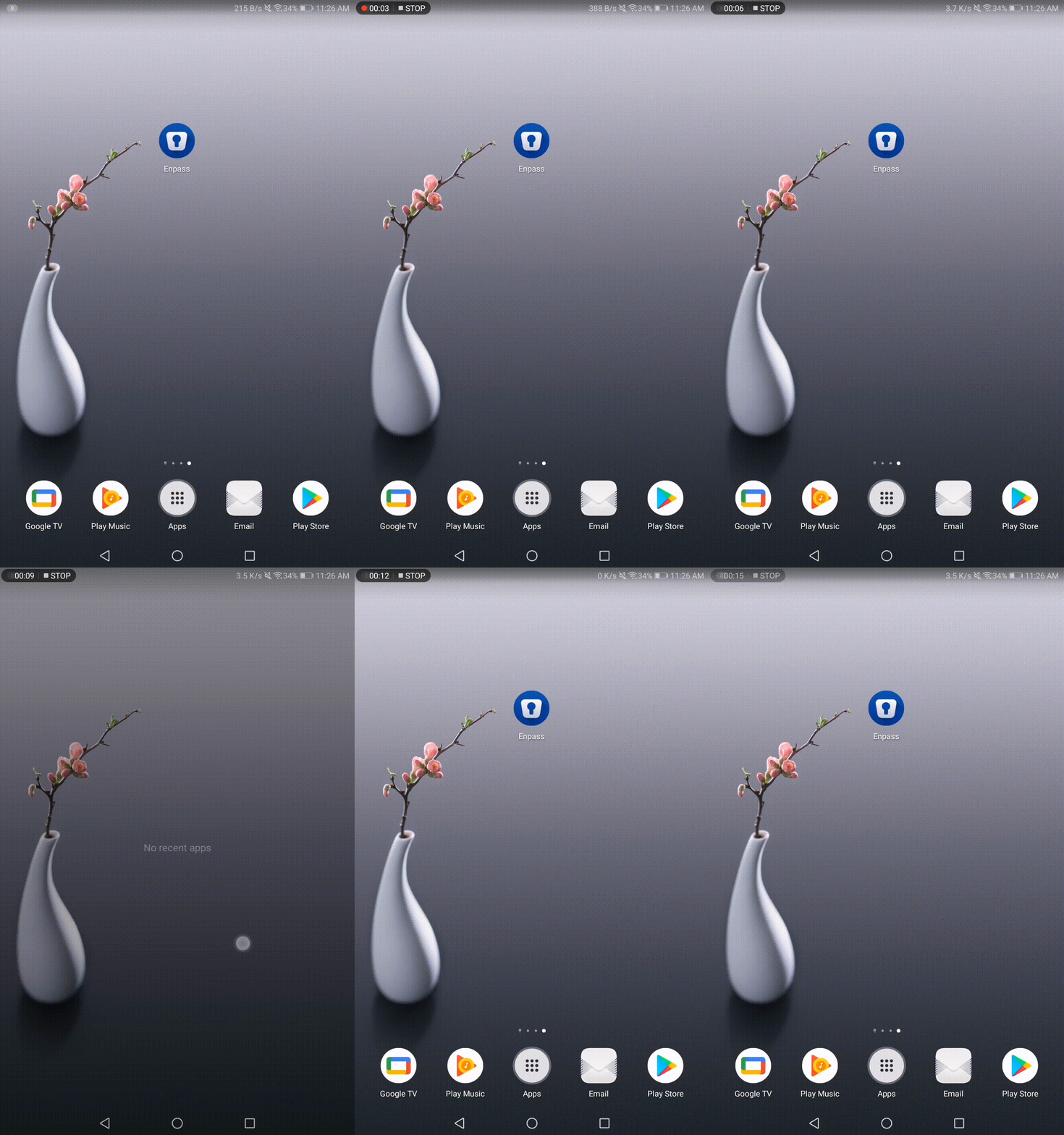
The version is 6.5.4.428 I've attached screen recording of the behavior.
-
Hi, I have the same issue - the login UI comes for a fraction of second and then disappears. Unlike @And's tablet my tablet is US version of Huawei MediaPad 5, SHT-W09 8.0.0.200 (C567), and because US broke up with Huawei they didn't issue any Android 9 updates for US, no luck fixing by upgrade OS here. Clearing data/cache doesn't help either. Any suggestions would be greatly appreciated.