


gPaq
Members
-
Joined
-
Last visited
-
Hey @Lukasaz1999 you are correct, other browsers may resolve this issue also. Once I fixed the issue I lost my interest in trying other solutions :-) But I believe this remains problematic if an API call is made or a browser is called for authentication and a new browser like Microsoft Edge fails. I am hopeful that Enpass will look into this and perhaps @Garima Singh will be so kind to provide feedback and follow up. All the best!
-
Even though the User Manual for version 6.6.0 still stipulates the same procedure (https://www.enpass.io/docs/manual-desktop/vault-setting.html#:~:text=Remove Vault-,Click the options menu (3-dots) button and click,to ensure removing the vault.) I no longer see those 3 dots in the interface (see attached screenshot). Can someone clarify how this is supposed to work today?
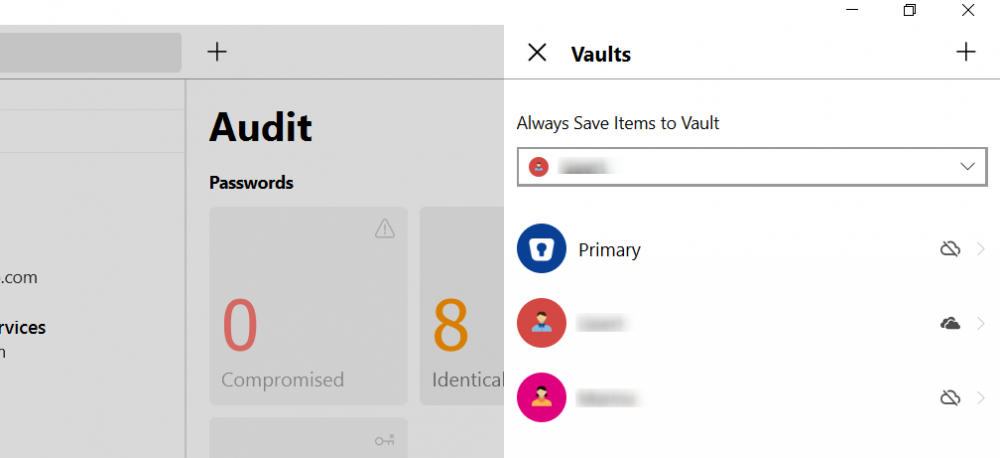
-
I had a very similar problem today, along with several error messages, trying to authenticate OneDrive to sync previously saved Vault data (by another device) with a newly installed Enpass Password Manager 6.6.0. This was downloaded from Microsoft Store and I did not have a previous version on my computer. Lukasaz1999, your trick with IE did the job, very clever and thank you for posting that! However, I should urge Enpass to investigate this occurrence because the dependency on IE is not justified today. This browser is being deprecated by Microsoft and replaced with Edge. I suspect this issue is related to the API in use because authentication seemed to stumble over that. Thanks for your attention to this matter.
