Skip to content
View in the app

A better way to browse. Learn more.

Enpass Discussion Forum

A full-screen app on your home screen with push notifications, badges and more.

To install this app on iOS and iPadOS
  1. Tap the Share icon in Safari
  2. Scroll the menu and tap Add to Home Screen.
  3. Tap Add in the top-right corner.
To install this app on Android
  1. Tap the 3-dot menu (⋮) in the top-right corner of the browser.
  2. Tap Add to Home screen or Install app.
  3. Confirm by tapping Install.

ScottyJavea

Members
  • Joined

  • Last visited

Everything posted by ScottyJavea

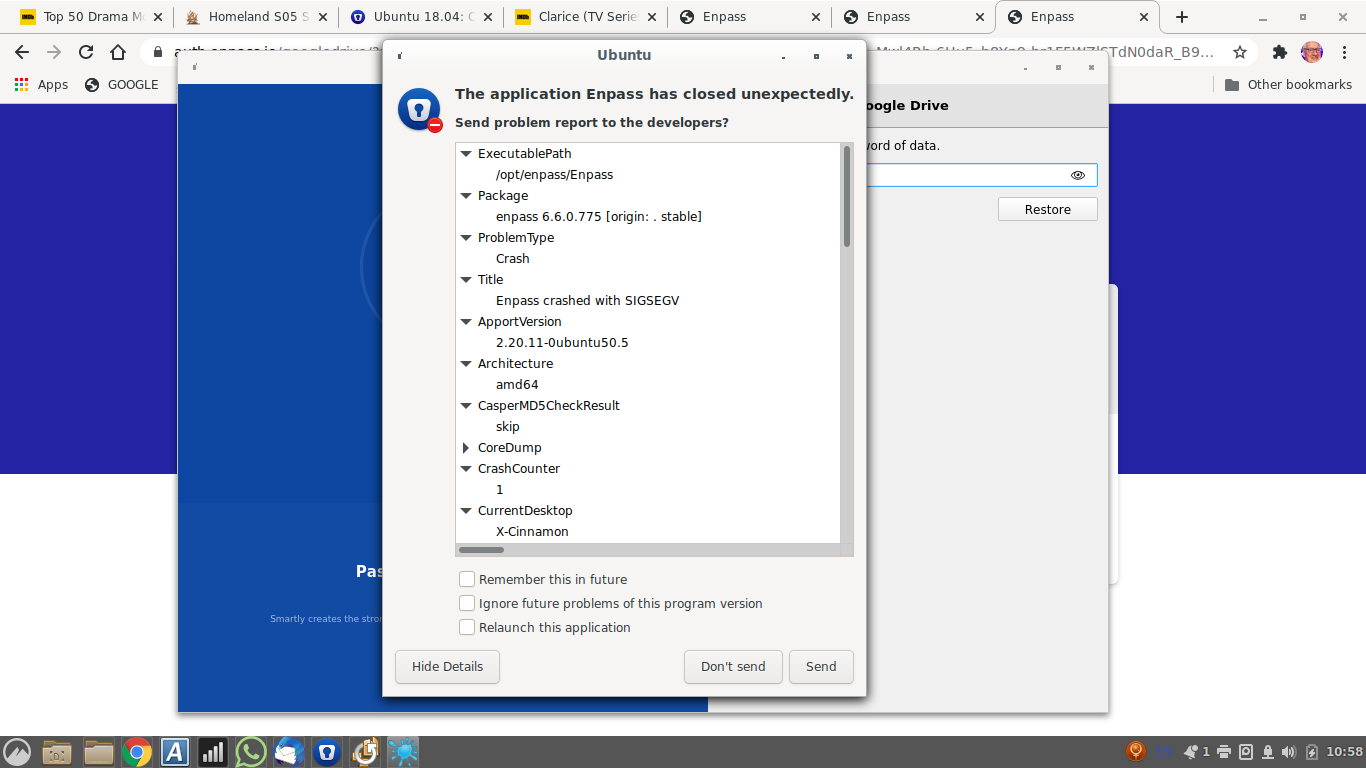
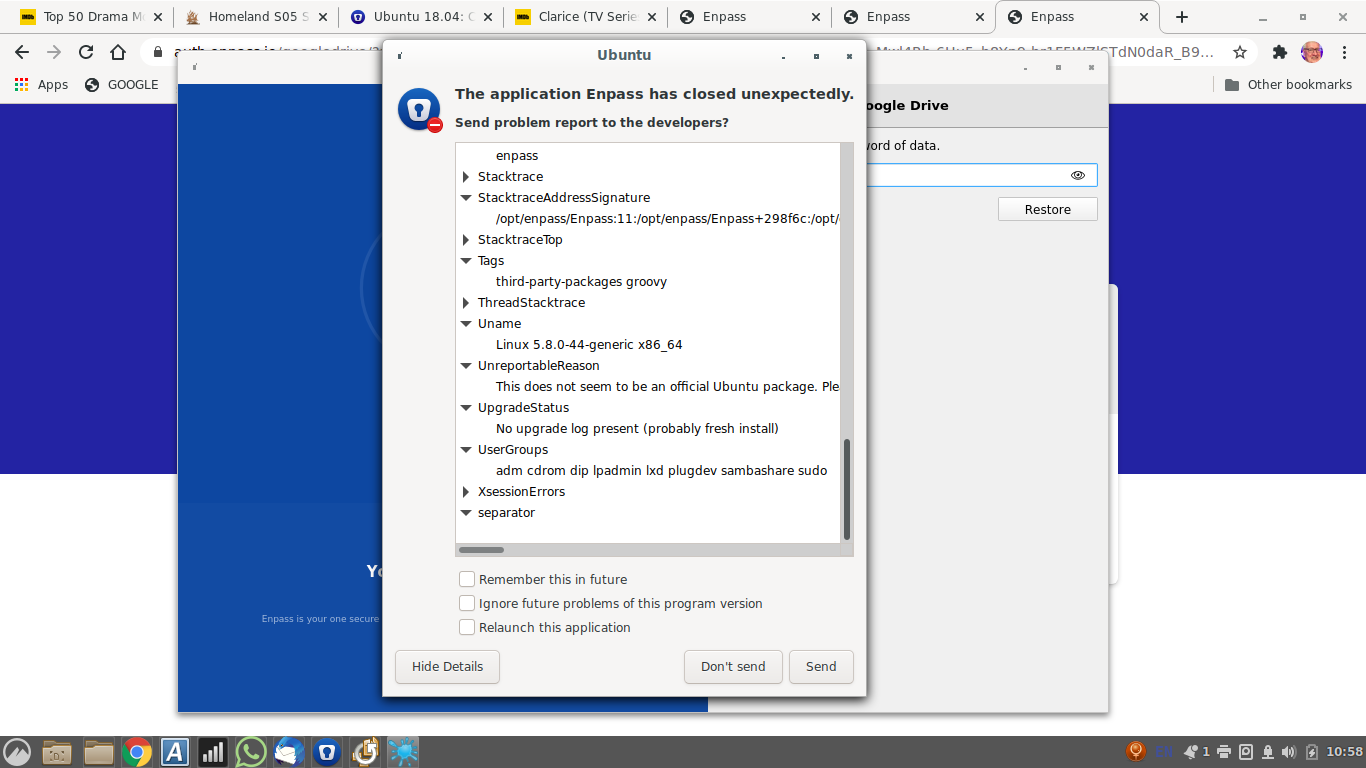
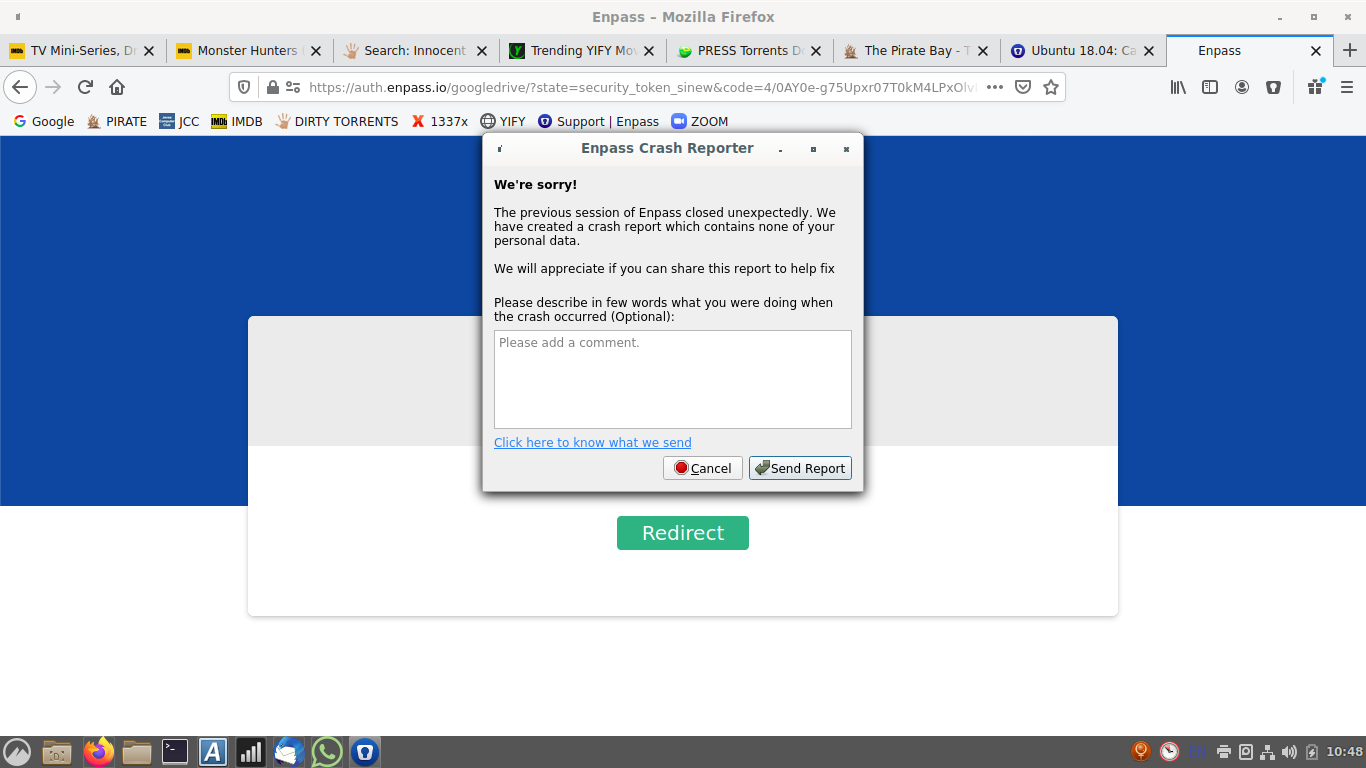
  1. Hi Pratyush More screen shot crash info in detail. ScottyJavea
  2. Hi Pratyush, Please attached screen shot. ScottyJavea
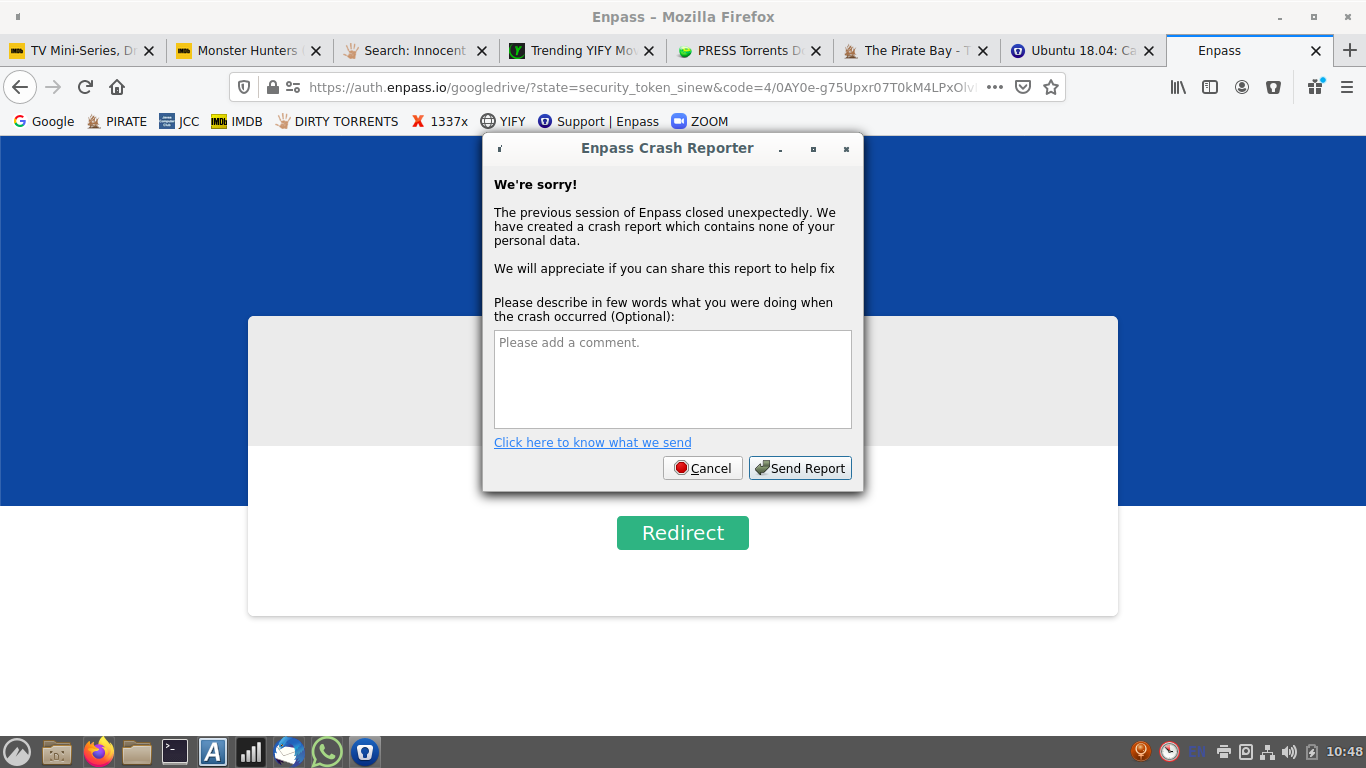
  3. Hi Garima, See attached image of crash report. Is this enough for you? ScottyJavea
  4. Hi Garima, Stuck again. Took six tries to get a response, so it does show that it will work. No problems with my Android app. Any ideas. ScottyJavea
  5. HI Garima, Started crashing again. Several reports have been sent. I haven't made any changes to anything. ScottyJavea
  6. Thanks for your reply Version 6.6.0 (775) Lenove laptop with Ubuntu Liux Two crash reports sent previously For some reason it has started working again without any changes being made from me. Long may it contunue Regards, ScottyJavea
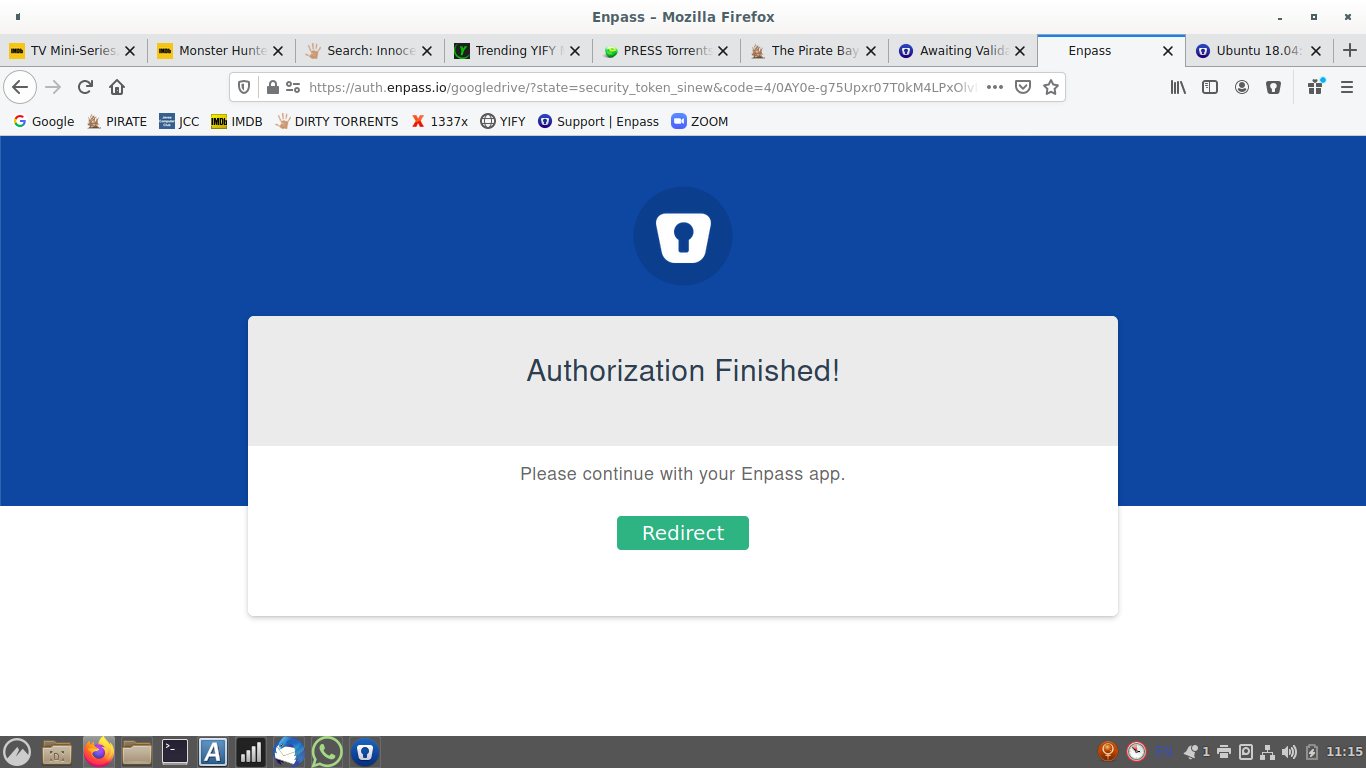
  7. Hi The Redirect just takes me back to the original Enpass page. I've tried Firefox and Chrome but no change to the problem. It used to work on Firefox.


Account

Navigation

Search

Search

Configure browser push notifications

Chrome (Android)
  1. Tap the lock icon next to the address bar.
  2. Tap Permissions → Notifications.
  3. Adjust your preference.
Chrome (Desktop)
  1. Click the padlock icon in the address bar.
  2. Select Site settings.
  3. Find Notifications and adjust your preference.