

Skip to content
View in the app

A better way to browse. Learn more.

Enpass Discussion Forum

A full-screen app on your home screen with push notifications, badges and more.

To install this app on iOS and iPadOS
  1. Tap the Share icon in Safari
  2. Scroll the menu and tap Add to Home Screen.
  3. Tap Add in the top-right corner.
To install this app on Android
  1. Tap the 3-dot menu (⋮) in the top-right corner of the browser.
  2. Tap Add to Home screen or Install app.
  3. Confirm by tapping Install.

herr.nilsson

Members
  • Joined

  • Last visited

  1. macOS Mojave 10.14.6 Safari 14.0.3
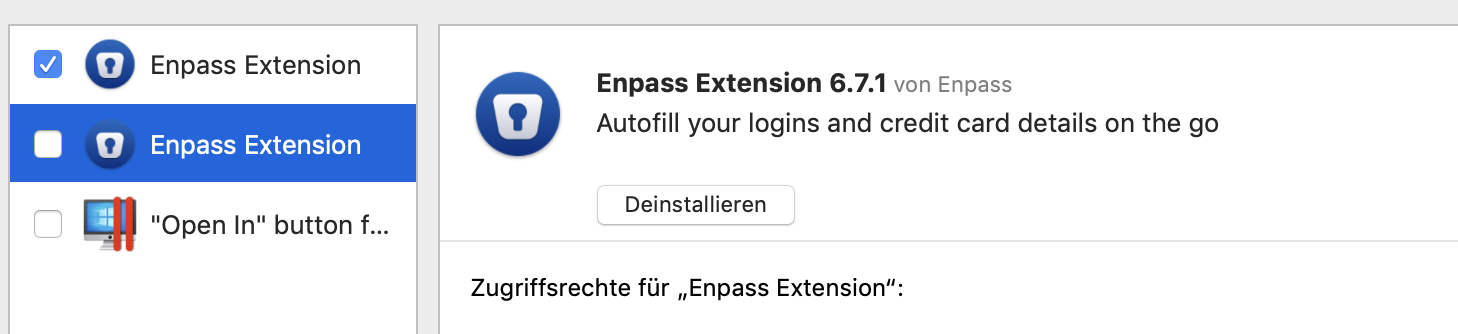
  2. Hi Gulshan, as you can see one extension is activated. This is the one from version 6.7.0. As written before I manually installed this from the Website after version 6.7.1 from the App Store didn't work. Now I'm using 6.7.0 - but the extension is twice in Safari. Can't uninstall the extension without uninstalling the whole app. So, I'll need to wait until you get this problem fixed and I can re-install 6.7.1
  3. Hi, manual downgrading to version 6.7.0 brought the solution. I know have 2 extensions installed of which the older one works. So, 6.7.1 does not work:
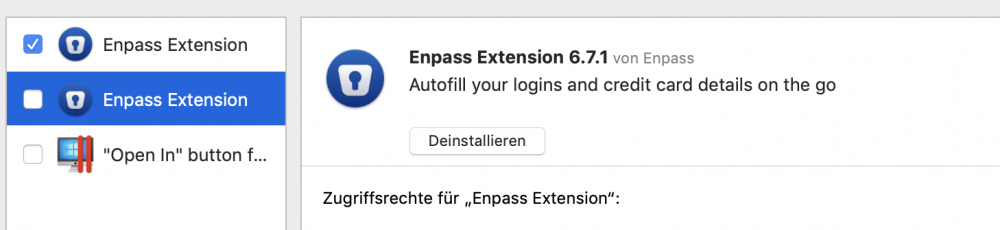
  4. Hi, after enpass' last update I don't see the button on the left side of the browser no more. Chrome and Firefox are fine. But in Safari it's gone. Extension is activated in Safari's preferences. Any ideas? Thanks!

Account

Navigation

Search

Search

Configure browser push notifications

Chrome (Android)
  1. Tap the lock icon next to the address bar.
  2. Tap Permissions → Notifications.
  3. Adjust your preference.
Chrome (Desktop)
  1. Click the padlock icon in the address bar.
  2. Select Site settings.
  3. Find Notifications and adjust your preference.
