


mazen3ssam21
Members
-
Joined
-
Last visited
-
Good morning, There is a bug with the placeholder value using Enpass on macbook (Chrome and firefox) and with android phones, it can't be change ! I use a website with three fields to log in : Username Password Decryption SQL Key For the decryption sql it can not be changed even after creating a new field specially for it, however it works fine with Bitwarden ! Hope that you can fix this soon Best regads, Mazen
-
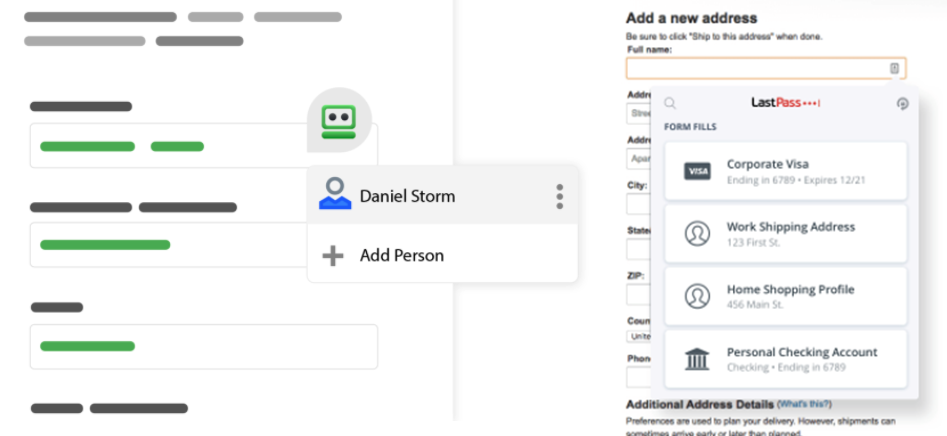
HI @Gulshan Dogra, Many thanks for your quick respond. Now it works fine with the automatic identity filling. I have two more questions if I may, The first one, for the same website as above, the enpass extension is not recognized in this web form, any idea why? Second question: Is it possible to have an icon in the cell to auto-fill the cells or the login sites? (screenshot attached to be more clear) Once again, thank you very much for your help and I wish the best for Enpass and its team.
-
Good morning, After a year, this problem is not fixed yet, any updates to share with us ?
