

Skip to content
View in the app

A better way to browse. Learn more.

Enpass Discussion Forum

A full-screen app on your home screen with push notifications, badges and more.

To install this app on iOS and iPadOS
  1. Tap the Share icon in Safari
  2. Scroll the menu and tap Add to Home Screen.
  3. Tap Add in the top-right corner.
To install this app on Android
  1. Tap the 3-dot menu (⋮) in the top-right corner of the browser.
  2. Tap Add to Home screen or Install app.
  3. Confirm by tapping Install.

ewryghdbf

Members
  • Joined

  • Last visited

  1. same problem, why don't you just admit that you have imposed sanctions against users from Russia
  2. browser download in official site https://www.opera.com unchecking the box "Authorize browsers with verified code signatures only" helped, the browser authorization code came
  3. Enpass re-installing Opera re-installing Enpass extension re-installing Install Chrome Extensions re-installing
  4. Opera version 80.0.4170.63 and Opera version 81.0.4196.31 not working Enpass application denied access to data. error 403
  5. OS Microsoft Windows 11 enpass microsoft store version 6.7.2 opera 81.0.4196.31 “Enable Extensions” enabled Enpass application is running in firefox browser and Microsoft Edge browser everything works
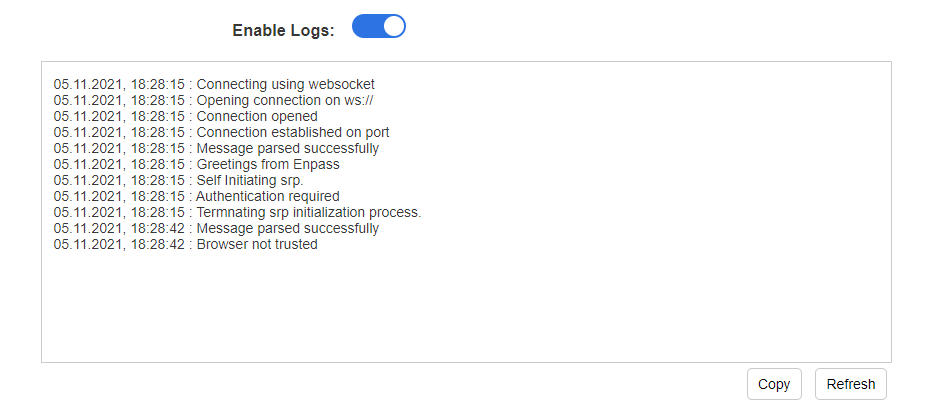
  6. windows 11 opera browser, browser authorization code does not come, app reinstalled add-on version Enpass extension (requires desktop app) 6.6.2 Install Chrome Extensions 2.5.9


Account

Navigation

Search

Search

Configure browser push notifications

Chrome (Android)
  1. Tap the lock icon next to the address bar.
  2. Tap Permissions → Notifications.
  3. Adjust your preference.
Chrome (Desktop)
  1. Click the padlock icon in the address bar.
  2. Select Site settings.
  3. Find Notifications and adjust your preference.