Skip to content
View in the app

A better way to browse. Learn more.

Enpass Discussion Forum

A full-screen app on your home screen with push notifications, badges and more.

To install this app on iOS and iPadOS
  1. Tap the Share icon in Safari
  2. Scroll the menu and tap Add to Home Screen.
  3. Tap Add in the top-right corner.
To install this app on Android
  1. Tap the 3-dot menu (⋮) in the top-right corner of the browser.
  2. Tap Add to Home screen or Install app.
  3. Confirm by tapping Install.

pmcruiser

Members
  • Joined

  • Last visited

Everything posted by pmcruiser

  1. Cycling the Wifi sync and going back to iCloud didn't work for me. @Abhishek Dewan do you have any timeline on when a new version will be out with a fix? Thanks!
  2. @Abhishek Dewan Hello! Any update on resolving this issue? Thanks! @pmcruiser
  3. Hi @Abhishek Dewan! Any update on this? Thanks!
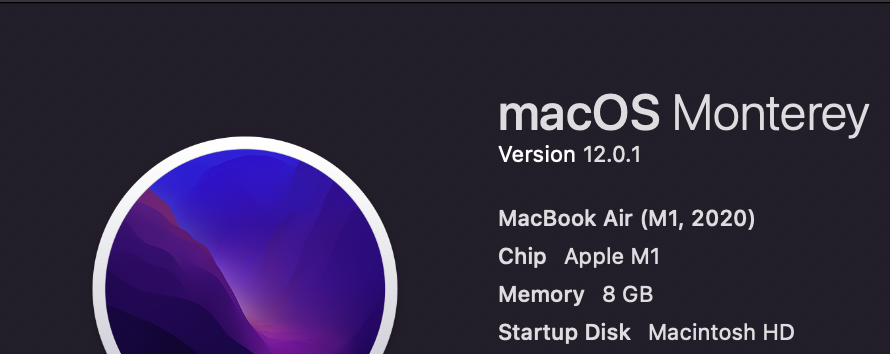
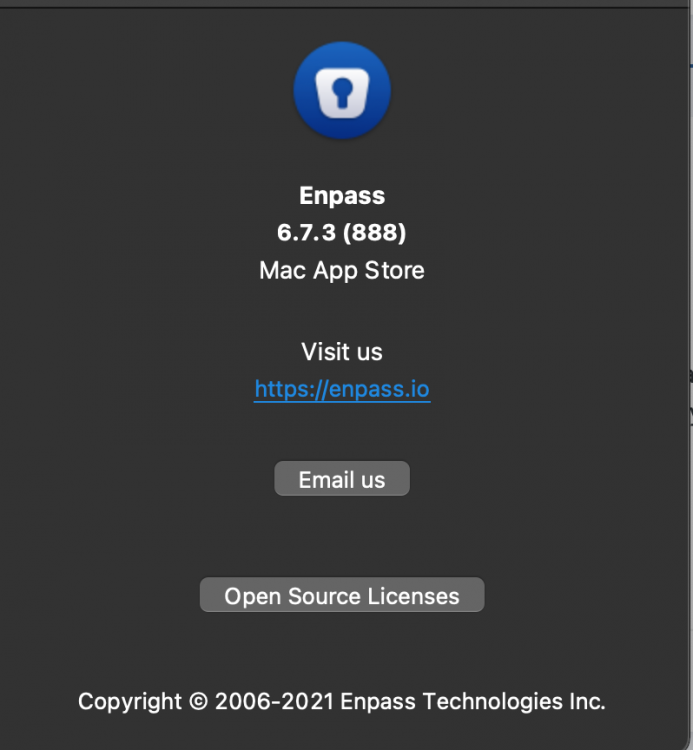
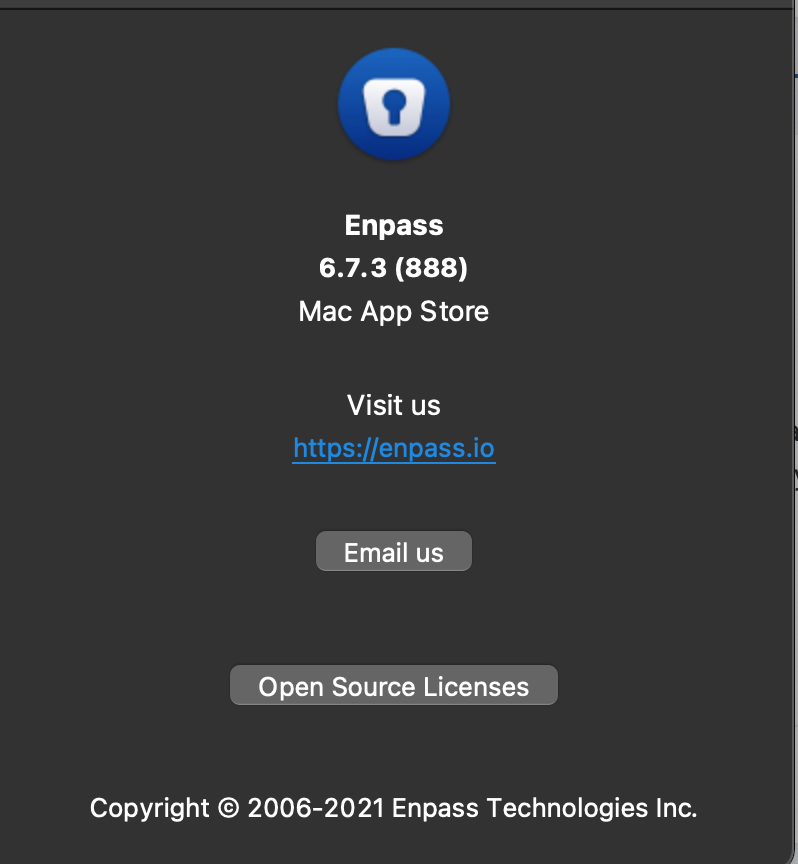
  4. Hi @Abhishek Dewan! I've deleted the app and data off my Mac Book air several times and tried to sync with the same results. I just tried to do what you suggested and I'm still having the issue on my M1 Mac Book air. My iPhone and Mac mini sync fine. I'm using Enpass version 6.7.3 (888) downloaded from the Apple App Store. (See screenshot) As I stated above this issue is only affecting my M1 Mac Book Air and not my Mac mini or my iPhone. I'm on Mac OS 12.0.1 (see screenshot)
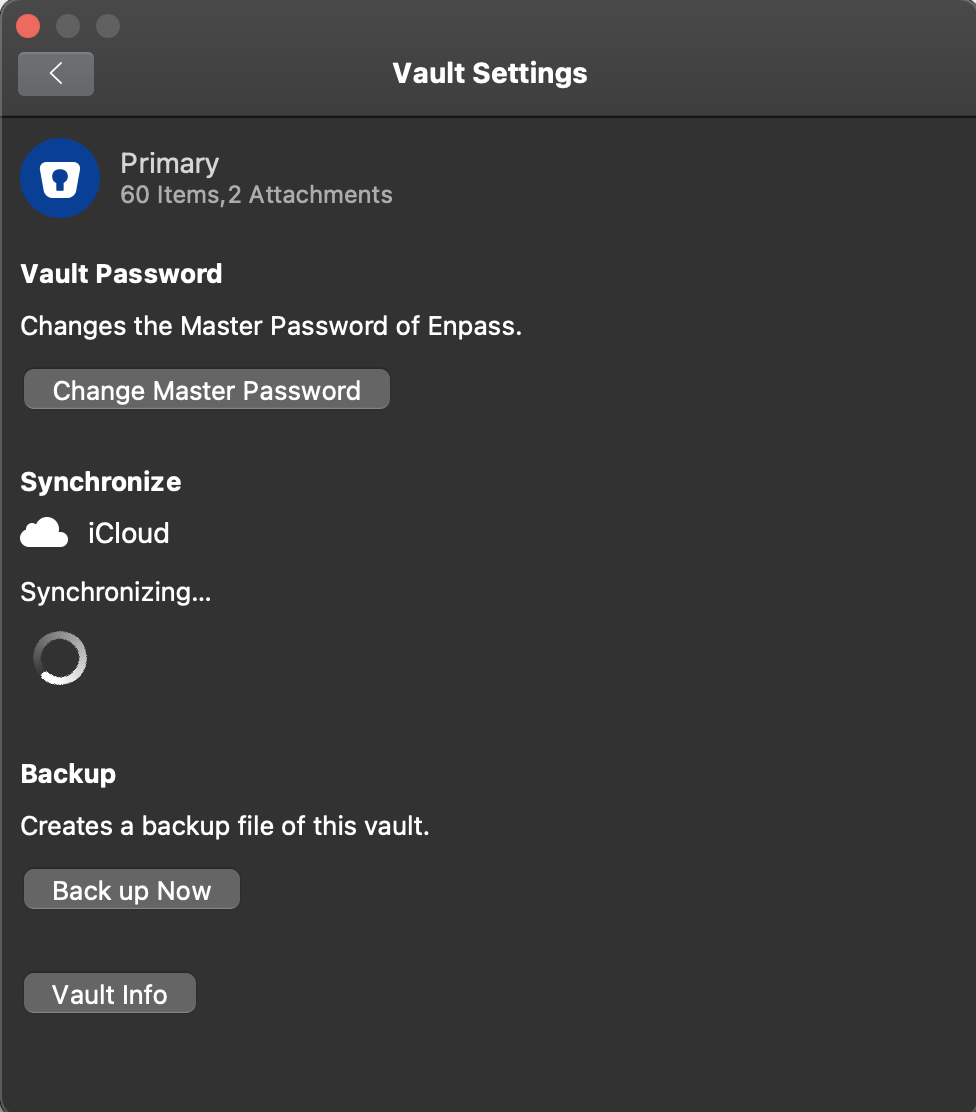
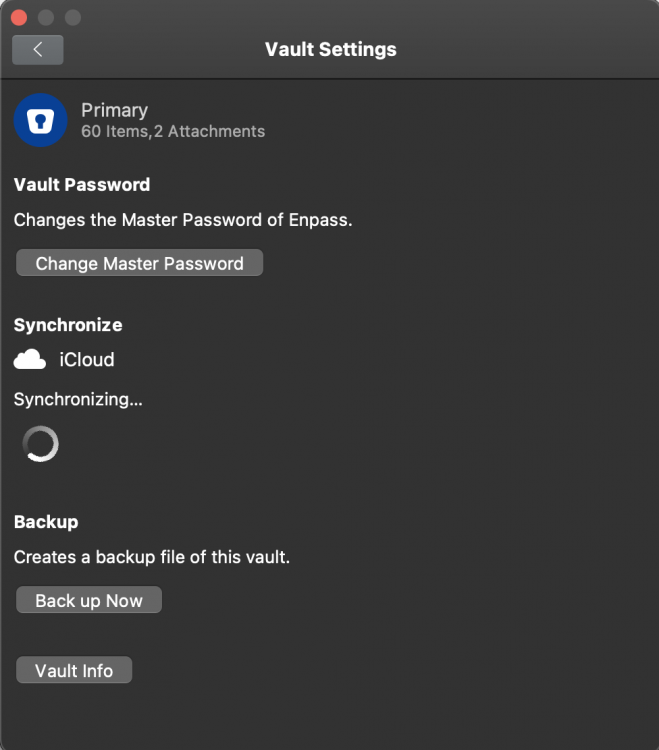
  5. I have a M1 Mac Book air and I've setup Enpass and synced it with the vault I have in iCloud. It downloads the vault but once it's done it keeps on trying to sync and never completes. If I make a change or add an entry it doesn't sync it to iCloud. This is pretty frustrating since I use the laptop a lot and would like to be able to add items to Enpass and have it sync to my other devices that are synced to the cloud (iPhone and Mac Mini). Any insight on how this can be resolved?
Account

Navigation

Search

Search

Configure browser push notifications

Chrome (Android)
  1. Tap the lock icon next to the address bar.
  2. Tap Permissions → Notifications.
  3. Adjust your preference.
Chrome (Desktop)
  1. Click the padlock icon in the address bar.
  2. Select Site settings.
  3. Find Notifications and adjust your preference.