deanso
Members
-
Joined
-
Last visited
-
Ok I did as you asked and the filling seems correct now, so that's good . But I still don't have the option "Show Webform" as in your screenshot (I do use firefox as browser). Is that something I need to fix?
-
Hi @Manish, Thanks for your reaction. I haven't noticed any issues until now with the extension having different passwords than the app. But I don't have a button "show Webform" :
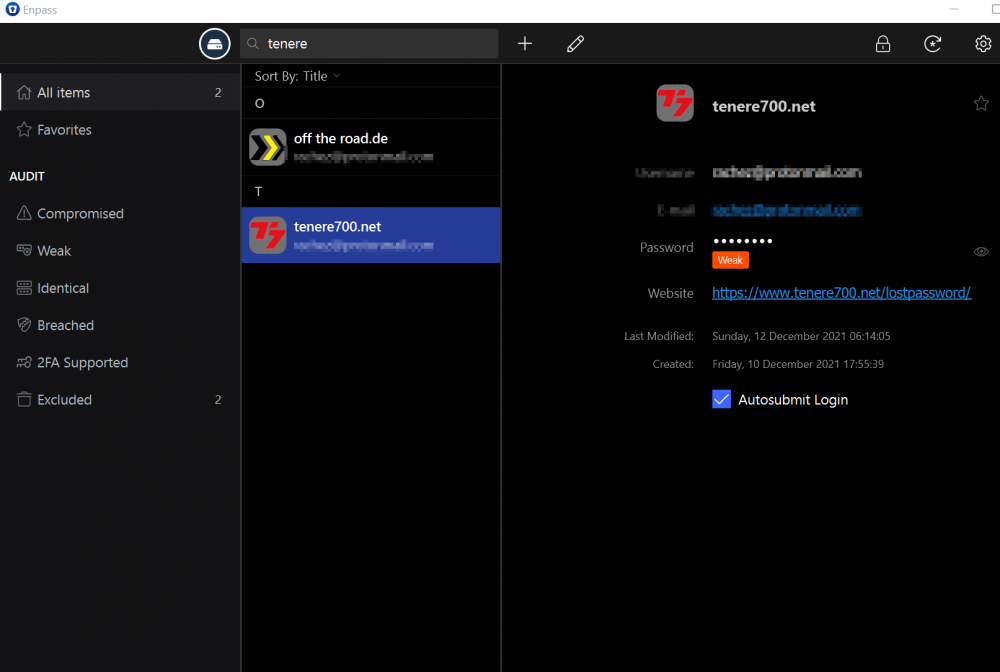
-
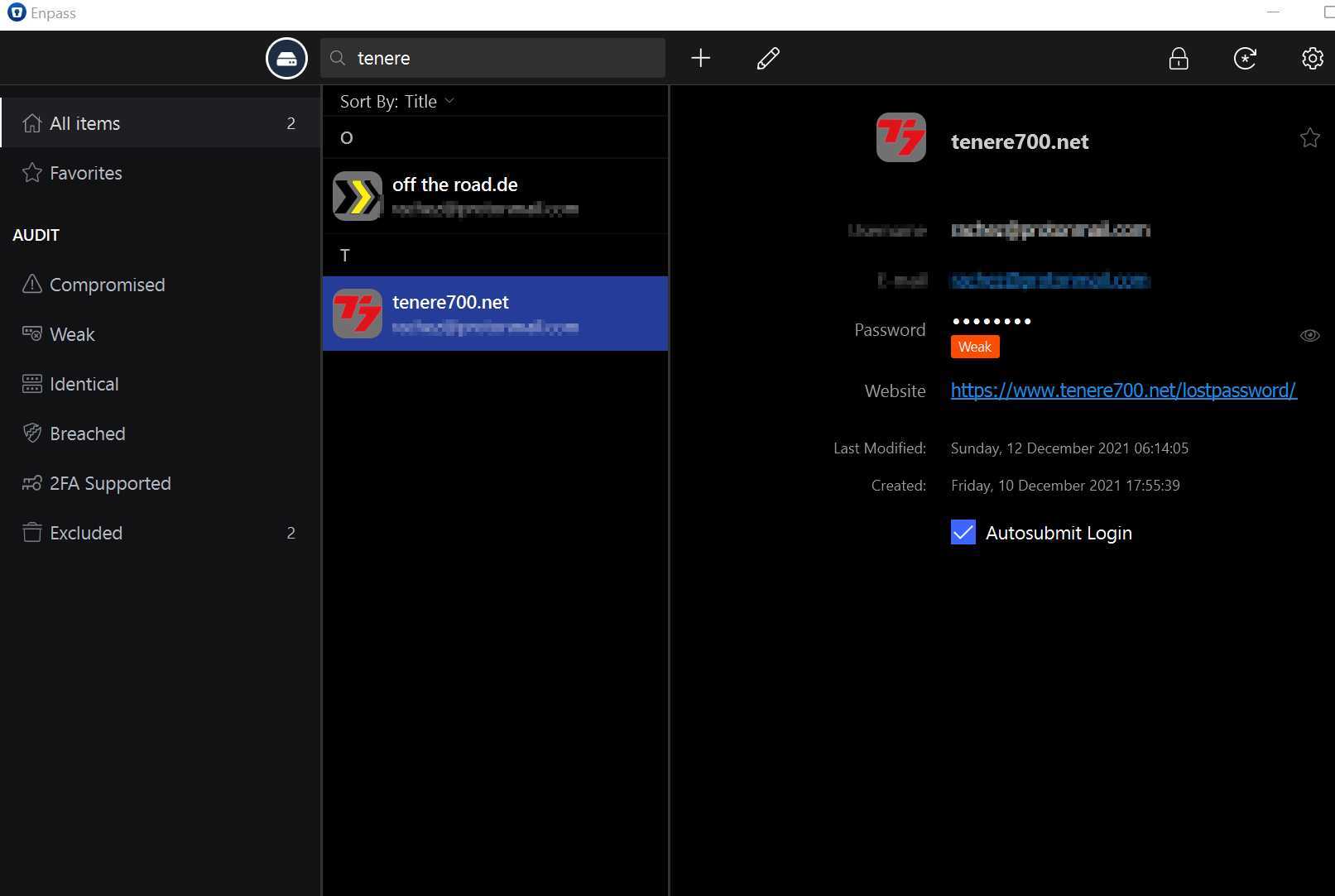
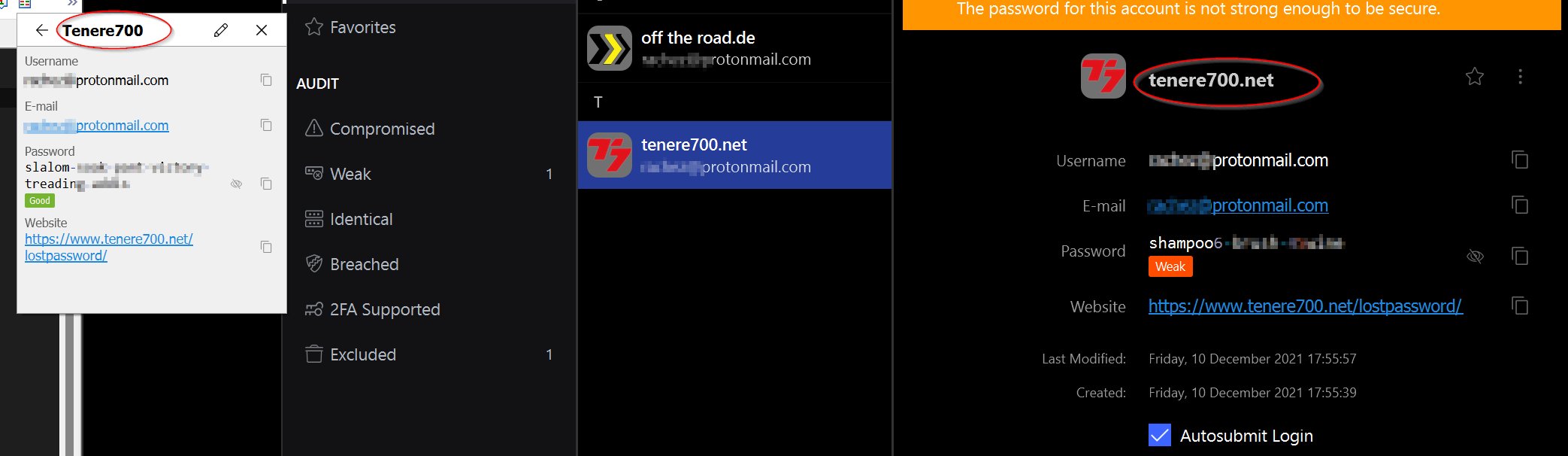
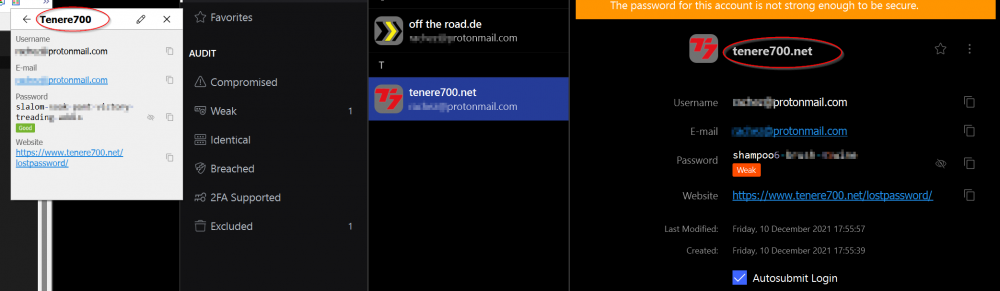
Just noticed somethin weird today: when I login a website through the enpass firefox browser plugin, it doesn't have the same entry for tenere700 website as the windows 11 app. See screenshot: the white window is my browser enpass plugin entry for tenere700. To the left is the windows 11 app. The passwords are different and the name is not the same. Also in the windows 11 app there is no entry "Tenere700", only "Tenere700.net" Does the plugin needs to sync with the main vault or what is going wrong here?
-
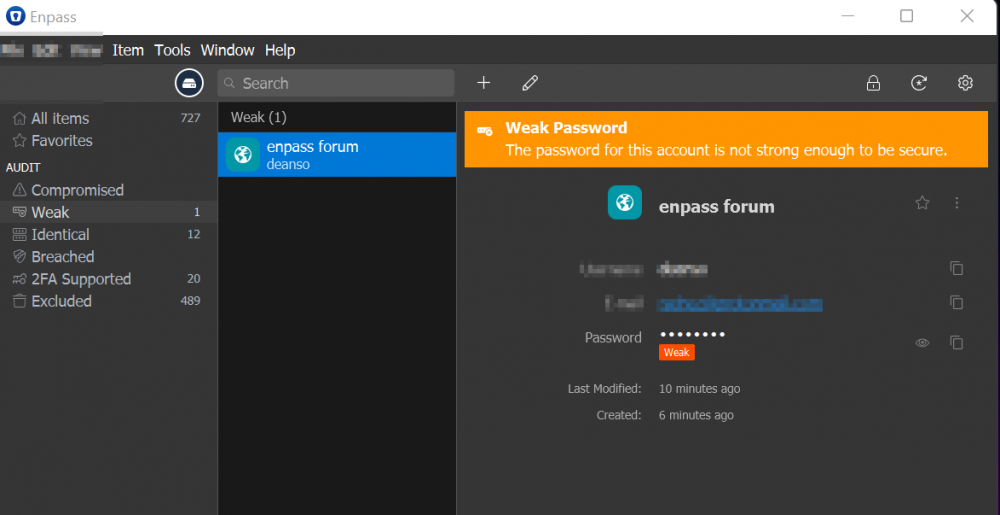
Ok, I can turn off all those warnings about weak passwords in one go, but how do I prevent weak passwords warnings popping up when I create a new password. I often like to have the option to manually type in a password, so I can't use strong passwords for all my accounts all the time, especially if it's an password for a forum or so.