

Skip to content
View in the app

A better way to browse. Learn more.

Enpass Discussion Forum

A full-screen app on your home screen with push notifications, badges and more.

To install this app on iOS and iPadOS
  1. Tap the Share icon in Safari
  2. Scroll the menu and tap Add to Home Screen.
  3. Tap Add in the top-right corner.
To install this app on Android
  1. Tap the 3-dot menu (⋮) in the top-right corner of the browser.
  2. Tap Add to Home screen or Install app.
  3. Confirm by tapping Install.

alanj

Members
  • Joined

  • Last visited

  1. Many thanks. Seems like the browser had indeed updated in the background and a restart sorted it. All working now and I have even got rid of the annoying blue box, so happy. Cheers Alan
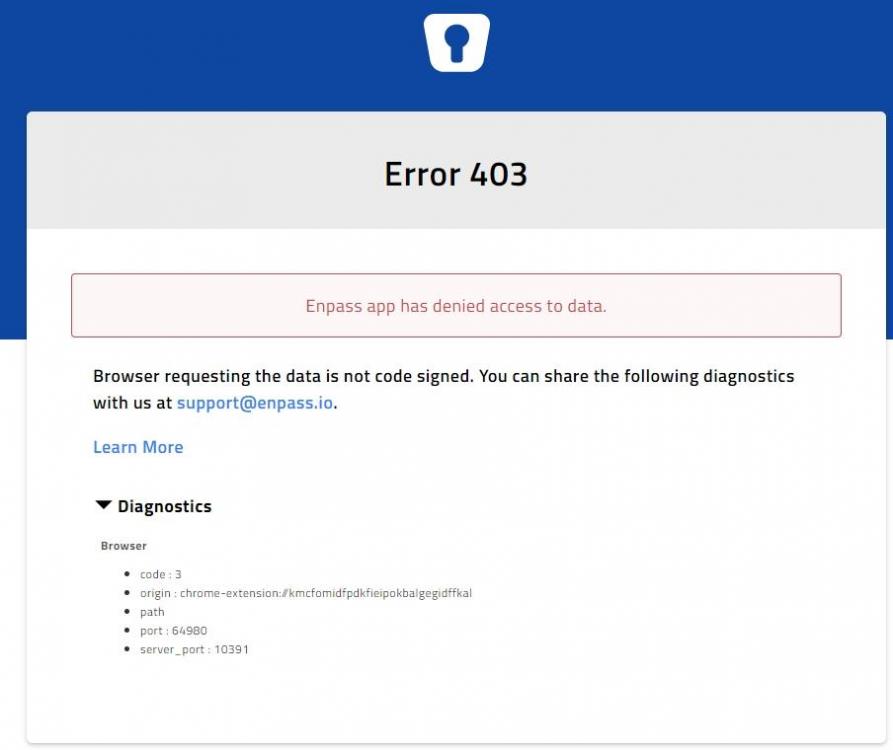
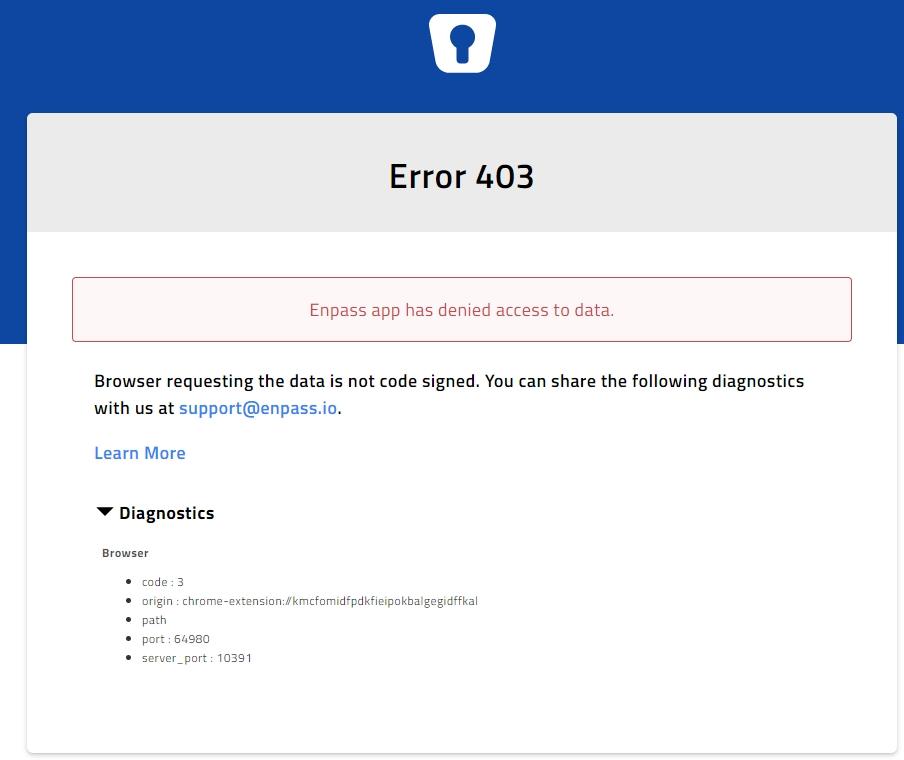
  2. When I click on the Enpass browser extension icon I now get an error page saying 403 error. See attached screenshot. This used to just open a small version of Enpass. Using Brave Browser on Windows. Thanks Alan
  3. I'll second that. It's incredibly annoying as pops up on many fields even when not related to userids or passwords. It also sits on top of buttons and fields I need to access. So an option to remove it completely would be ideal please, or do I have to remove the browser extension and forgo the autofill? Alan

Account

Navigation

Search

Search

Configure browser push notifications

Chrome (Android)
  1. Tap the lock icon next to the address bar.
  2. Tap Permissions → Notifications.
  3. Adjust your preference.
Chrome (Desktop)
  1. Click the padlock icon in the address bar.
  2. Select Site settings.
  3. Find Notifications and adjust your preference.