


Topa
Members
-
Joined
-
Last visited
-
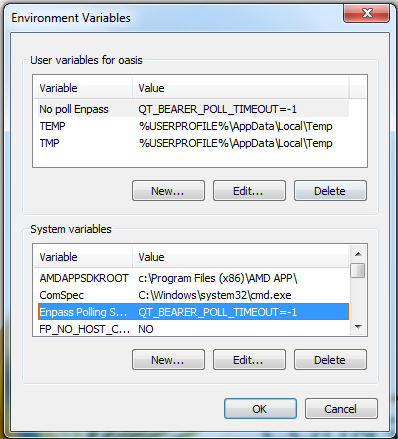
It's an office computer, so I wasn't sure if it needed to go in both User and System or just one. Thanks again for your help!
-
Thanks for the response @Vinod Kumar, However the system gets shut down daily, so I know it's not a re-login issue, but it still hasn't been effective. And as far as I can tell I've imputed it into the system correctly. It freezes the whole computer, even when I don't have much running: Spotify and a few browser taps of chrome. It does it mainly when I go to log into something or if I try to use enpass's autofill feature. Several times it's caused the whole screen to black out and come back on, slowly reloading any windows I had open. Any ideas would be appreciated. Thank you.
-
Hi there, I am experiencing this same type of issue on a Windows 7 Home Premium computer. The workaround does not work for me. Processor: AMD E2-1800 APU RAM: 4 GB 64-bit operating system Is there a current workaround for Windows 7 specifically? Thank you.