Skip to content
View in the app

A better way to browse. Learn more.

Enpass Discussion Forum

A full-screen app on your home screen with push notifications, badges and more.

To install this app on iOS and iPadOS
  1. Tap the Share icon in Safari
  2. Scroll the menu and tap Add to Home Screen.
  3. Tap Add in the top-right corner.
To install this app on Android
  1. Tap the 3-dot menu (⋮) in the top-right corner of the browser.
  2. Tap Add to Home screen or Install app.
  3. Confirm by tapping Install.

Sh4aa

Members
  • Joined

  • Last visited

  1. It's very strange that the license is related to the `email` field and not to the `user id`
  2. When selecting a custom icon, two options are offered: Camera or Gallery. This is very uncomfortable, please provide the ability to select the file from the /sdcard. I prefer to use svg icons which don't display in the gallery by default
  3. @Pratyush Sharma, @Abhishek Dewan See how KeePassDX solved it https://github.com/Kunzisoft/KeePassDX/pull/1114 and https://github.com/Kunzisoft/KeePassDX/commit/c0ac01a34a022b2508897e5e210d067631264612
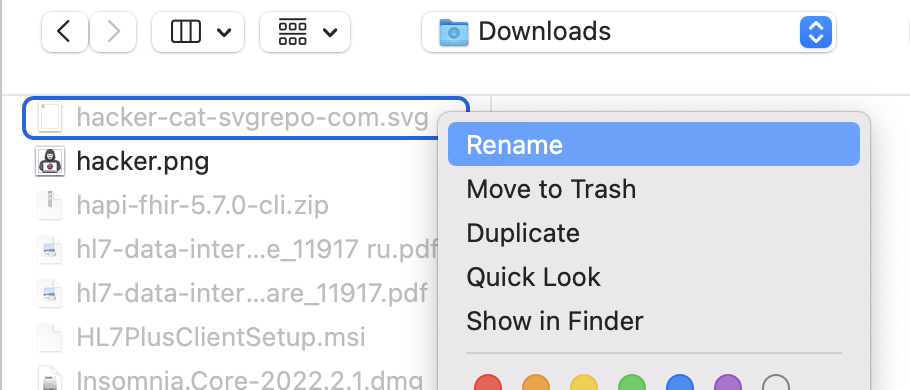
  4. Please add support for *.svg icons. Tricky way for use svg icons to the item in the MacOS app: right click on the svg icon, and select "Rename", after which click "Open" The svg icon is displayed normally on the MacOS app and Android app. (Didn't test on other platforms)

Account

Navigation

Search

Search

Configure browser push notifications

Chrome (Android)
  1. Tap the lock icon next to the address bar.
  2. Tap Permissions → Notifications.
  3. Adjust your preference.
Chrome (Desktop)
  1. Click the padlock icon in the address bar.
  2. Select Site settings.
  3. Find Notifications and adjust your preference.