IPMedien
Members
-
Joined
-
Last visited
-
Or maybe you have a solution for me in the meantime? Because if I save passwords on the PC, I would like to use them on my iphone too. Sync over WiFi does not work as far as I know
-
hey and thanks for the reply. When can I expect it to work again? i don't want to be rude but i pay every month to use this on my iphone too. Regards
-
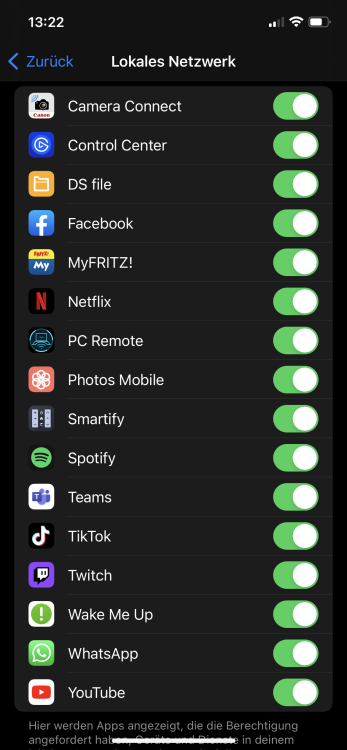
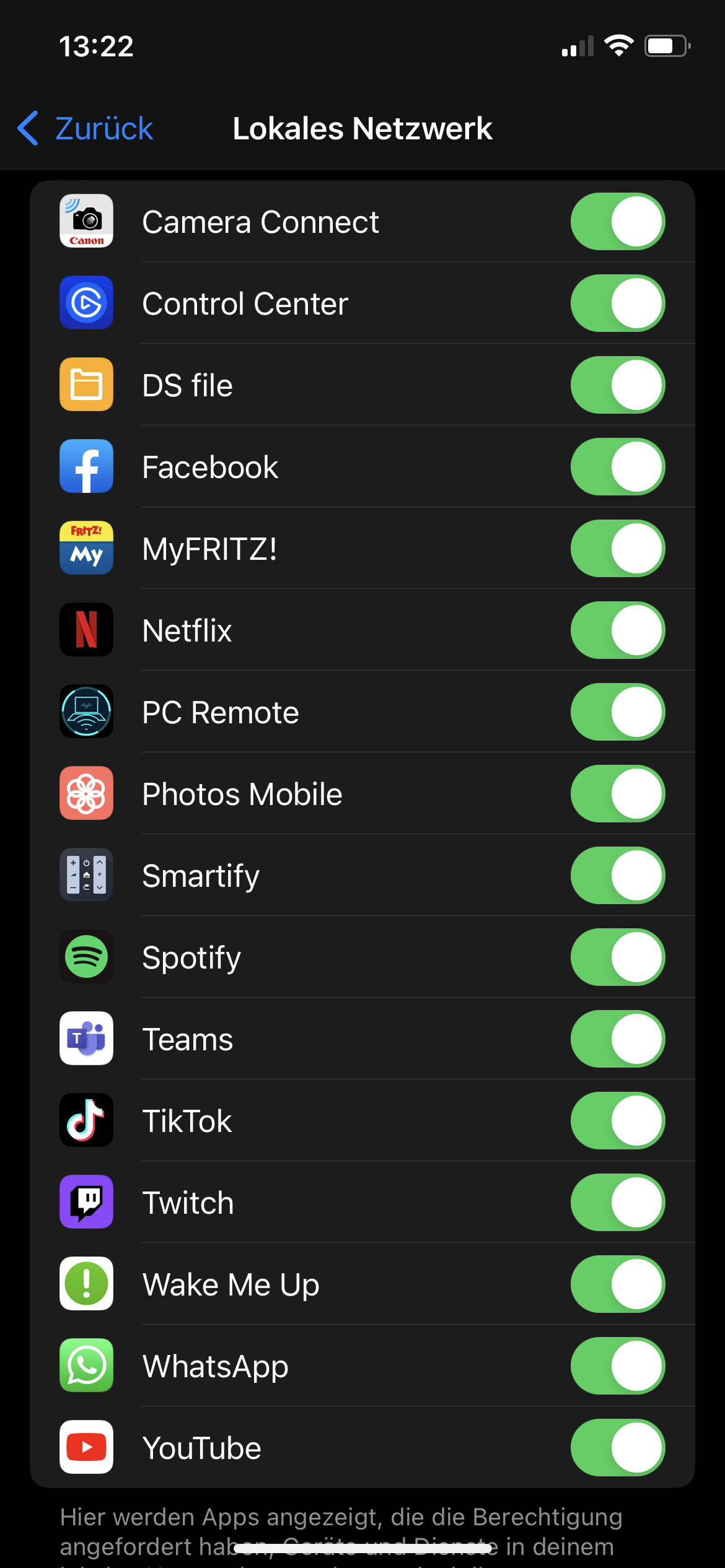
Hey there, i have following Issue. On my Windows PC works syncing with WebDAV. On my iPhone it’s not working anymore. I got all the time the same error that my WebDAV is not founding. I tried to reinstall the App but still doesn’t work. Also tried to reset my network settings and the same thing. The thing is, I saw in some Troubleshooting articles that I have to activate the Option in Privacy / Local Network but the Option is not there. Error message: Could not connect to specified WebDAV folder produce. Check yours username and your password. Im pretty sure that the username, the Password and the URL is correctly. my iOS Version is Up-to-Date (15.5 iOS) I’m using a Synology d220+ Can someone help me because I’m using Enpass professional regards