Carsten1
Members
-
Joined
-
Last visited
Everything posted by Carsten1
-
Sure, this never stopped from happening.... :( I get this now about every 3rd system startup

-
I don't have a second Application folder but it happens for me. Although it now happens very rarely since I updated to Ventura. I assume it is some kind of race condition.
-
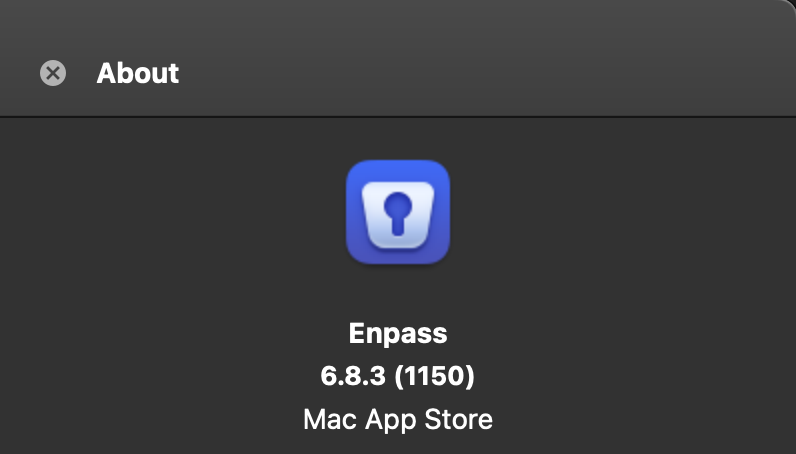
It happened again with 6.8.3. Just an idea: I have multiple Desktops. When I click on one of the icons, it opens on Desktop 2, even though I am on Desktop 1.
-
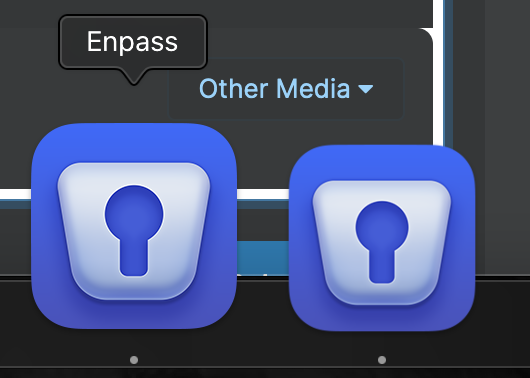
Same here. It happened again. When I click on one of the icons, the Enpass main window appears. Once I close that main window, that Icon disappears. When I click on the next Icon, the main window appears again. When I close it, that Icon disappears again. And so on until every Icon is away.

-
Well, I am also only having that issue from time to time. It didn't happen for some days now. I have 6.8.2 already running since 5 days. Maybe that solves the problem.
-
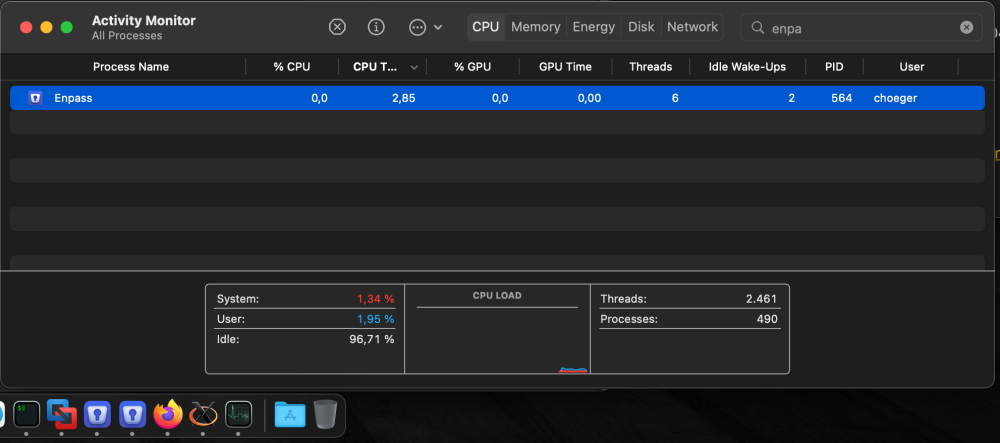
There's only one Enpass installed. There's only one instance running but today it shows two app icons. Not sure what kind of changes you referring to. It didn't happen some days, but today it showed up with two icons.
-
Hi, I have the same issue and I know one other person having it as well. Is there any update on this?