Gordian
Members
-
Joined
-
Last visited
-
Support team has just confirmed that the backend team has reproduced this issue and that it will be fixed in the next release of Enpass.
-
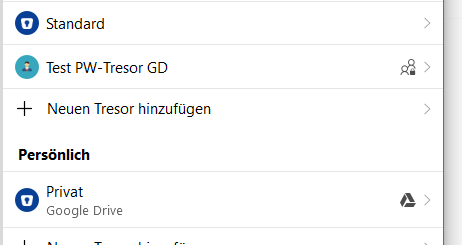
New user here on the Windows app v. 6.8.2 (1084) (business standard plan trial account). I'd like to create a secondary vault which I want to share with other people on my team. I have managed to create a secondary vault (which is on the same MS 360 account of the company than the primary vault), as well as a private vault (which is on my private Google Drive). However, I cannot add any passwords to the secondary vault. When logging into a webpage the sidebar only proposes the “Standard” and the “Private” vault as possible destinations for new passwords. Also, it is not possible to create an item in the secondary vault within the Enpass app, or move an item to it. Same problem here: the dropdown menu only shows the “Standard” and the “Private” vault. In the vault settings, I notice that there is a particular symbol with a lock in the line of the secondary vault (which is named “Test PW-Tresor GD”), see attached screenshot. Does this have anything to do with the problem? Thanks for your help. Sorry if this is a stupid question but I did not find an answer in the manual.