paco
Members
-
Joined
-
Last visited
-
That's great to hear. Thanks.
-
Ok. The logs don't say anything useful at all. It's just the same few lines repeated over and over. I've added it at the bottom of this post. Amusingly '.txt' files are not allowed on the forums here. Only pictures. So I can't attach the text file of the logs. While doing this, I discovered something really strange. If I go through the following process I get a different error: Click Vault Settings and choose 'Connect' Select Nextcloud Paste in my nextcloud server https://SERVER/remote.php/dav/files/USERNAME/ Enable 'Bypass SSL Certificate verification' Click 'Connect' At this point, I normally get redirected to my web browser where I authorise the connection. But when I enable 'bypass verification' I don't go to the web browser. The program immediately displays a red error Could not connect to specified WebDAV folder. Check your username and password. My web browser never gets activated. That's weird. Nothing different is in the logs. It's still just the enable/disable proxy stuff. You ask about VPN and anti-virus. I do use VPN sometimes, but these behaviours are consistent on and off the VPN. My company installs a lot of different security packages on this laptop, and I'm not sure exactly which ones they are. Crowdstrike Falcon is the only one I'm sure about. There's no well-known, heavyweight antivirus like McAfee, Symantec, or Kaspersky. Here's the logs, for what they're worth. Info: [HTTP] Enabling VERIFY SSL PEER/HOST Info: [HTTP] Using AUTO Proxy detection Info: [HTTP] Enabling VERIFY SSL PEER/HOST Info: [HTTP] Using AUTO Proxy detection Info: [HTTP] Enabling VERIFY SSL PEER/HOST Info: [HTTP] Using AUTO Proxy detection Info: [HTTP] Enabling VERIFY SSL PEER/HOST Info: [HTTP] Using AUTO Proxy detection Info: [HTTP] Enabling VERIFY SSL PEER/HOST Info: [HTTP] Using AUTO Proxy detection Info: [HTTP] Enabling VERIFY SSL PEER/HOST Info: [HTTP] Using AUTO Proxy detection Info: [HTTP] Disabling VERIFY SSL PEER/HOST Info: [HTTP] Using AUTO Proxy detection Info: [HTTP] Disabling VERIFY SSL PEER/HOST Info: [HTTP] Using AUTO Proxy detection Info: [HTTP] Disabling VERIFY SSL PEER/HOST Info: [HTTP] Using AUTO Proxy detection Info: [HTTP] Disabling VERIFY SSL PEER/HOST Info: [HTTP] Using AUTO Proxy detection Info: [HTTP] Enabling VERIFY SSL PEER/HOST Info: [HTTP] Using AUTO Proxy detection Info: [HTTP] Enabling VERIFY SSL PEER/HOST Info: [HTTP] Using AUTO Proxy detection Info: [HTTP] Enabling VERIFY SSL PEER/HOST Info: [HTTP] Using AUTO Proxy detection Info: [HTTP] Enabling VERIFY SSL PEER/HOST Info: [HTTP] Using AUTO Proxy detection Info: [HTTP] Enabling VERIFY SSL PEER/HOST Info: [HTTP] Using AUTO Proxy detection Info: [HTTP] Enabling VERIFY SSL PEER/HOST Info: [HTTP] Using AUTO Proxy detection Info: [HTTP] Enabling VERIFY SSL PEER/HOST Info: [HTTP] Using AUTO Proxy detection Info: [HTTP] Enabling VERIFY SSL PEER/HOST Info: [HTTP] Using AUTO Proxy detection Info: [HTTP] Enabling VERIFY SSL PEER/HOST Info: [HTTP] Using AUTO Proxy detection Info: [HTTP] Disabling VERIFY SSL PEER/HOST Info: [HTTP] Using AUTO Proxy detection Info: [HTTP] Disabling VERIFY SSL PEER/HOST Info: [HTTP] Using AUTO Proxy detection Info: [HTTP] Disabling VERIFY SSL PEER/HOST Info: [HTTP] Using AUTO Proxy detection Info: [HTTP] Disabling VERIFY SSL PEER/HOST Info: [HTTP] Using AUTO Proxy detection Info: [HTTP] Enabling VERIFY SSL PEER/HOST Info: [HTTP] Using AUTO Proxy detection Info: [HTTP] Enabling VERIFY SSL PEER/HOST Info: [HTTP] Using AUTO Proxy detection Info: [HTTP] Enabling VERIFY SSL PEER/HOST Info: [HTTP] Using AUTO Proxy detection Info: [HTTP] Enabling VERIFY SSL PEER/HOST Info: [HTTP] Using AUTO Proxy detection Info: [HTTP] Enabling VERIFY SSL PEER/HOST Info: [HTTP] Using AUTO Proxy detection Info: [HTTP] Disabling VERIFY SSL PEER/HOST Info: [HTTP] Using AUTO Proxy detection Info: [HTTP] Disabling VERIFY SSL PEER/HOST Info: [HTTP] Using AUTO Proxy detection Info: [HTTP] Disabling VERIFY SSL PEER/HOST Info: [HTTP] Using AUTO Proxy detection Info: [HTTP] Disabling VERIFY SSL PEER/HOST Info: [HTTP] Using AUTO Proxy detection Info: [HTTP] Disabling VERIFY SSL PEER/HOST Info: [HTTP] Using AUTO Proxy detection Info: [HTTP] Disabling VERIFY SSL PEER/HOST Info: [HTTP] Using AUTO Proxy detection Info: [HTTP] Enabling VERIFY SSL PEER/HOST Info: [HTTP] Using AUTO Proxy detection Info: [HTTP] Enabling VERIFY SSL PEER/HOST Info: [HTTP] Using AUTO Proxy detection Info: [HTTP] Enabling VERIFY SSL PEER/HOST Info: [HTTP] Using AUTO Proxy detection Info: [HTTP] Enabling VERIFY SSL PEER/HOST Info: [HTTP] Using AUTO Proxy detection Info: [HTTP] Enabling VERIFY SSL PEER/HOST Info: [HTTP] Using AUTO Proxy detection Info: [HTTP] Enabling VERIFY SSL PEER/HOST Info: [HTTP] Using AUTO Proxy detection Info: [HTTP] Enabling VERIFY SSL PEER/HOST Info: [HTTP] Using AUTO Proxy detection Info: [HTTP] Disabling VERIFY SSL PEER/HOST Info: [HTTP] Using AUTO Proxy detection Info: [HTTP] Disabling VERIFY SSL PEER/HOST Info: [HTTP] Using AUTO Proxy detection Info: [HTTP] Disabling VERIFY SSL PEER/HOST Info: [HTTP] Using AUTO Proxy detection Info: [HTTP] Disabling VERIFY SSL PEER/HOST Info: [HTTP] Using AUTO Proxy detection
-
I'm using MacOS Big Sur 11.6.6 (20G624). I'm willing to consider creating a demo account, but I'd like to try other techniques first. I'm super technical, so I can dig up log files, run in debug modes, or do anything else that would give more information. Is there a place where the Enpass app stores some detailed technical logs? Any way I can either turn them on or access them? Before I go granting access to my systems, please tell me how I can get more details out of the Enpass app.
-
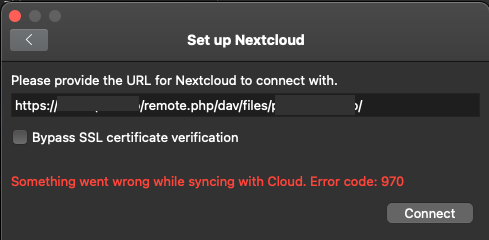
Hi. I'm using Enpass Mac Desktop 6.8.2 (1081) and I'm trying to sync to Nextcloud (I run Nextcloud 23.0.7). I have successfully synched via WebDAV with Nextcloud for years. But something has stopped working recently on my laptop. My mobile devices (IOS 15.6) continue to synchronise just fine. I disconnected the sync on the mac desktop and then tried to re-establish it. For the WebDAV URL, I enter what Nextcloud tells me to enter: https://MYSERVER/remote.php/dav/files/MYUSER/ I am then sent to the authentication page for my Nextcloud server. I click 'Login' and then I click 'Grant' to permit Enpass to have access. Nextcloud says everything is successful. When I go back to Enpass, however, it is not successful. Attached is a screenshot. "Something went wrong while syncing with Cloud. Error code: 970". Can someone please explain Error code 970? And how can I get more information about what's going on?