


Zoran
Members
-
Joined
-
Last visited
-
Hey, Thank you , you are very kind ... "In the meantime, as a workaround, create one folder (without creating any subfolder) and then change the Enpass backup location." beause I am in IT developing bussines trust me I tried this and much more in a way to solve this. The last step was creating a question here :) BYW I am realy satisfied with Enpass and find it very useful and user friendly. Do not have plan to change. Thank you very much
-
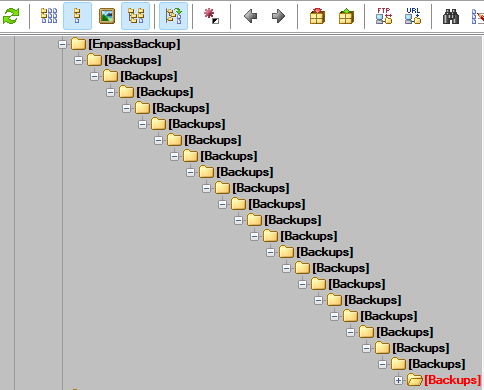
Thanks for the info, it works . But still when I want to change location for Automatic Backup it create the same infinity "Backups" folders ... as I shared in the image Any idea ?
-
Dear all, I have an interesting problem. When I want to setup local computer location app Add xxx\Backups\Backups\Backups\Backups\Backups\Backups\Backups...infinity times The same when I want change local location I use Enpass 6.8.5 (1238) on Windows 11. Everythig else working as expected Have you similar problems ar have any solutions Thanks
-
That is correct, I thought it was easy thanks
-
Hi all, I think it is easy but I cannot find the option. How can access data from Primary vault to another vault recently created ? 1. I created a new vault 2. add some data inside (from primary vault) 3. can I access that data (see 2.) from primary vault ? Thank you
