Skip to content
View in the app

A better way to browse. Learn more.

Enpass Discussion Forum

A full-screen app on your home screen with push notifications, badges and more.

To install this app on iOS and iPadOS
  1. Tap the Share icon in Safari
  2. Scroll the menu and tap Add to Home Screen.
  3. Tap Add in the top-right corner.
To install this app on Android
  1. Tap the 3-dot menu (⋮) in the top-right corner of the browser.
  2. Tap Add to Home screen or Install app.
  3. Confirm by tapping Install.

MK M

Members
  • Joined

  • Last visited

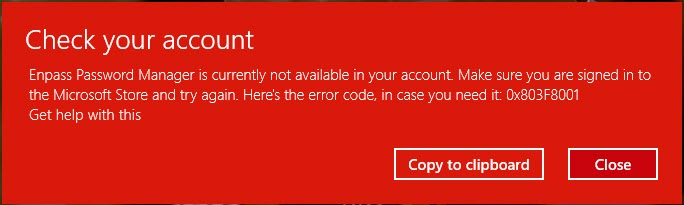
  1. Here is a workaround for the situation may be useful whoever is needed Take a backup from your mobile to local as well to the cloud (as a precaution) Un instal the present installation form 'Microsoft store' (if you do not uninstall then this will go in loop after allowing to access for our file location or may take long time) Now download website software version direct link is here: "https://dl.enpass.io/stable/windows/setup/6.8.4.1167/Enpass-setup.exe" Install the downloaded enpass software Proceed for the authentication Once authenticated we are done This worked for me and able to use as of now. I am not sure of the cases where you do not have a file stored at cloud location for synchronising between the devices.

Account

Navigation

Search

Search

Configure browser push notifications

Chrome (Android)
  1. Tap the lock icon next to the address bar.
  2. Tap Permissions → Notifications.
  3. Adjust your preference.
Chrome (Desktop)
  1. Click the padlock icon in the address bar.
  2. Select Site settings.
  3. Find Notifications and adjust your preference.