

Skip to content
View in the app

A better way to browse. Learn more.

Enpass Discussion Forum

A full-screen app on your home screen with push notifications, badges and more.

To install this app on iOS and iPadOS
  1. Tap the Share icon in Safari
  2. Scroll the menu and tap Add to Home Screen.
  3. Tap Add in the top-right corner.
To install this app on Android
  1. Tap the 3-dot menu (⋮) in the top-right corner of the browser.
  2. Tap Add to Home screen or Install app.
  3. Confirm by tapping Install.

t7m

Members
  • Joined

  • Last visited

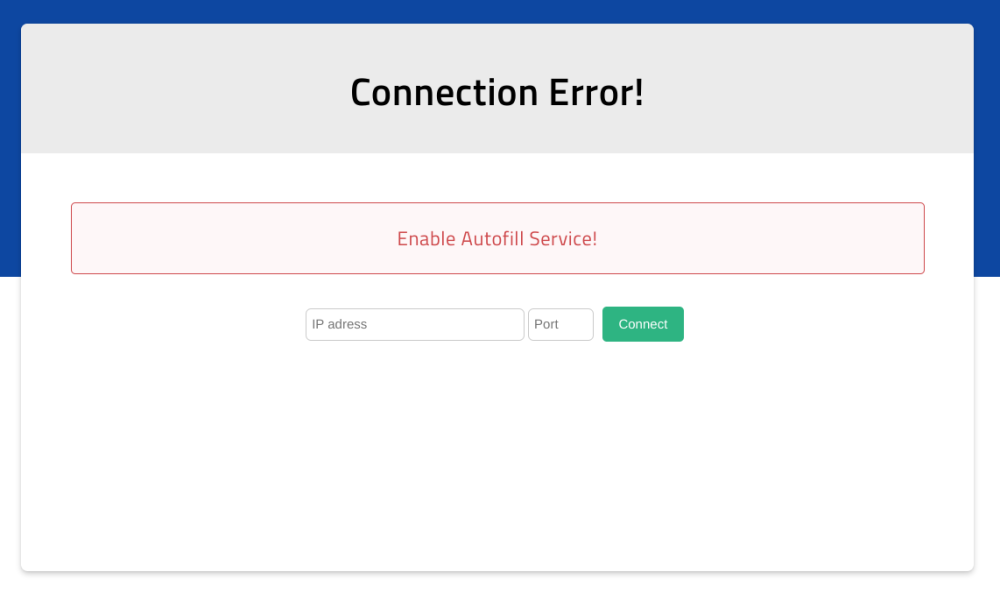
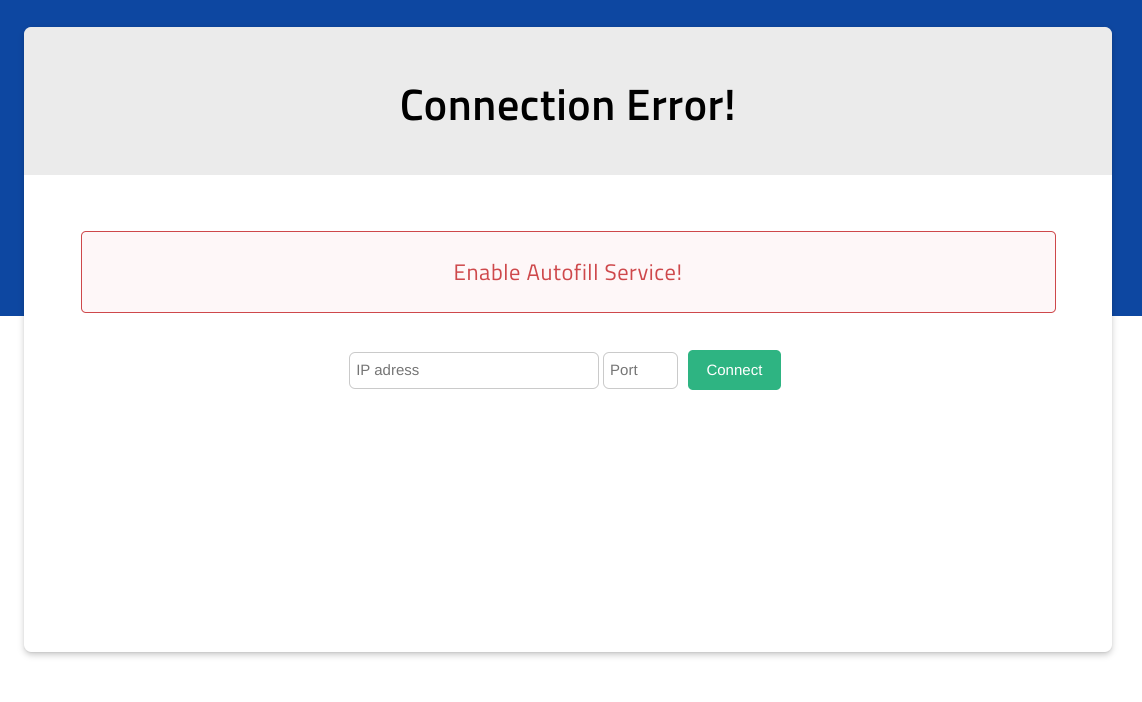
  1. I use a chromebook. I cannot get the app to work in a reasonable way. The chrome extension shows ENABLE AUTOFILL SERVICE! and it is asking me for ip address and port. What on earth does that mean? I have installed the app for Chromebook, but I guess the extension and the app are not talking to each other? This is really a horrible first start. Help?
Account

Navigation

Search

Search

Configure browser push notifications

Chrome (Android)
  1. Tap the lock icon next to the address bar.
  2. Tap Permissions → Notifications.
  3. Adjust your preference.
Chrome (Desktop)
  1. Click the padlock icon in the address bar.
  2. Select Site settings.
  3. Find Notifications and adjust your preference.