Jonas88
Members
-
Joined
-
Last visited
Everything posted by Jonas88
-
Hello this is still open. Is there a fix in the pipe?
-
Hello I have quite a few services running on the same ip address of my servert but with different ports. unfortunately enpass does not make a difference there. Would it be possible to change that?
-
Thank you really much! I will help if i can. have a great time!
-
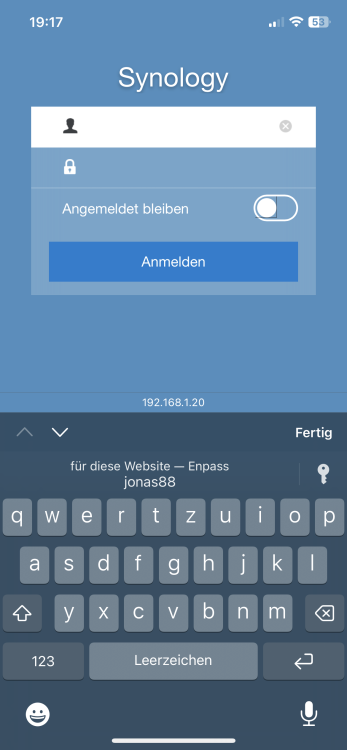
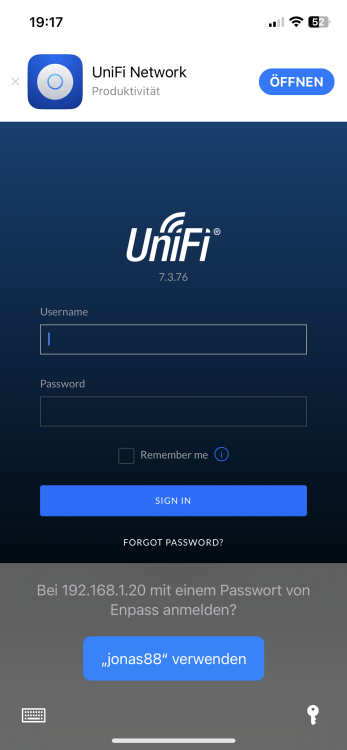
Hi! Thanks for your response. I tried your steps but without success. I'm using the latest iOS Enpass - v 6.8.6 (684). I do face this issue when connecting to my home server (static ip through browser i. E. 192.168.10.2). I have different services running with different ports that all have different user and passwords. so it's unconvenient that this does not work. regards Jonas
-
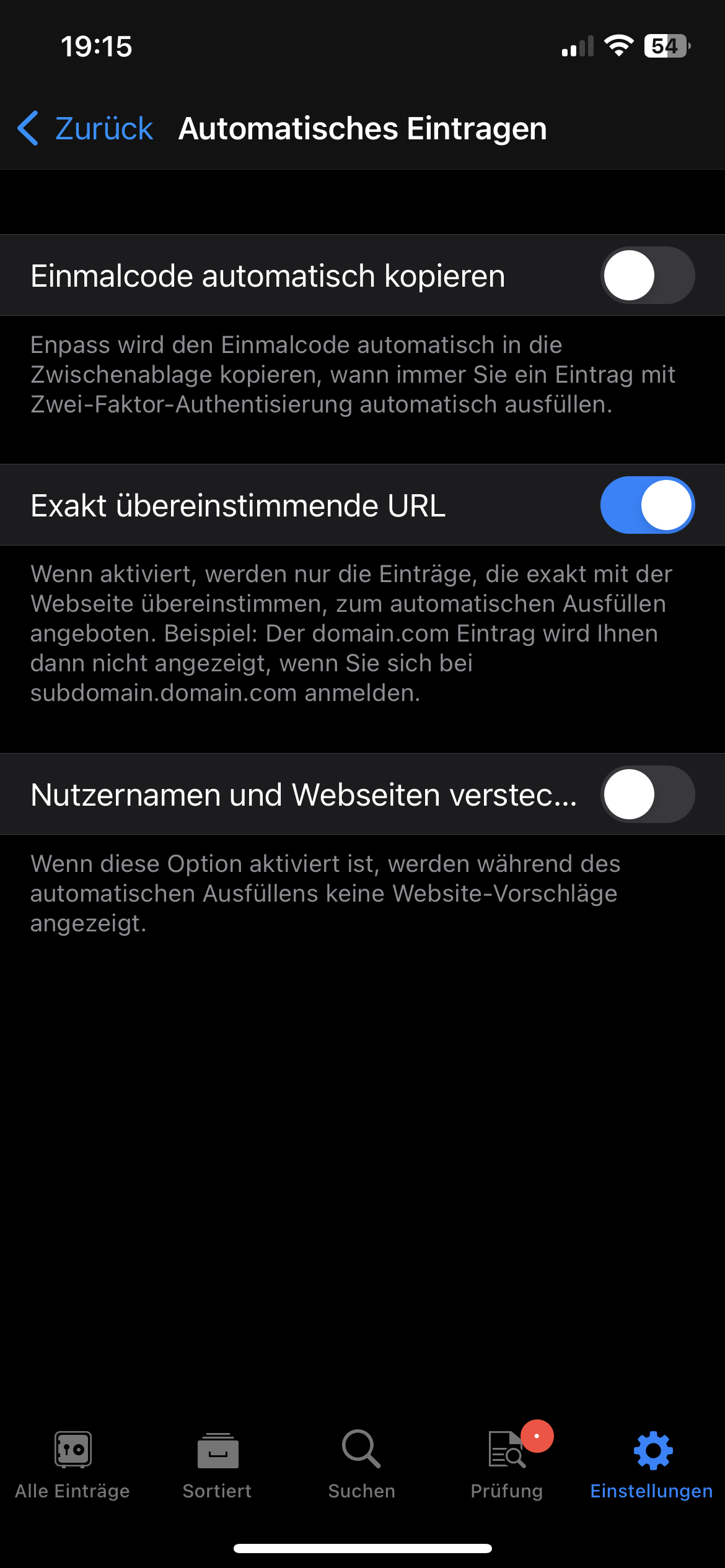
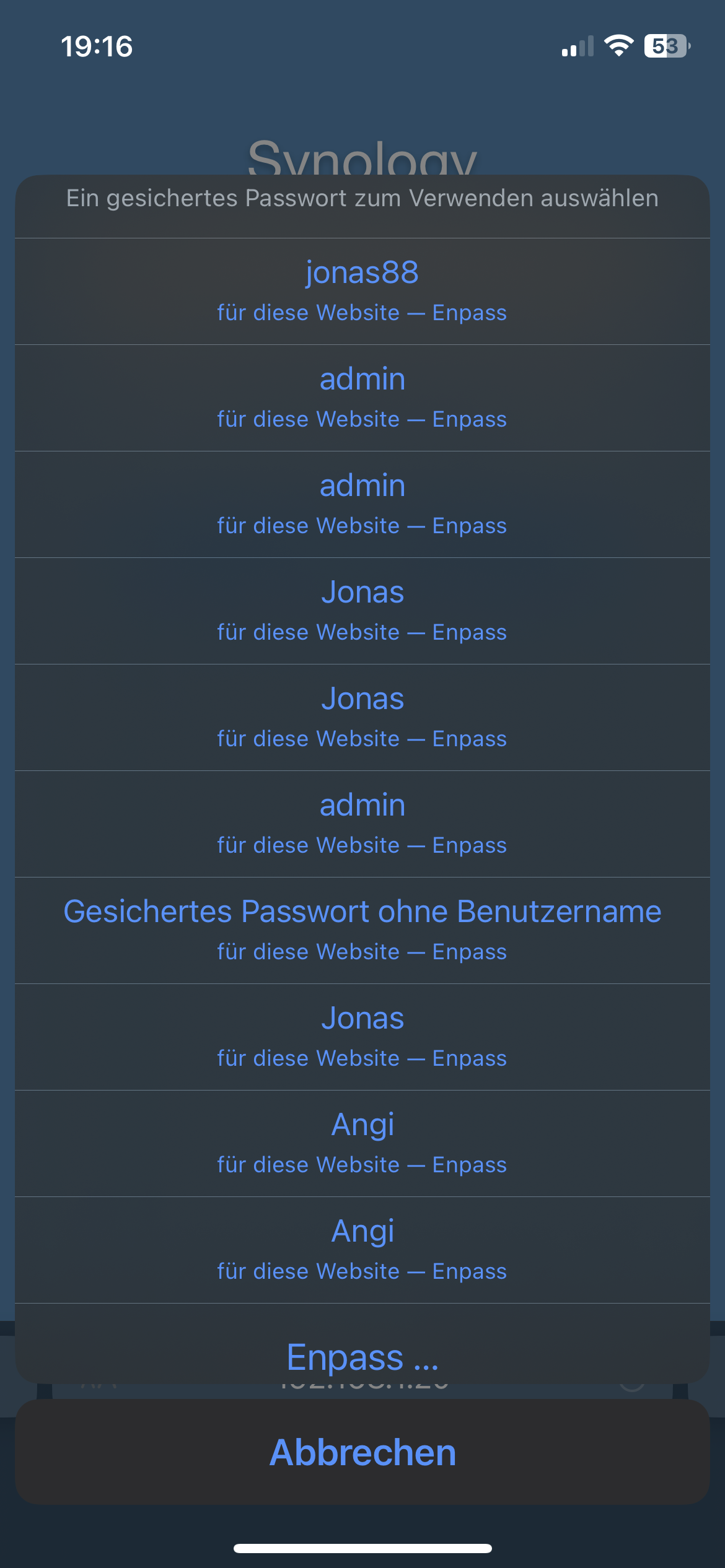
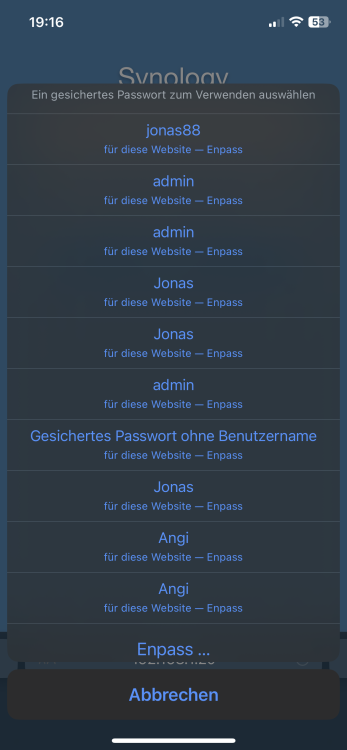
Here some screenshots
-
Hello it works on windows and mac but not on my iphone. I turned the setting to on but it does not work at all it os picking always the first account of the list.
-
Thanks a lot! I cannot believe i missed that
-
Hello in my homelab i have a lot of services on my server with the same base ip but lots of different ports. unfortunately enpass shows me all i have saved and it can be confusing which one to use. especially on my phone because i see only the username (often times admin). can you please change that? Regards Jonas