Kenneth
Members
-
Joined
-
Last visited
Everything posted by Kenneth
-
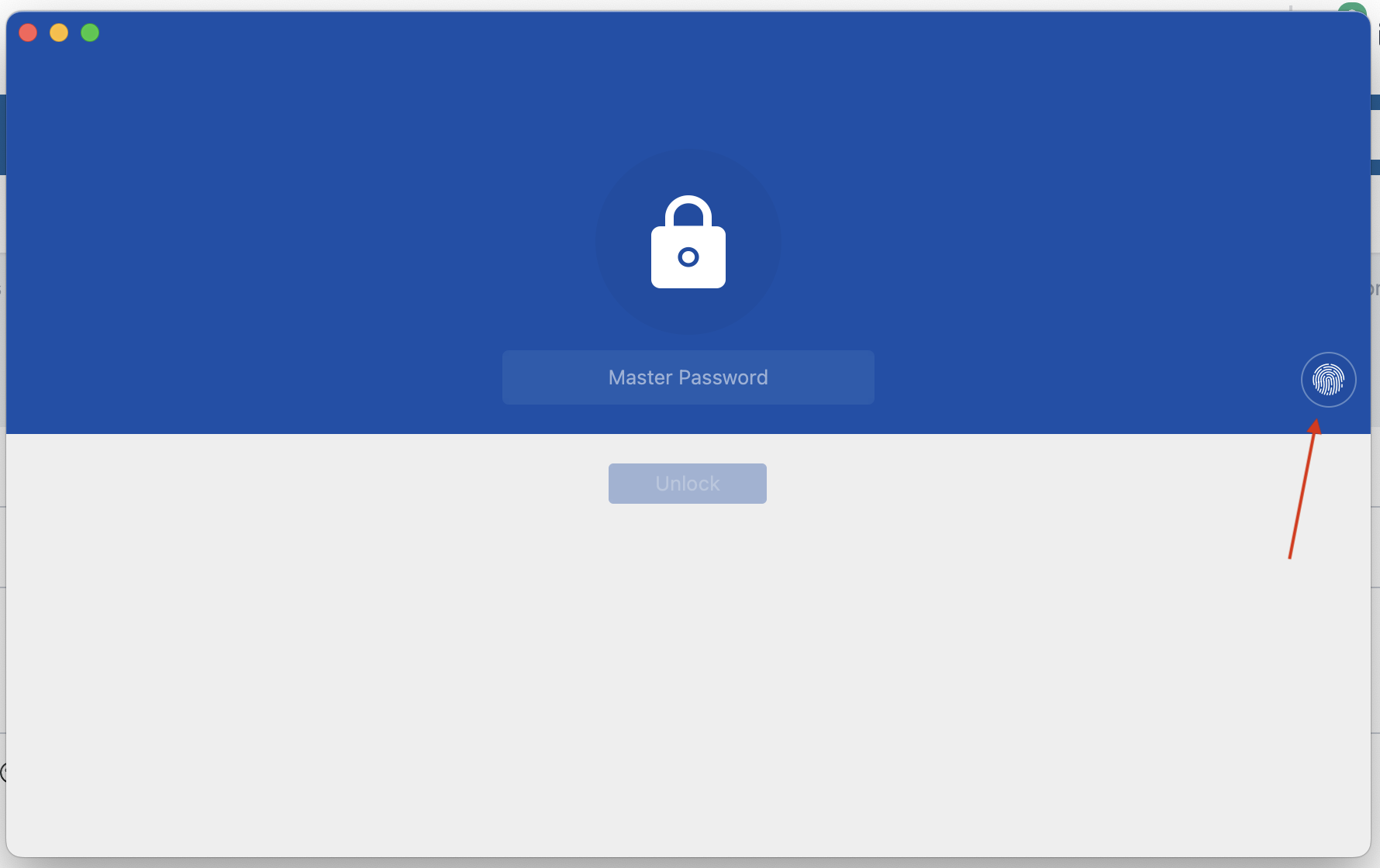
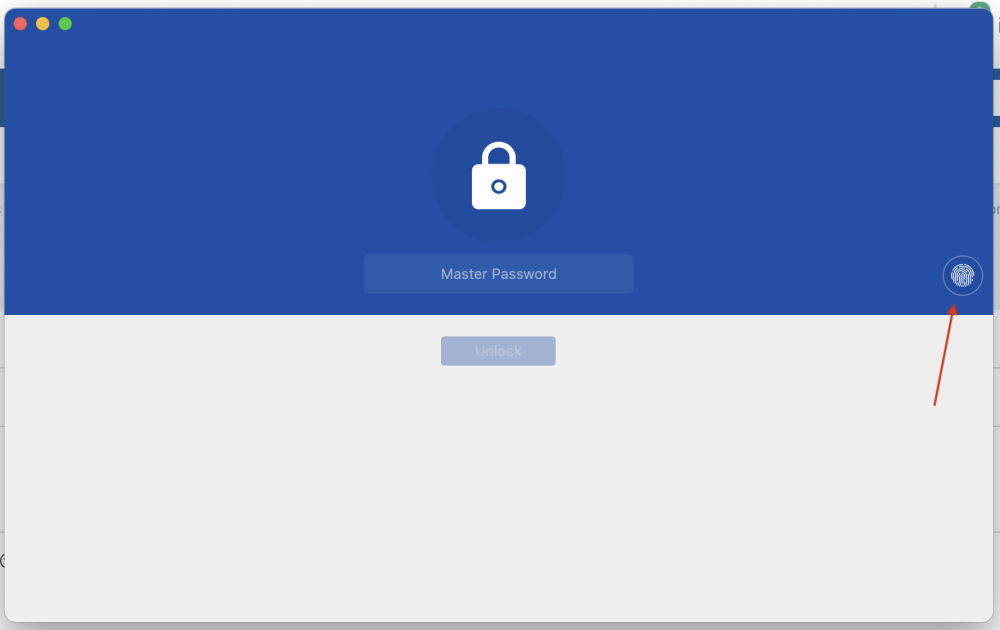
Current solution is: When I have the menu bar open, I sometimes have to open up the main program with Command + E, or from the menu. When I do that, it promts me for a password. This is not the fastest way to do this. Feature request: What I would like to see is that either a) if the user is logged in already that the program just opens up without any prompt, or b) that the fingerprint automatically get's prompted as it is the fastest way to login. (This feature is already implemented with the menu bar when logging in)
-
+1 WebDav is not a good solution. Please add support for pCloud so that I can use my most trusted cloud service that are actually keeping my data secure.
-
Have there been any development for pCloud, it is crucial to include companies that are taking privacy seriously and are not in the pocket of the government, not that I have anything to hide, but I want my services to be secure and noop proof. Please add support to pCloud !