
userffm
Members
-
Joined
-
Last visited
-
Really sorry to hear that. I got a fix on windows a while ago, already. As for the cloud sync – it's encrypted as far as I know. If it's not too technical, Enpass supports Sync via WebDAV to a self hosted cloud as well. That may be a solution (but won't help you now, of course).
-
This is still the best password manager for my needs – take all the time you need. :hug:
-
userffm changed their profile photo
-
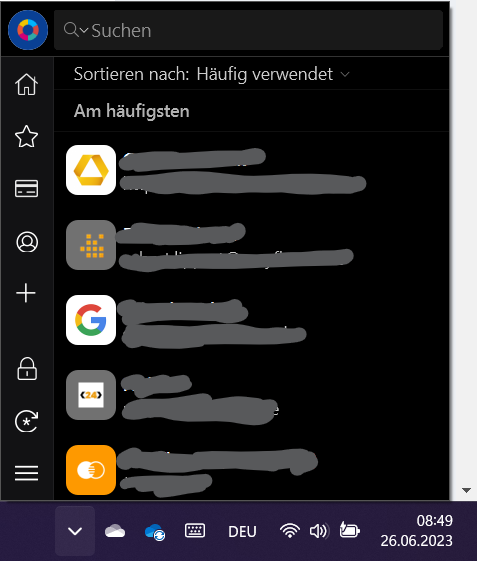
Update: While I can't login into the full app, I have still full access via the tray bar pop-up.
-
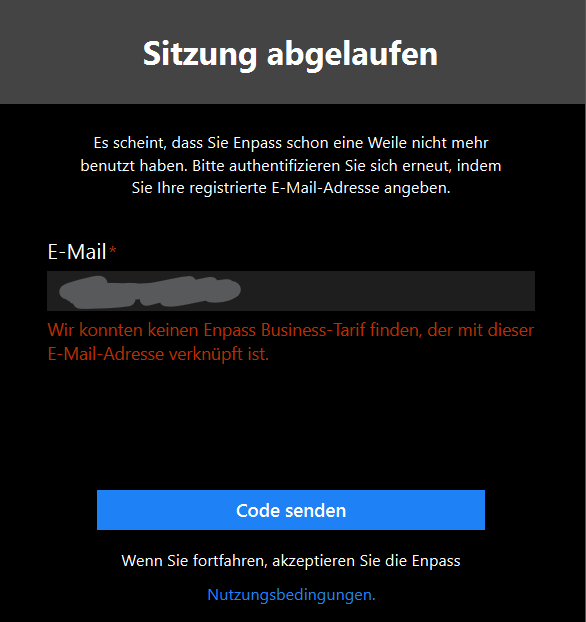
I'm running the latest version of Enpass on Windows 11. Upon login (that still perfectly worked a couple of days ago) I get a message, that I need to login again with my registered mail address. Enpass somehow shows my address (I didn't need to type in anything and I can't change the input, either). It assumes I have a business login (I do not), so no login possible, anymore. It still works perfectly fine on my iPhone. The question is ... what can I do to use Enpass on Windows 11 again? I can't change the input in the pop-up, I can't change any settings - I'm locked out completely.