nrom
Members
-
Joined
-
Last visited
-
Hello Team Enpass… Sorry for the late reply. I just updated my banking and Google account passwords and everything went perfect this time. I created the new passwords for both of these accounts first, and did not see any duplicates. I was able to go back to my previous password when prompted to update the new password and it worked perfect for both, no issues. Previously, when I was experiencing these problems, I was using an iPhone 14 Pro Max with IOS 18.2.x and Enpass versions: 6.11.6 (879) & 6.11.7 (903). Now, I am using an iPhone 16 Pro Max with IOS 18.3.1 and Enpass version: 6.11.8 (929). I use Apple iCloud for syncing. Please consider this request “resolved”. Thank you for your attention and assistance with this issue nrom
-
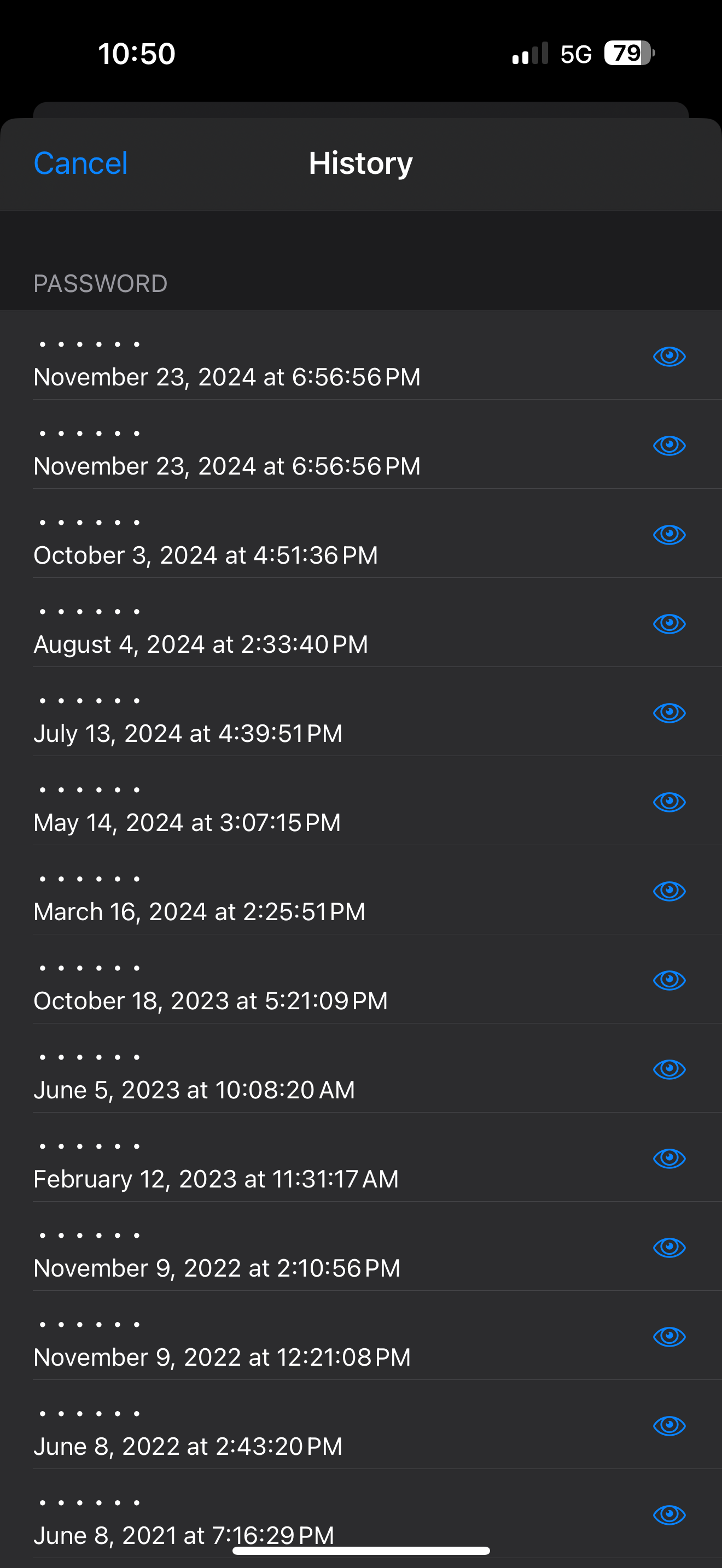
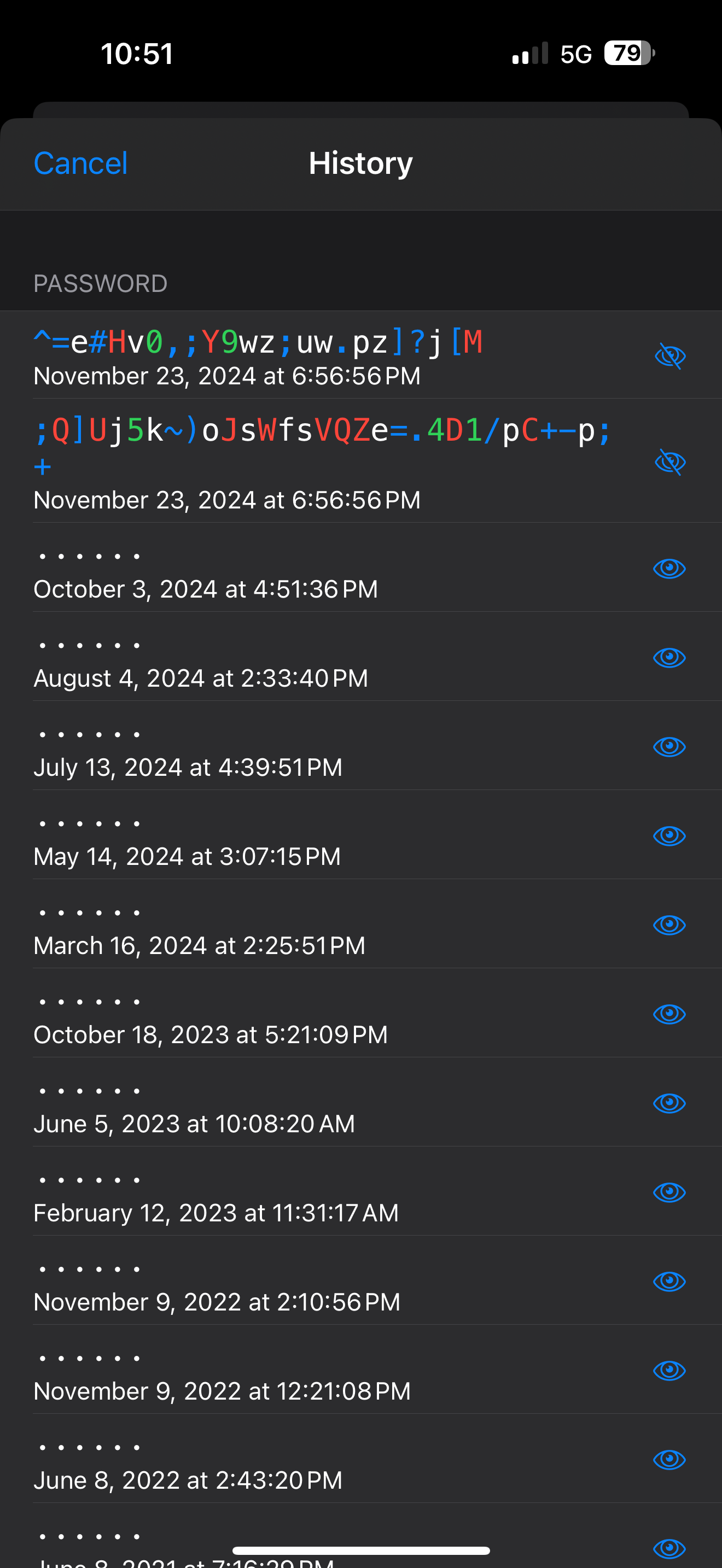
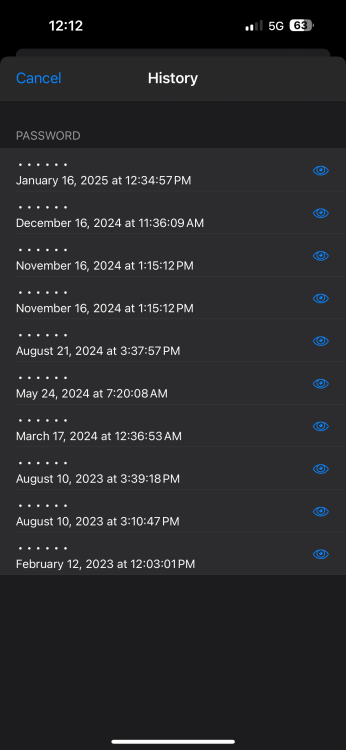
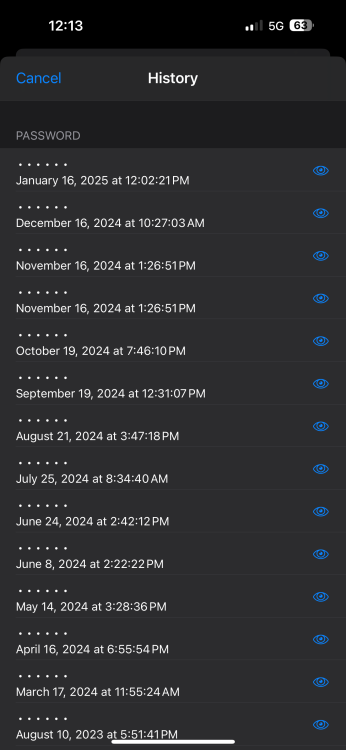
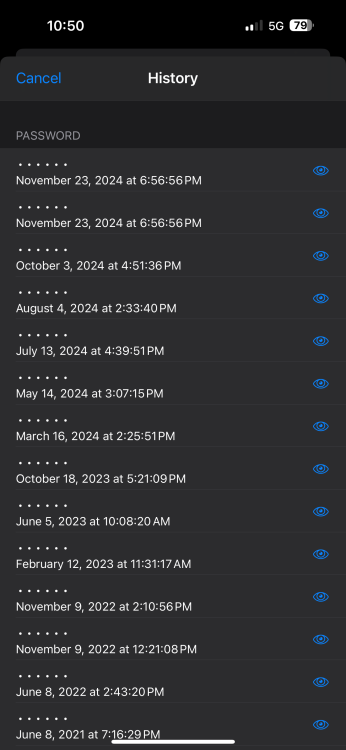
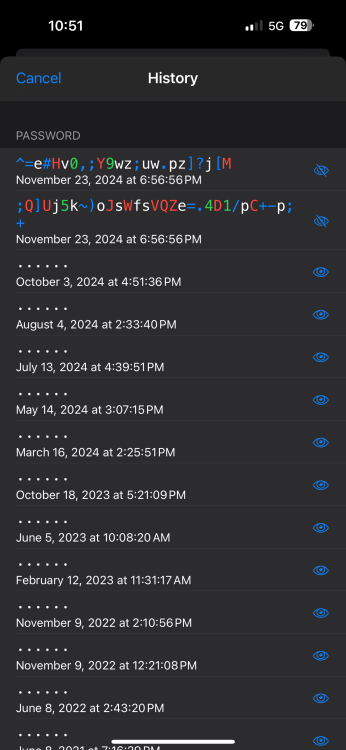
Once again, while updating my Apple Account password today, Enpass History is showing two (2) different passwords created the same day and time to the second. This needs to be resolved ASAP. Thank you for your assistance.
-
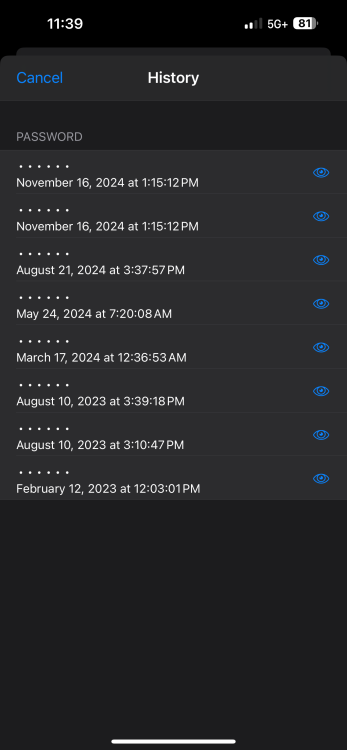
I just updated my Microsoft account, same issue occurred, again…
-
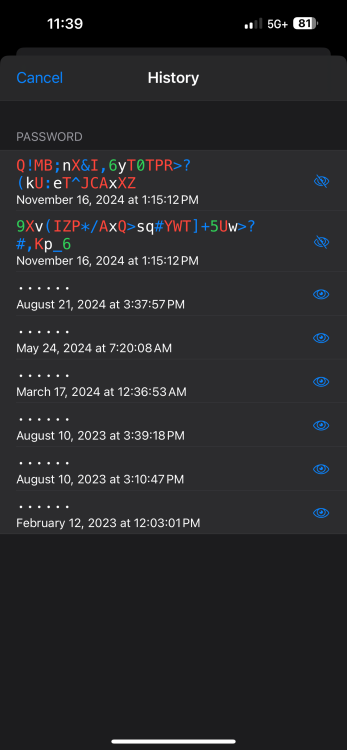
Right after posting this issue, I went to update my Google password and the same problem occurred. The second password in the list was the one “Current” password needed to update this password. This should not be.
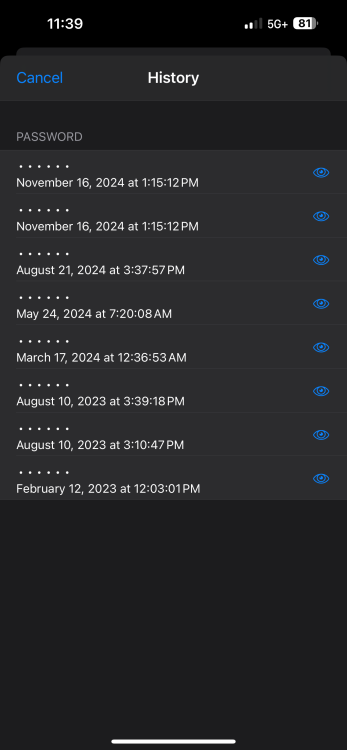
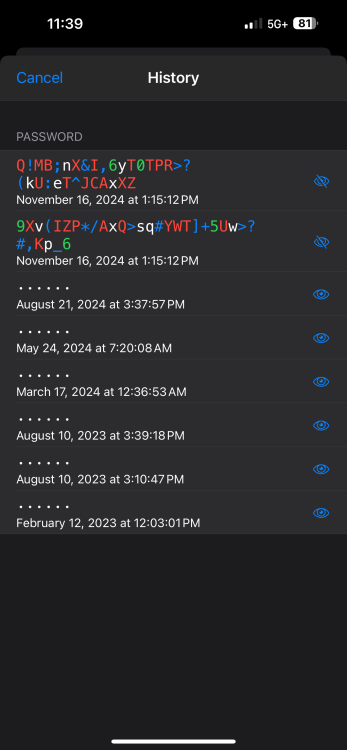
-
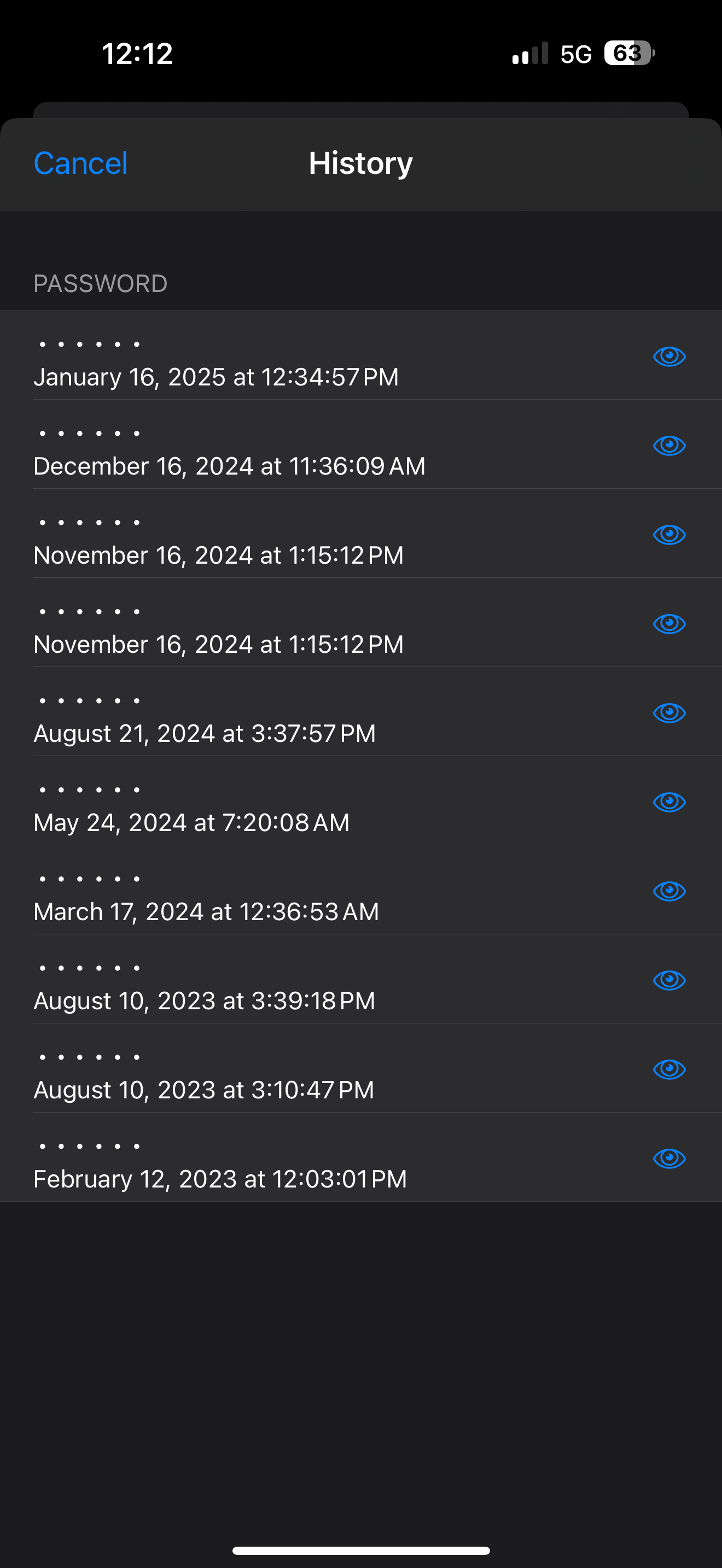
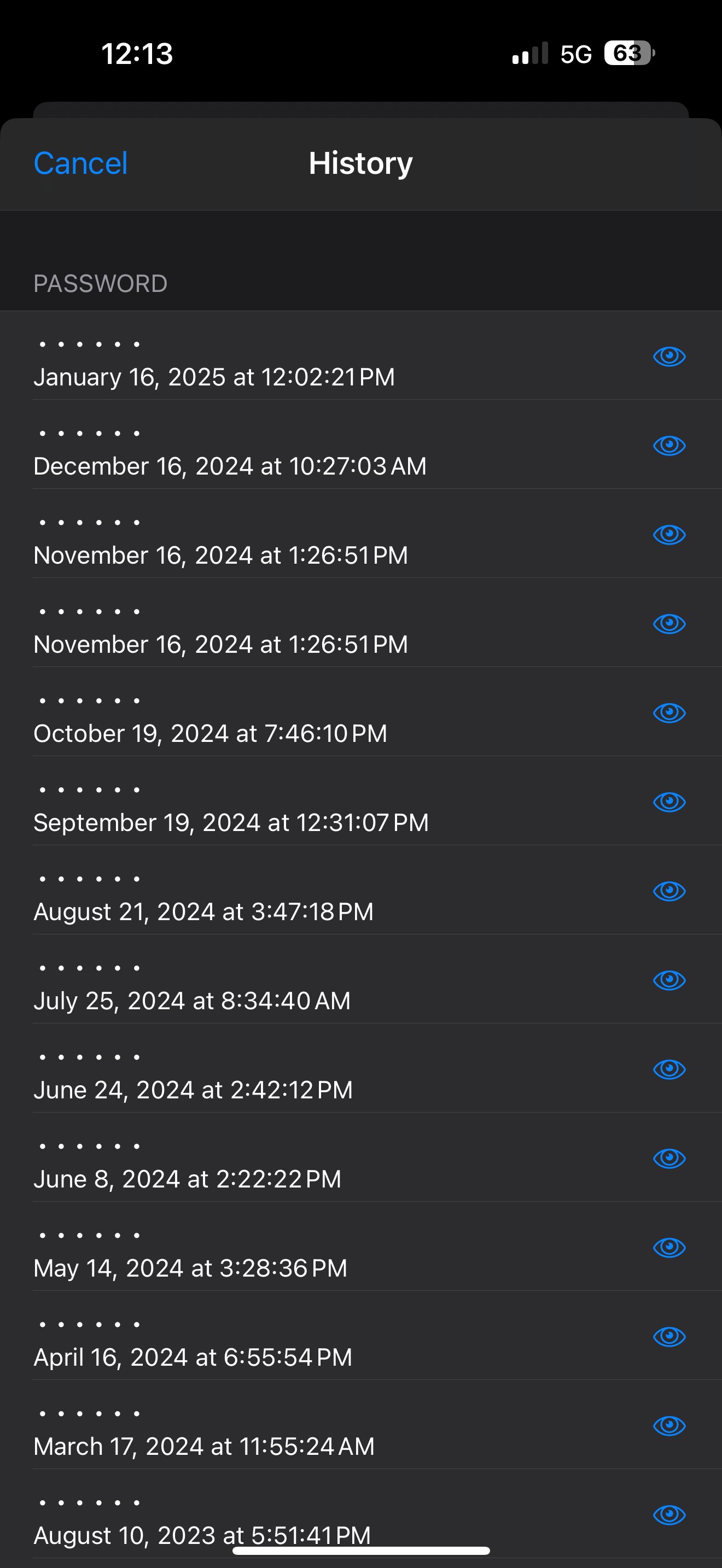
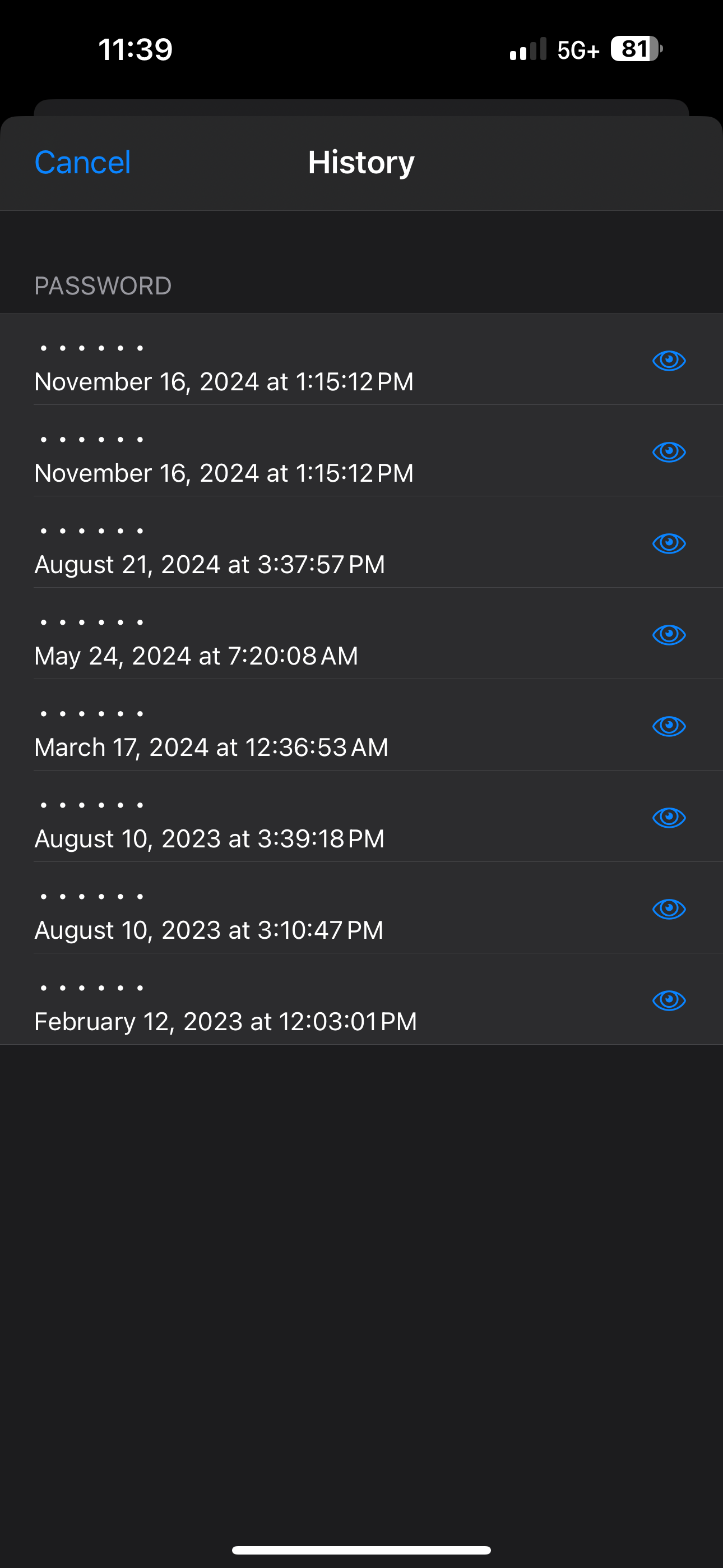
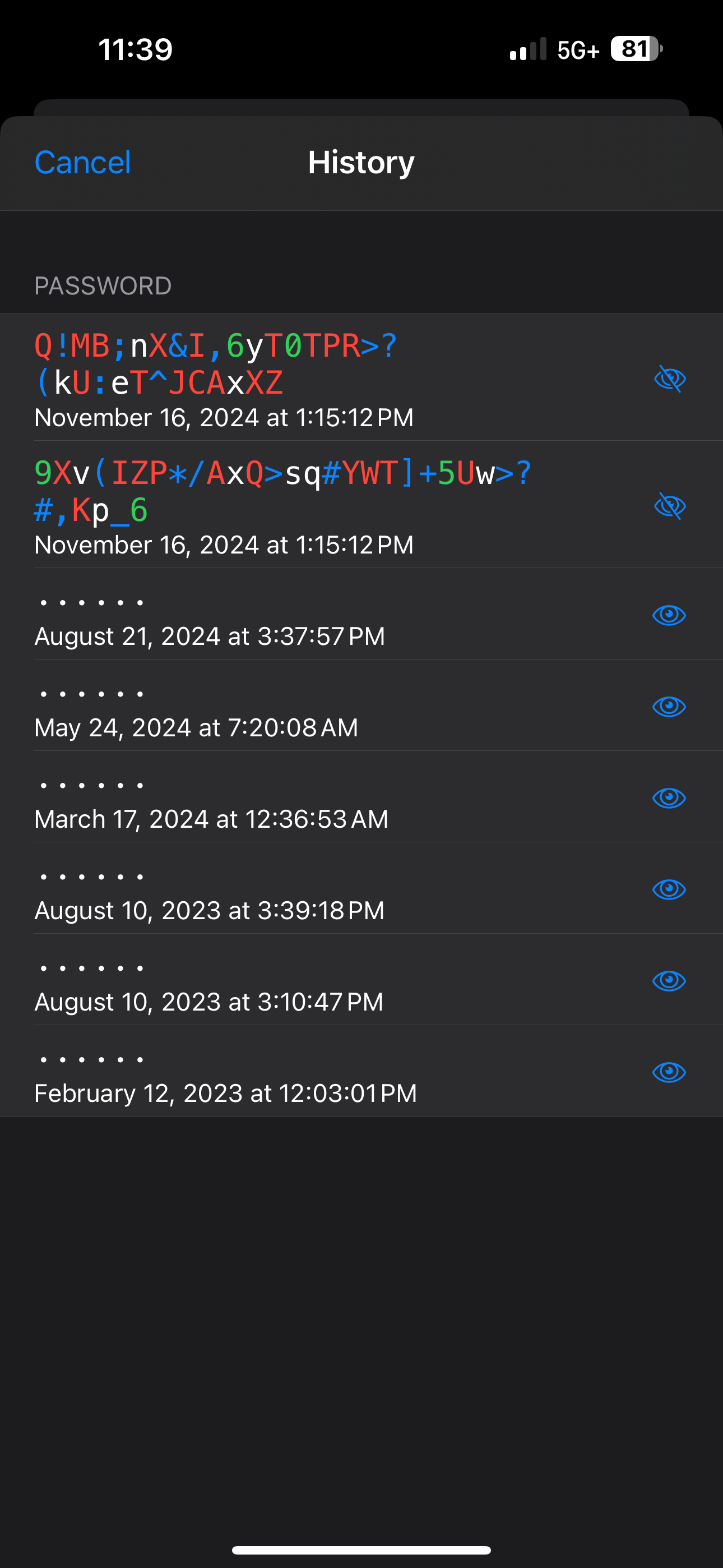
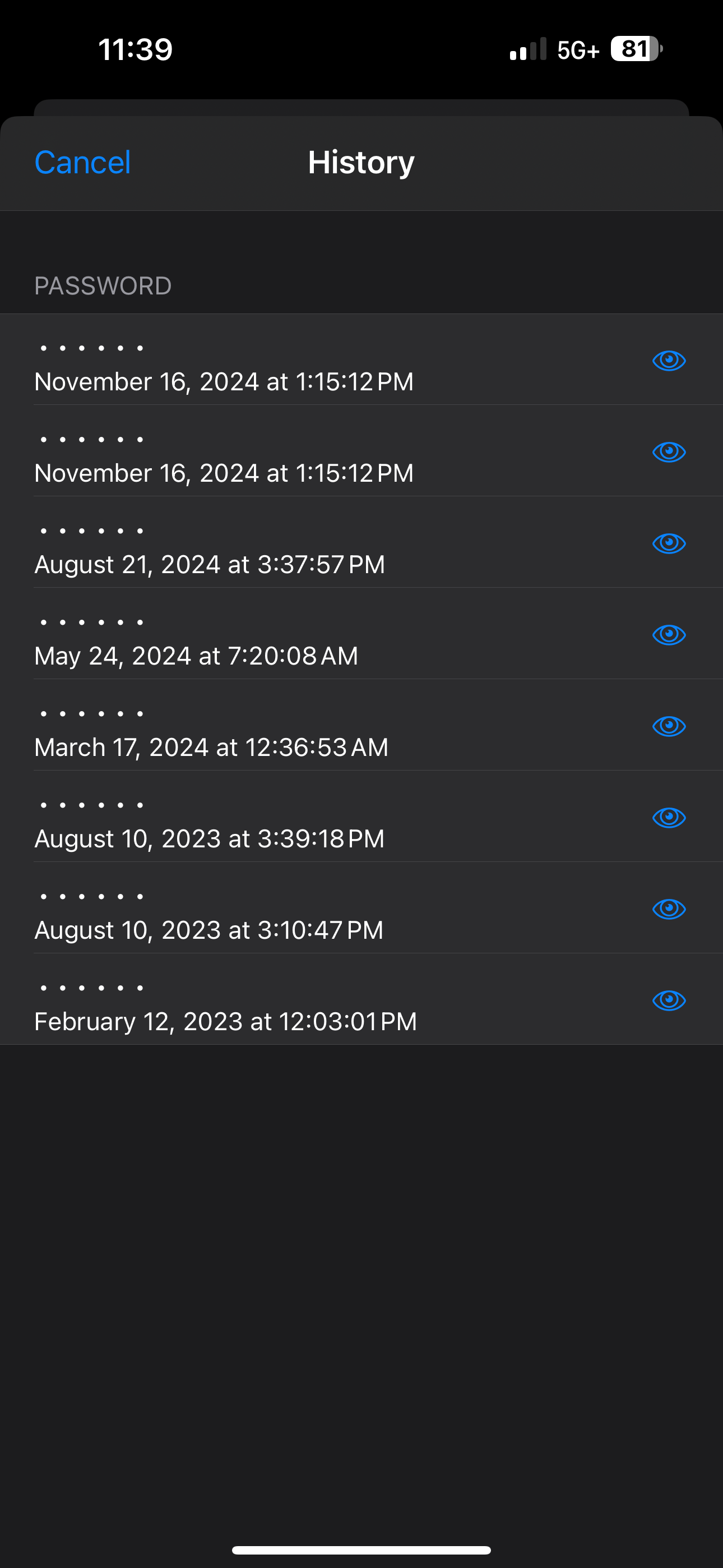
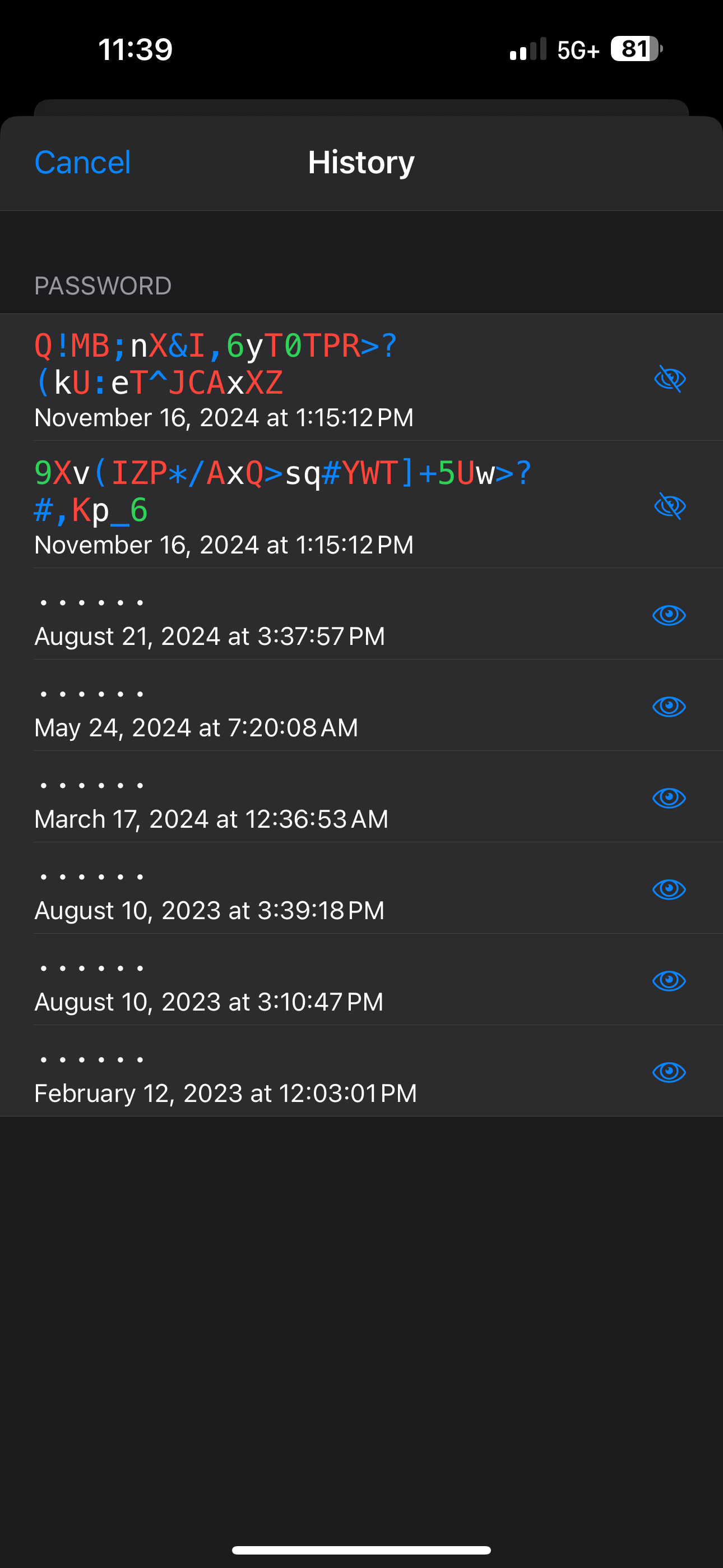
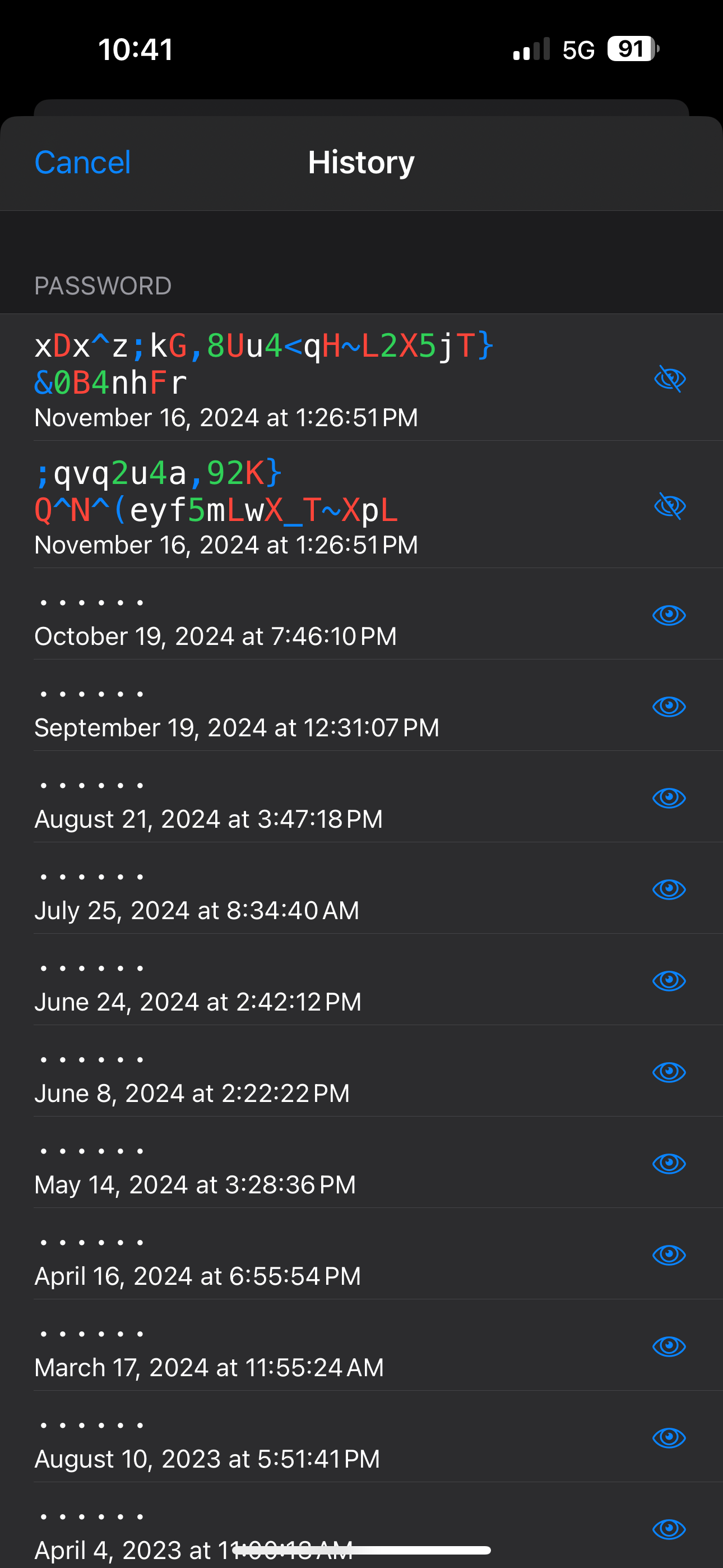
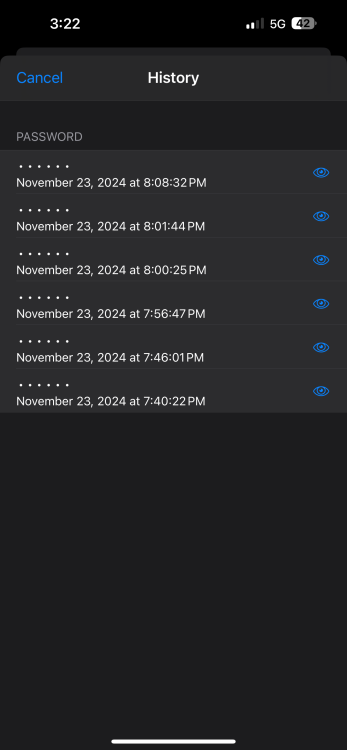
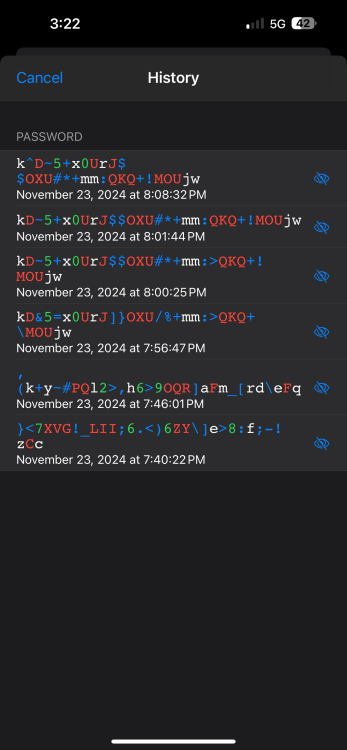
Hello Team Enpass… I experienced another problem this morning updating a password. I logged in to my bank, and selected the link on their website to change my password. I generated a new password and saved the new PW. Next, I copied the first password at the TOP of the “History” list, as this SHOULD have been the last successful password that was created for this account. I copied and pasted it, in the “CURRENT” password text box on my banks website, as this should have been the SAME one I used to login to change my password, right? Yes! Next, I copied the new password that I just created, and pasted it. After I selected to update my password, I was informed that the “Current” password (the one I just used to login to my bank) is incorrect. I then, opened the password “History” and noticed that I had TWO (2) passwords for this account that were created the SAME DAY and the SAME TIME! How can this be??? As it turns out, the second password from the top of the password history list, was the “Current” or correct password that I needed to update the new password. There should NEVER be two or more passwords that were created for an account that have the SAME MONTH, DAY, YEAR and TIME even to the very SECOND! Below, are pictures to prove it… This needs to be fixed ASAP. Thank you for your attention to this issue, it is greatly appreciated!
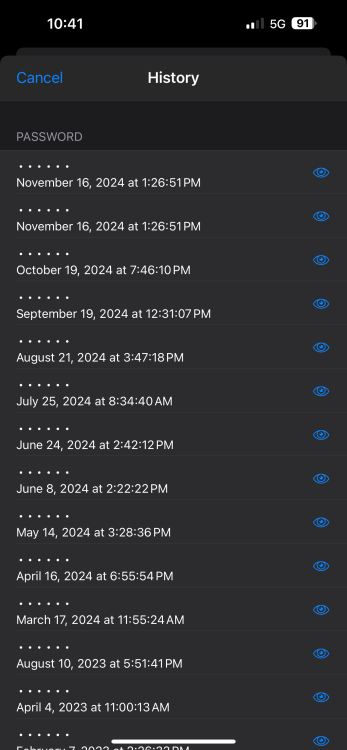
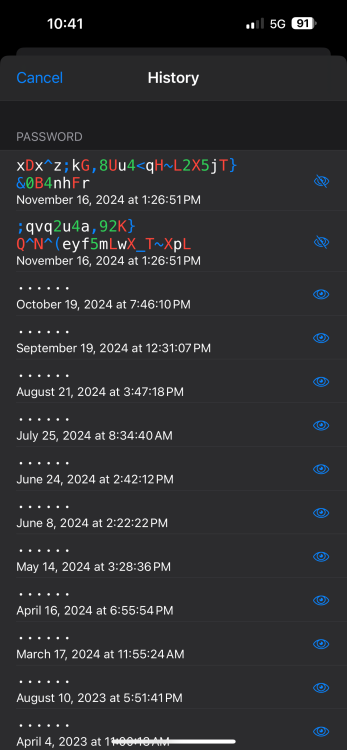
-
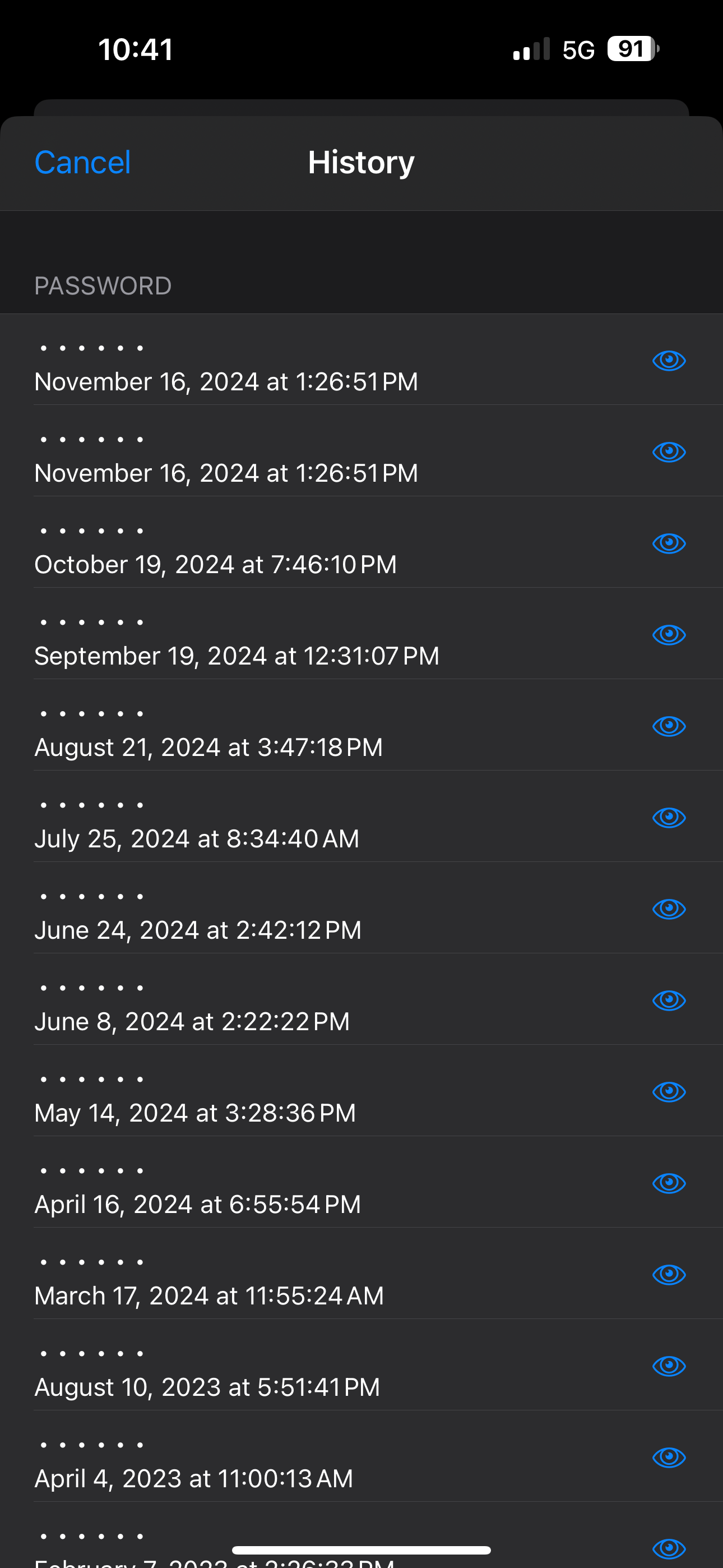
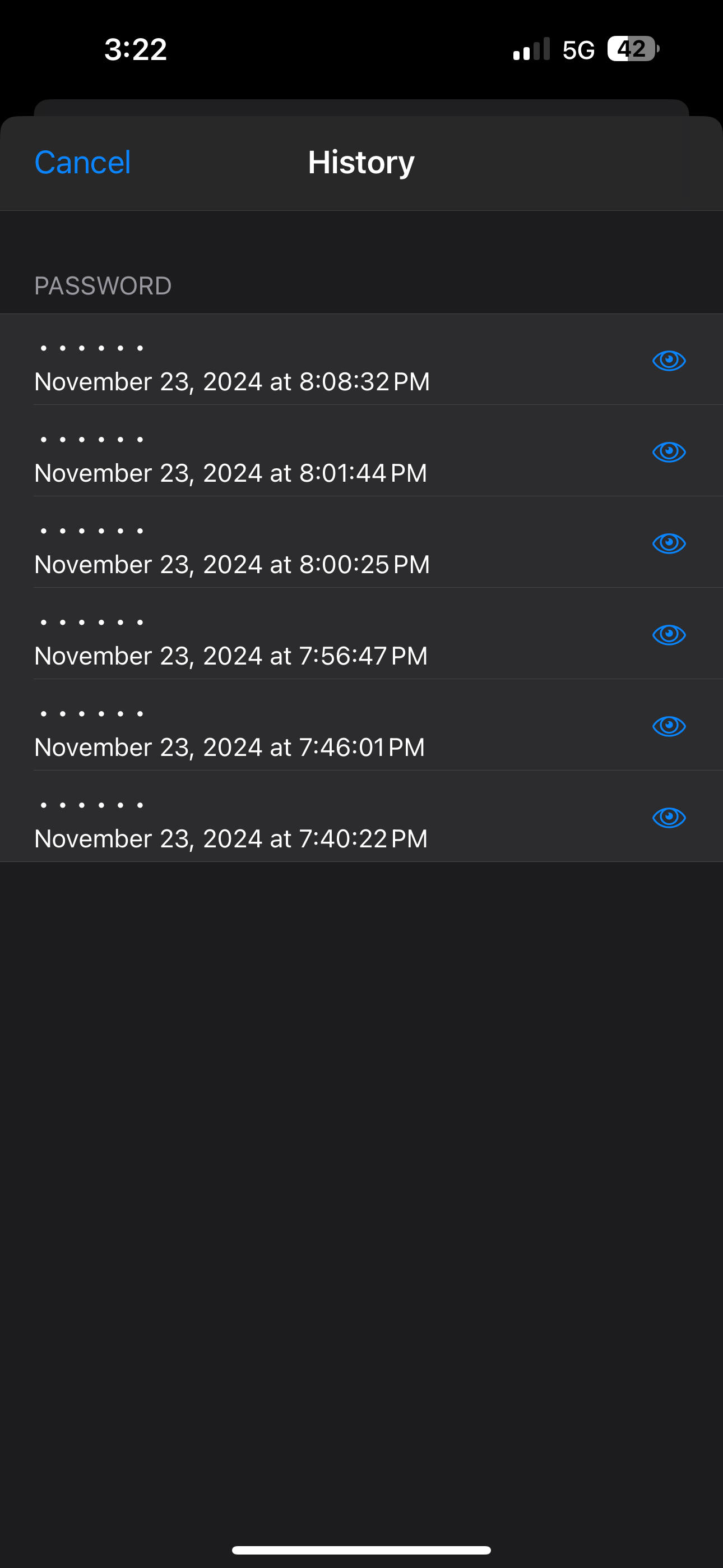
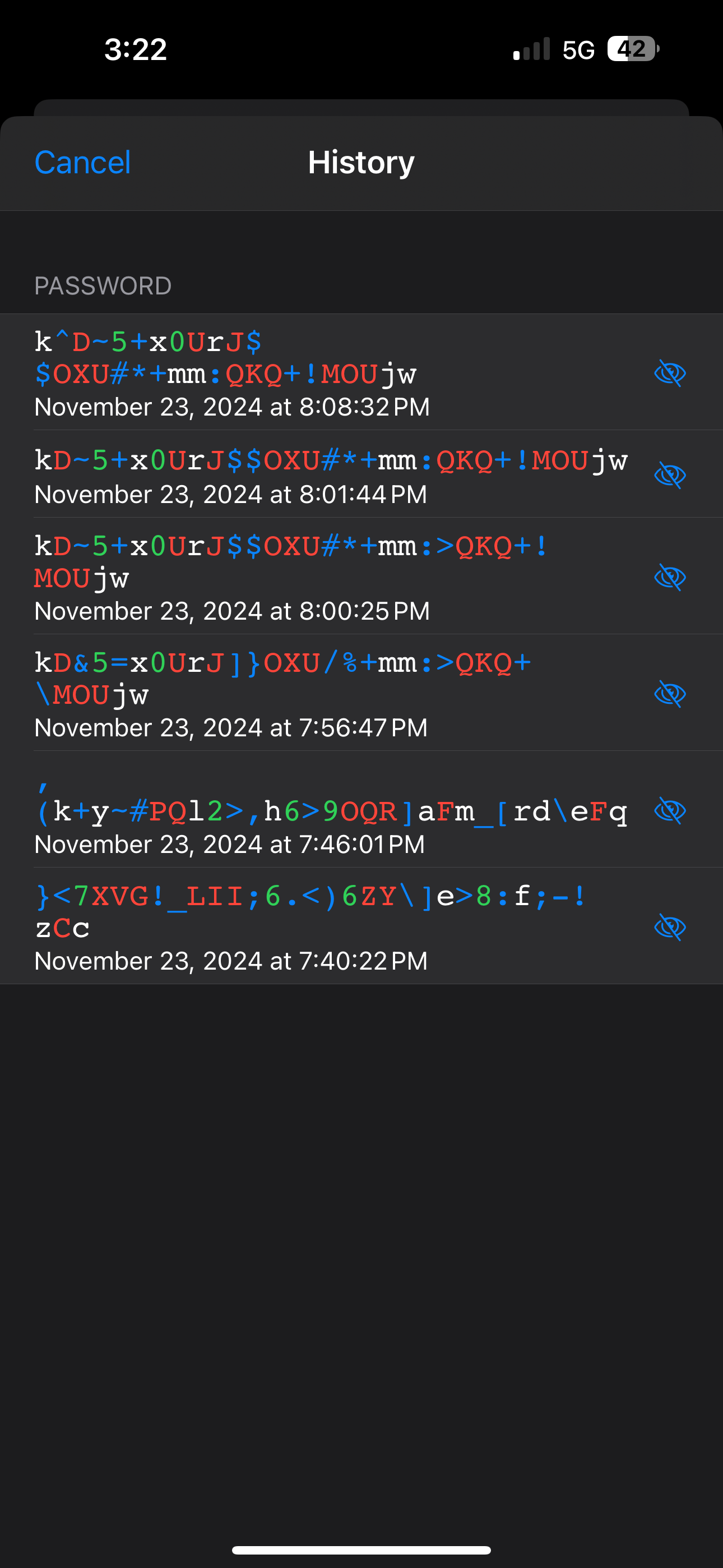
As you can see in this example, I have six (6) passwords that were created on the same day for one account. Five of these passwords did NOT meet the website’s password requirement. I have found that; the password at the top of this list, was not the successful password that was last used when updating this web account’s password. Having the ability to remove the other five individually, would save time and eliminate any confusion, when I am requested to provide the last password I used before I created the new one.
-
Thank you, Tarun! Users having the ability to eliminate passwords that were created the same day/month that were not successfully used, will make it easier and faster locating the previous successful password when updating their new password. nrom
-
Hello Team Enpass… Please consider the following change request: The ability to completely clear all password history and for each individual password instance. Sometimes, after creating a password, it may not meet the acceptable requirement when updating, and another password needs to be created. Having passwords in an items history list that were never successfully used, and having the ability to remove them, would save time and eliminate confusion. Only passwords that were actually used would populate the history list. Thank you for considering this request.
-
Hello Enpass Team… I wish to suggest the following change requests: The Browse Tab (2nd tab) The ability to rename items in Categories. The Search Tab (3rd tab) The recent list does not work correctly, nor does it list the most recent item(s) that were accessed or modified in correct order. This tab is redundant and there is NO need for it, as the first tab “All Items” has this very same feature. I believe the password generator on the third tab, would be quicker and easier to access, than having to go to the Audit Tab and scroll to the bottom every time a password needs to be created. Please remove the Search Tab (3rd tab) and replace it with the Password Generator. Also, keep the password generator in the Audit tab, as it is. Thank you for considering these changes.
-
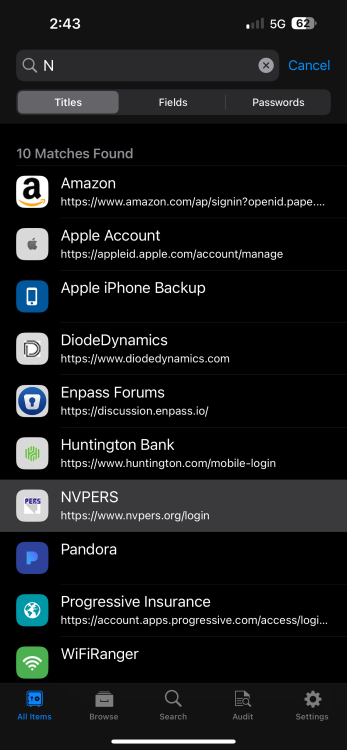
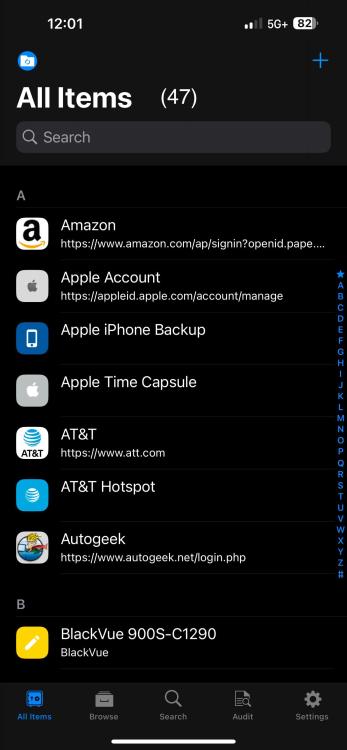
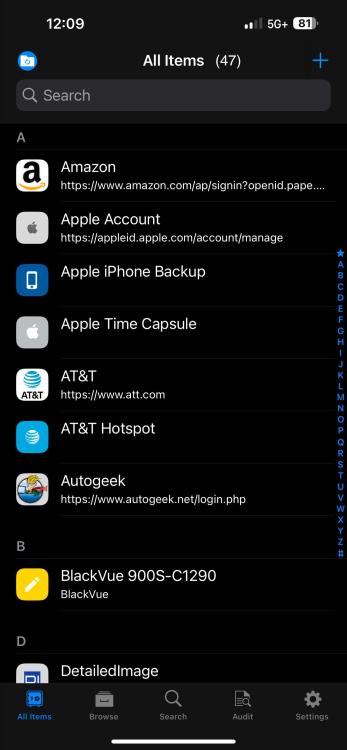
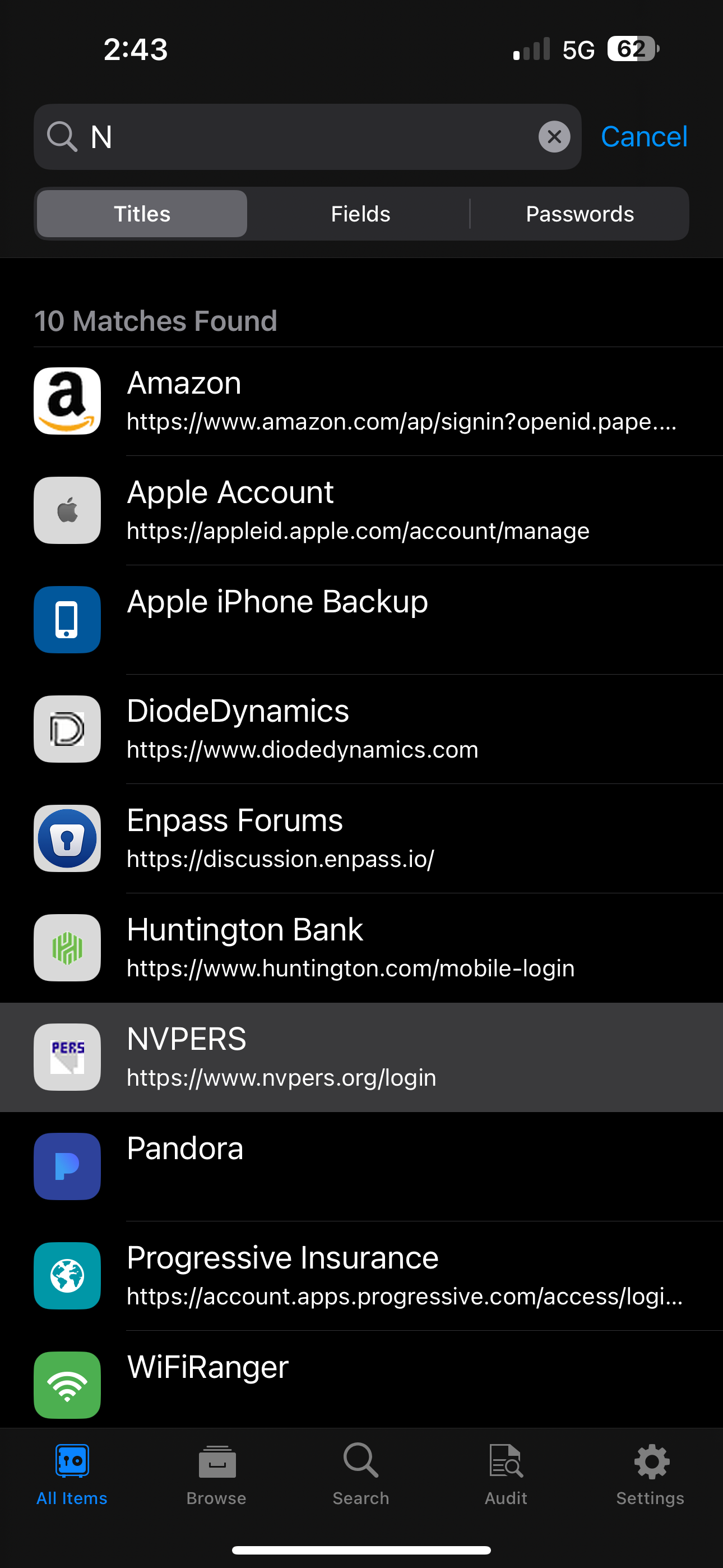
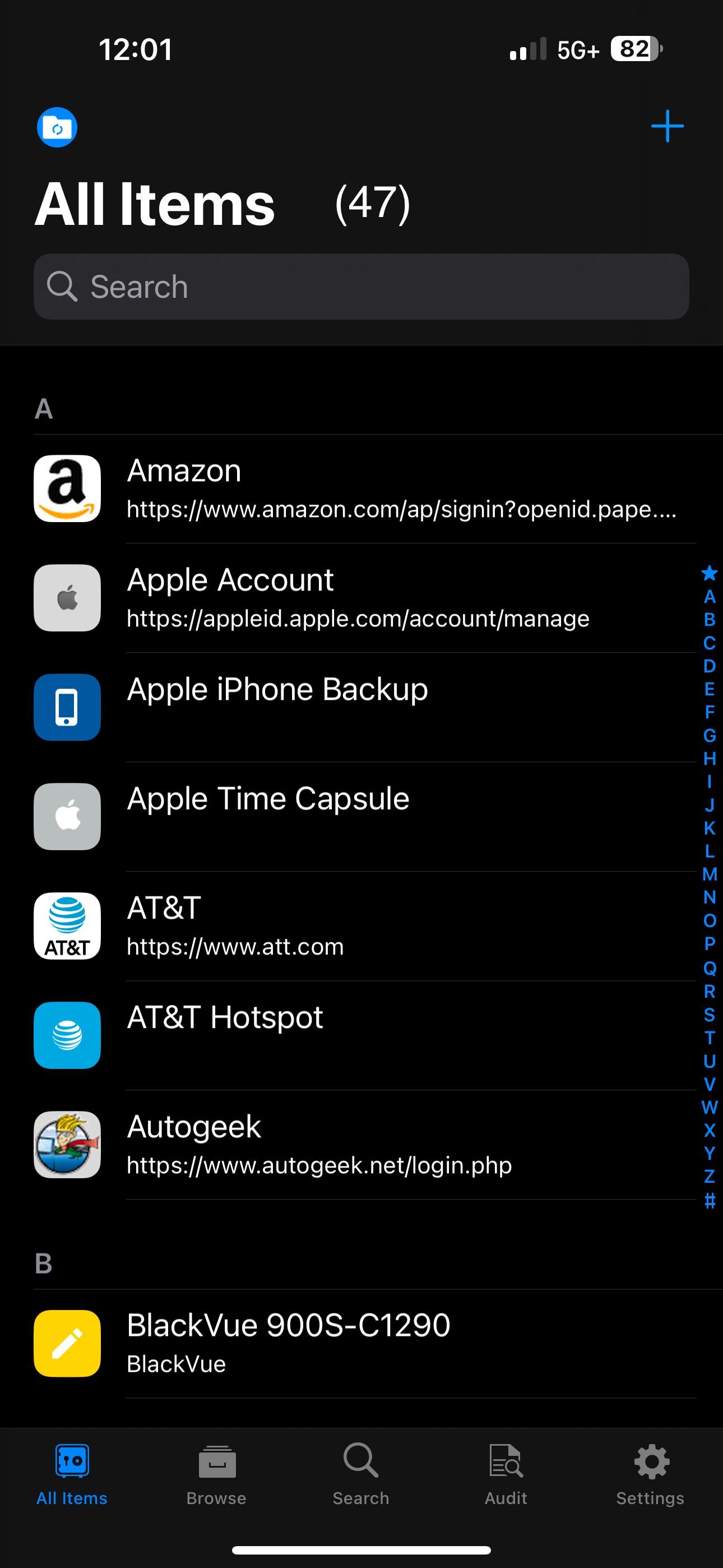
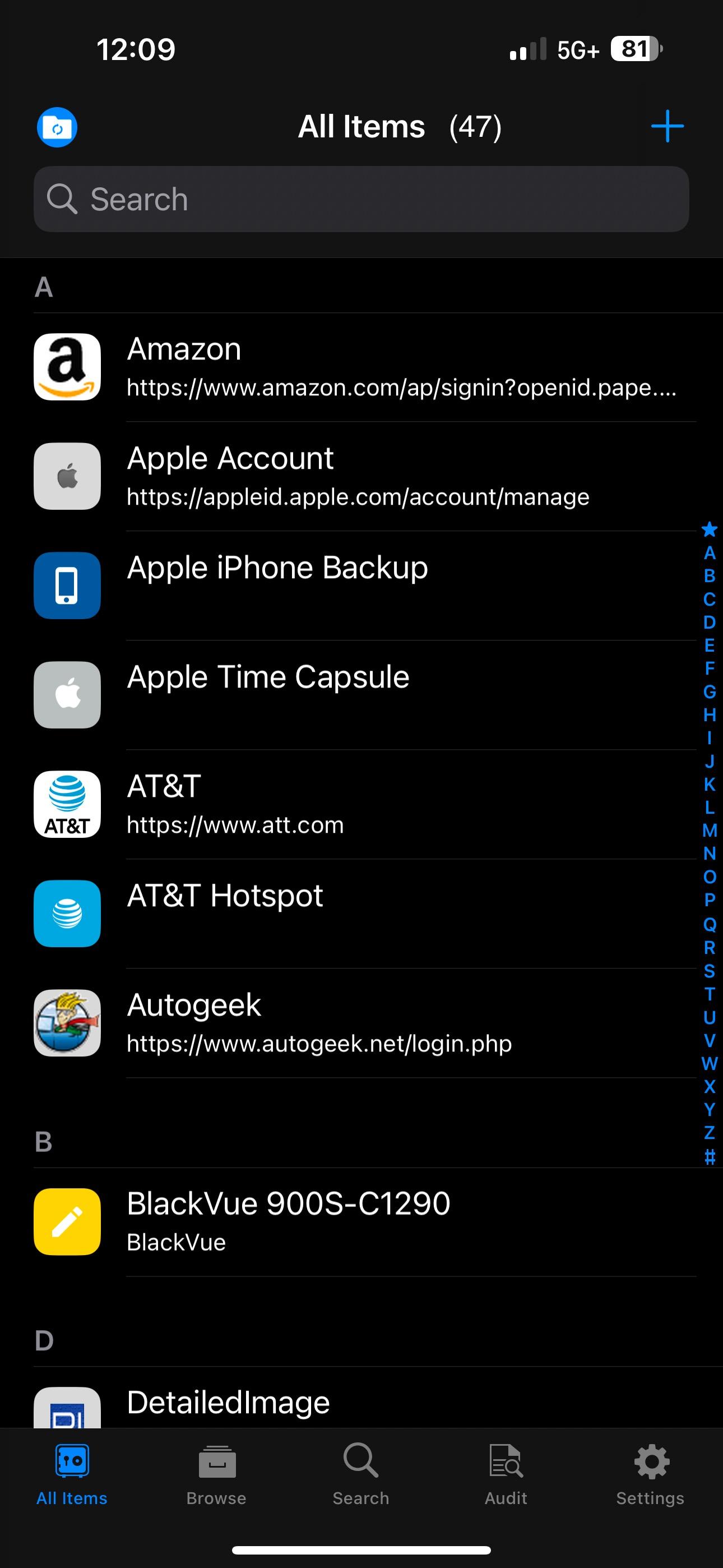
First, I’d like to say, “thank you” for making Enpass! I’ve been a loyal Pro Lifetime customer since 2017 and recently (11/24) became a Premium Lifetime customer. My first request… #1. The All Items Tab Please add the total number for the “All Items” at the top of the All Items tab. This will make it quicker and easier to see how many items are on this tab at-a-glance. It would always be visible, eliminating any need to scroll to the bottom of the tab. For example, it would look something like this: All Items (47) Presently, when you scroll down, the “All Items” changes to a smaller font size and is centered, which is fine, since the All Items font is larger before you begin to scroll down. #2 Search option not working properly Example: I have one item that starts with the letter “N”. When I type “N”, I get a result of ten (10) items, all others do NOT start with the letter “N”, but do have the letter “N” somewhere in the spelling of the item. The item I searched for in the seventh (7) in the list for this example. Please see attached image. When I type “N” to search for an item, I expect ONLY those items that BEGIN with “N” to be displayed as the result. Thank you for considering these changes.