Tex
Members
-
Joined
-
Last visited
-
Still... The panel behavior when we set the original values (the ones working), should not have given an error. ...and what about supporting "sub folders" ? Maybe some dusting on WebDav implementation would be great.
-
Hi, I tried to configure Enpass not to store the "Enpass safe" at the root directory in my cloud. So I tried to change the URL that Enpass is using. Like so : https://webdav.pcloud.com/Home/myName. But it failed. It says it can't connect and the usual "check credentials". I tried several URLs (with ending / or not, etc ) with no luck. Then I decided to go back to the original configuration. Only to find it was not working anymore. I had to close the configuration panel completely and then configure WebDAV again with the original settings. It then worked. Still I'm stuck in the same situation (can't use sub-directory) while I'm connecting flawlessly with a browser to this specific directory (or any other in fact). There may be a little issue with the config panel and WebDAV. Maybe it doesn't follow the configuration changes upon failed attempts. And maybe something with the WebDAV implementation in Enpass. Thx
-
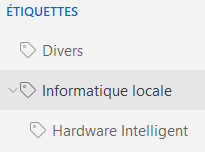
Hi, When we use stickers to sort passwords; it goes to a point you try to manage that like folders. Unfortunately it's not the case... Yet ? Like this : It would be nice to have some equivalent functions like : * copy into (add sticker). * "move" entries from a sticker to another (replace the X sticker with Y) as it was folders Of course on mobile app it could be tricky to achieve. But on desktop computers. Definitely a must have. Have a nice day.