Max
Members
-
Joined
-
Last visited
-
That's pretty awesome, thanks!
-
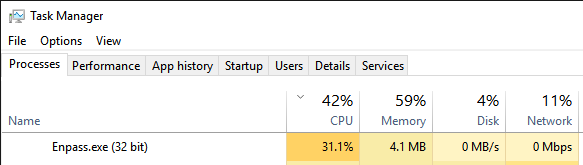
Strangely enough, I can't reproduce it by sleeping the laptop. Enpass is currently well-behaved at 1% CPU or so, rather than the 40%+ it sometimes gobbles up. RAM usage is currently at 20MB (plus 4.4 for the helper process). That's with 82 items. Syncing to and from OwnCloud works without a hitch.
-
I do use WebDAV sync (to keep things synched to my OwnCloud), and yes, this laptop gets stand-by'd all the time. I'll see if I can discern a pattern!
-
To follow up on this: quitting Enpass and starting it again brings down the CPU usage. With memory use being as low as it is (in the screen shot I posted, anyway), I'm not exactly sure *what* is leaking, but I'm starting it's related with uptime. I'll keep a further eye on it.
-
I'm using the free desktop version and the Android version of Enpass and so far it's pretty awesome. I have one question however: it seems like Enpass is pegging a fair amount of CPU. Nearly a third of a modern Core i5 machine seems like a bit much. Any idea as to what may be the cause or how I can help troubleshoot it?