

Skip to content
View in the app

A better way to browse. Learn more.

Enpass Discussion Forum

A full-screen app on your home screen with push notifications, badges and more.

To install this app on iOS and iPadOS
  1. Tap the Share icon in Safari
  2. Scroll the menu and tap Add to Home Screen.
  3. Tap Add in the top-right corner.
To install this app on Android
  1. Tap the 3-dot menu (⋮) in the top-right corner of the browser.
  2. Tap Add to Home screen or Install app.
  3. Confirm by tapping Install.

amerikiwi

Members
  • Joined

  • Last visited

  1. I think that works. That is a strange setting.
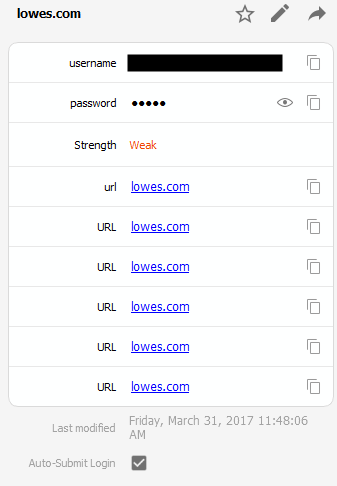
  2. I have seen the same issue, I was wondering why these URL fields weren't showing up on the desktop version.
  3. I just started using the android app today. The autofill option works however when the "Enpass Autofill" popup openes there are no logins found. I have confirmed that the login exists and the urls is correct. When I search for the correct login and use it, I am asked if I want to add this URL to this login. I say yes and now I have several URL fields with the same value. I am unable to take screenshots of the android version or I would attach them. I tried the pay version. This didn't work either so I requested a refund.
Account

Navigation

Search

Search

Configure browser push notifications

Chrome (Android)
  1. Tap the lock icon next to the address bar.
  2. Tap Permissions → Notifications.
  3. Adjust your preference.
Chrome (Desktop)
  1. Click the padlock icon in the address bar.
  2. Select Site settings.
  3. Find Notifications and adjust your preference.