

Skip to content
View in the app

A better way to browse. Learn more.

Enpass Discussion Forum

A full-screen app on your home screen with push notifications, badges and more.

To install this app on iOS and iPadOS
  1. Tap the Share icon in Safari
  2. Scroll the menu and tap Add to Home Screen.
  3. Tap Add in the top-right corner.
To install this app on Android
  1. Tap the 3-dot menu (⋮) in the top-right corner of the browser.
  2. Tap Add to Home screen or Install app.
  3. Confirm by tapping Install.

Andi

Members
  • Joined

  • Last visited

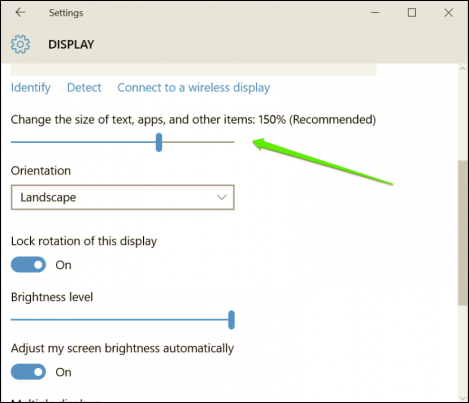
  1. I'm using the Windows 10 PC application (German language version). Parts of certain Enpass windows are outside of my screen and I can't reach them. Resizing the window isn't possible. This is particularly frustrating with the Settings window, because the menu tabs at the top aren't visible nor clickable. I was able to fix the problem by changing my Windows screen settings. By default the size of text, apps, etc. is set to 150% (see screenshot). If I change it to 125% then I can see the full Enpass Settings window. However text is so small that it's hardly usable. Would it be possible to fix this in a future release, so that also at 150% Enpass fits the screen - or at least has a scroll bar? Thanks.
Account

Navigation

Search

Search

Configure browser push notifications

Chrome (Android)
  1. Tap the lock icon next to the address bar.
  2. Tap Permissions → Notifications.
  3. Adjust your preference.
Chrome (Desktop)
  1. Click the padlock icon in the address bar.
  2. Select Site settings.
  3. Find Notifications and adjust your preference.