


Skip to content
View in the app

A better way to browse. Learn more.

Enpass Discussion Forum

A full-screen app on your home screen with push notifications, badges and more.

To install this app on iOS and iPadOS
  1. Tap the Share icon in Safari
  2. Scroll the menu and tap Add to Home Screen.
  3. Tap Add in the top-right corner.
To install this app on Android
  1. Tap the 3-dot menu (⋮) in the top-right corner of the browser.
  2. Tap Add to Home screen or Install app.
  3. Confirm by tapping Install.

Preeti pal

Past Enpass Team Memer
  • Joined

Everything posted by Preeti pal

  1. Hi all, Thanks for your suggestion. I have penned down the suggestion. Cheers!
  2. Thanks for reporting this issue @MaxM. We will fix it in coming extension update. Please bear with us!
  3. Hey @kLy That's very strange! Have you tried to install browser extension directly from Safari Extension Gallery https://safari-extensions.apple.com/?q=enpass Cheers!
  4. Hi @MarwiN, Thanks for your suggestion. Noted and added in our roadmap. I would also like to let you know that you can add new fields in any item. For more details please refer user manual here: https://www.enpass.io/docs/desktop-windows/customize.html#adding-fields Cheers!
  5. Hi @anewuser, Thanks for the suggestion! We will consider adding this feature in a future update .
  6. Hey iSCSI Thanks for using Enpass. Auto starting Enpass at Login has already been rolled out for Mac version and very soon we'll release it out for Traditional Window and Linux PC.
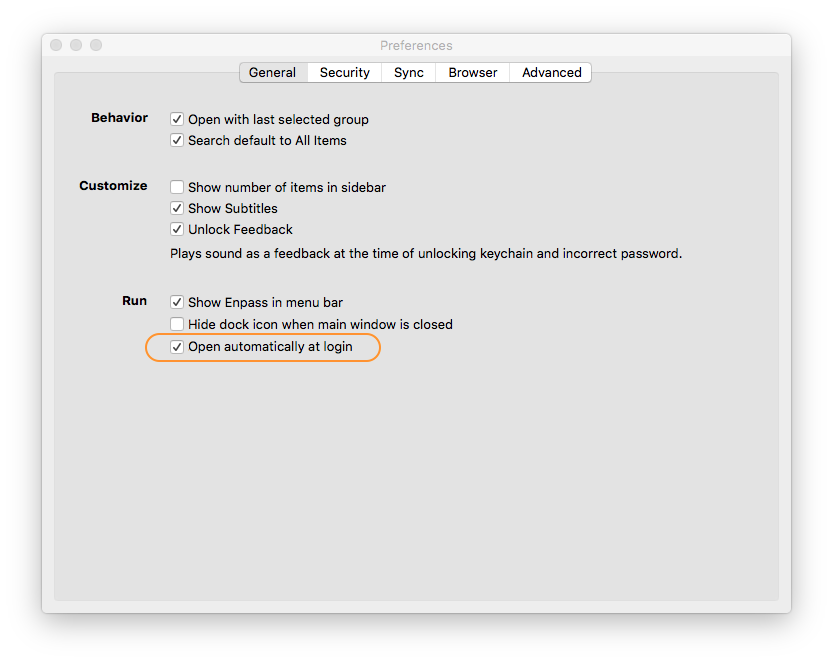
  7. Dear @Enpass User Thanks for using Enpass. Only our traditional desktop version for Windows, Mac and Linux supports importing data from other password managers. But I am sorry to hear that you faced inconvenience while syncing data between devices in first attempt, which shouldn't happen and must have worked smoothly. If you face this issue again, please contact us.
  8. Hello @jfranki Thanks for suggesting the feature. We will implement this functionality in the upcoming version of the UWP app.


Account

Navigation

Search

Search

Configure browser push notifications

Chrome (Android)
  1. Tap the lock icon next to the address bar.
  2. Tap Permissions → Notifications.
  3. Adjust your preference.
Chrome (Desktop)
  1. Click the padlock icon in the address bar.
  2. Select Site settings.
  3. Find Notifications and adjust your preference.