Skip to content
View in the app

A better way to browse. Learn more.

Enpass Discussion Forum

A full-screen app on your home screen with push notifications, badges and more.

To install this app on iOS and iPadOS
  1. Tap the Share icon in Safari
  2. Scroll the menu and tap Add to Home Screen.
  3. Tap Add in the top-right corner.
To install this app on Android
  1. Tap the 3-dot menu (⋮) in the top-right corner of the browser.
  2. Tap Add to Home screen or Install app.
  3. Confirm by tapping Install.

mkloeffer

Members
  • Joined

  • Last visited

Everything posted by mkloeffer

  1. Hi, just downloaded the newest build again and this time it worked! Thanks a lot Michael
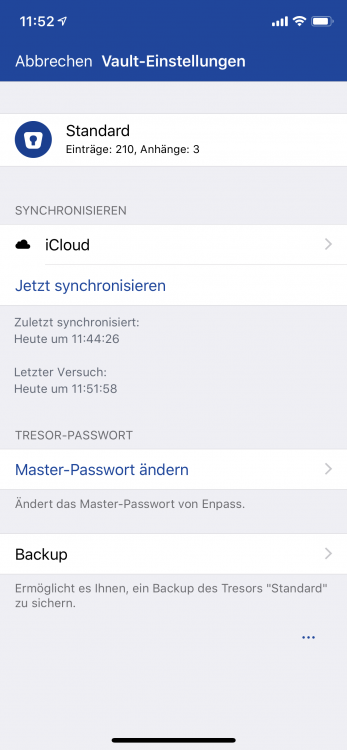
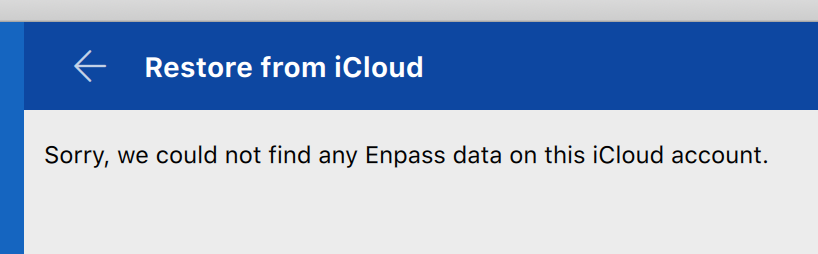
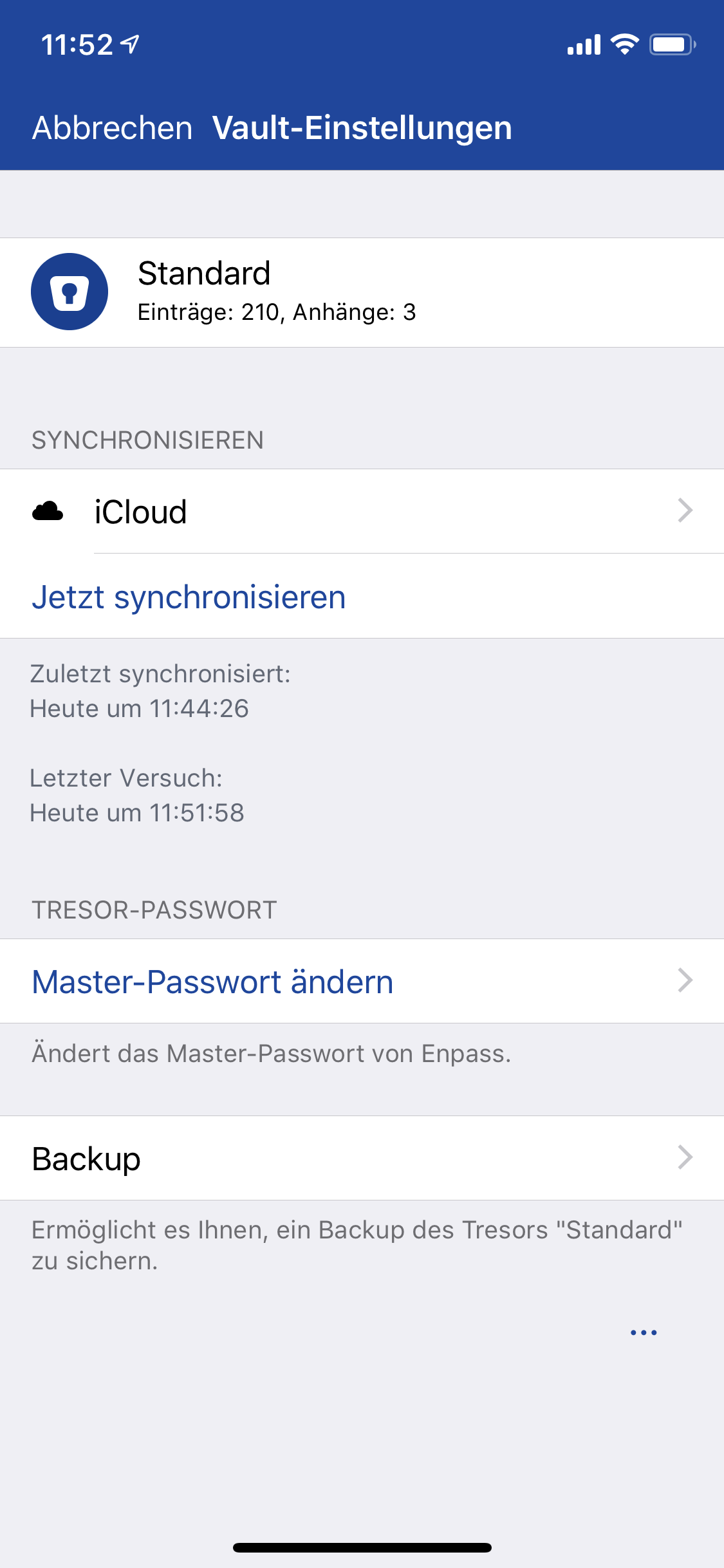
  2. Hi, for my iCloud Sync is not working: I setup Enpass 6 Beta on iOS and synced it to iCloud After that I installed Enpass 6 Beta on MacOS and tried setting up iCloud sync as well, but I get an error message after the authorisation But on my iPhone it looks like the sync worked (sorry, phone is set to German, Mac to English) : Anybody experiencing the same issue? Thanks, Michael
  3. Hi, that did the trick. TouchID worked when using the app directly, but not in the share sheet. After disabling and reenabling, it works also in the share sheet. Thanks a lot! Michael
  4. Hi, I havent found an option to enable TouchID support when using the share sheet extension in Safari on iOS 10.3. I have to always enter my password. Is this a bug or missing feature :-) Thanks Michael
Account

Navigation

Search

Search

Configure browser push notifications

Chrome (Android)
  1. Tap the lock icon next to the address bar.
  2. Tap Permissions → Notifications.
  3. Adjust your preference.
Chrome (Desktop)
  1. Click the padlock icon in the address bar.
  2. Select Site settings.
  3. Find Notifications and adjust your preference.