

Skip to content
View in the app

A better way to browse. Learn more.

Enpass Discussion Forum

A full-screen app on your home screen with push notifications, badges and more.

To install this app on iOS and iPadOS
  1. Tap the Share icon in Safari
  2. Scroll the menu and tap Add to Home Screen.
  3. Tap Add in the top-right corner.
To install this app on Android
  1. Tap the 3-dot menu (⋮) in the top-right corner of the browser.
  2. Tap Add to Home screen or Install app.
  3. Confirm by tapping Install.

Klopfer

Members
  • Joined

  • Last visited

  1. The following scenario: I have Enpass (Windows) open and i'm in the Favorites tab. When i now want to save or update an entry via the Chrome extension it saves the new/edited entry in my Favorites tab in Enpass (Windows). In my opinion it should give a selection where it should be saved and it its a favorite.
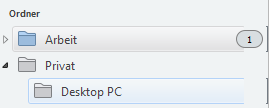
  2. As seen in the attached image, there are some slightly bugged selection/hover bars. In Win 7 it's only a small gap, but in Win 10 the gap is wider.
Account

Navigation

Search

Search

Configure browser push notifications

Chrome (Android)
  1. Tap the lock icon next to the address bar.
  2. Tap Permissions → Notifications.
  3. Adjust your preference.
Chrome (Desktop)
  1. Click the padlock icon in the address bar.
  2. Select Site settings.
  3. Find Notifications and adjust your preference.