rudida
Members
-
Joined
-
Last visited
-
Today I still had the problem and I saw that Enpass is already on Version 6.0.3. Then I deleted these environment variables I recently added and.... Enpass is finally scaling right (4K display, 225% zoom)
-
Did you also notice, that a normal user doesn't know how to add such Environment Variables? I think many people have this problem, probably all with a 4K Display. Is a fix for that coming, too? Thank you
-
Yep, same problem here. And I think it's not a problem, but a feature.. I hope that in the future there will be an update, that you never have to type in your Master Password.
-
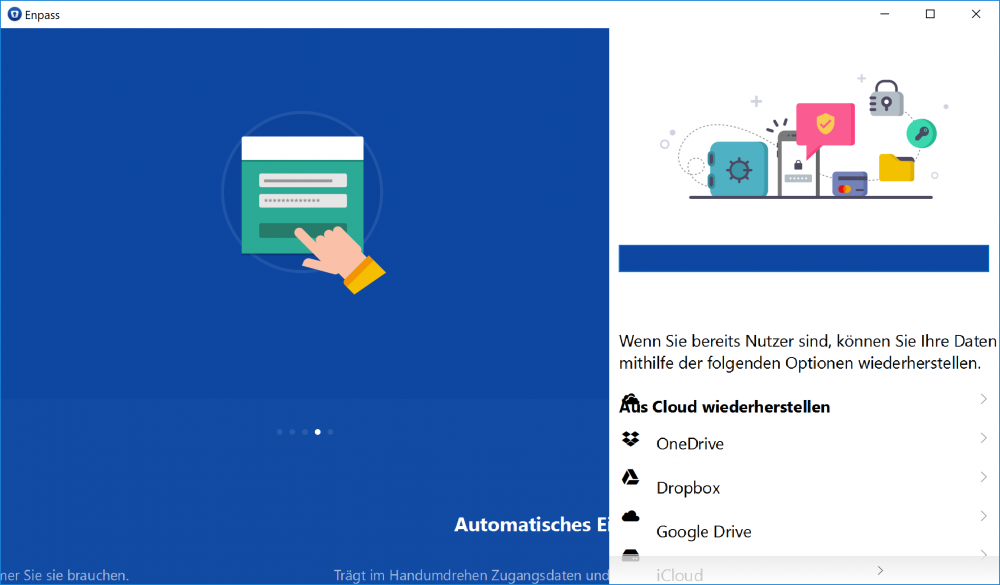
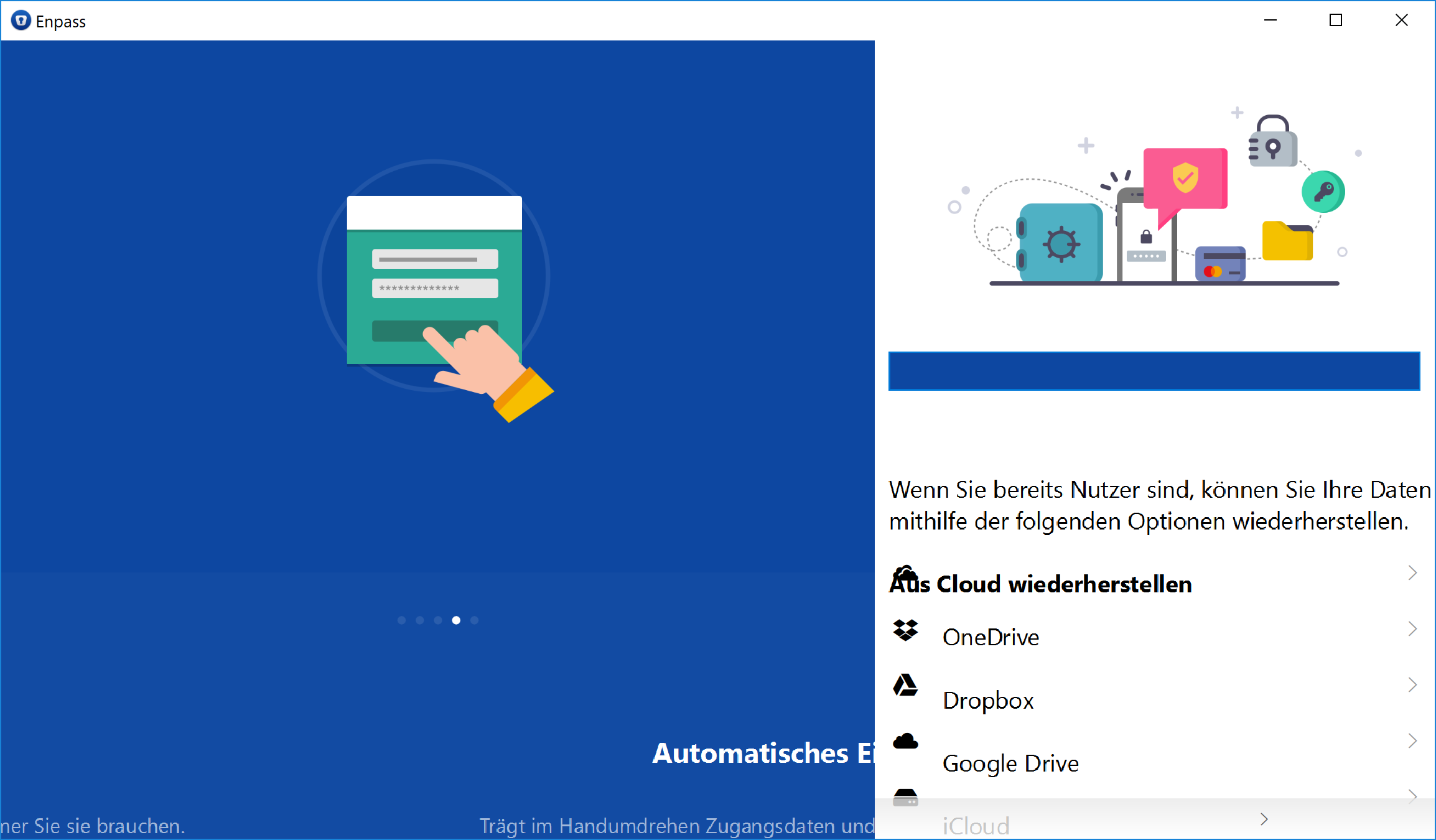
Same problem. Funny thing, the first few days with Enpass 6 there were no problems. Everything is not in the right place now. For example if I click Dropbox in my picture then Google Drive shows up.. I tried to repair, to reset, and to reinstall, but nothing helped. I found out that when I go to System-settings -> system -> Display -> "Change the size of text..." to 100% and restart Enpass then it's fine - but then I need a magnifier for everything Normaly my setting is 225% (250% recommended from the system). I use a Dell XPS Laptop with the 4K Display. // I also tried to follow the FAQ and add the variables, but that did not change anything, even after a reboot. So now I live with a very small Enpass, while all the other programms are OK.