

Skip to content
View in the app

A better way to browse. Learn more.

Enpass Discussion Forum

A full-screen app on your home screen with push notifications, badges and more.

To install this app on iOS and iPadOS
  1. Tap the Share icon in Safari
  2. Scroll the menu and tap Add to Home Screen.
  3. Tap Add in the top-right corner.
To install this app on Android
  1. Tap the 3-dot menu (⋮) in the top-right corner of the browser.
  2. Tap Add to Home screen or Install app.
  3. Confirm by tapping Install.

onepass-refugee

Members
  • Joined

  • Last visited

Everything posted by onepass-refugee

  1. I've tried reinstalling several times, doesn't make a difference. 1703 When launching the fresh app, "Enpass Password Manager" has never worked for me since installing. Windows Defender Yes, I've installed the traditional desktop app and the old enpass windows store app. Thanks
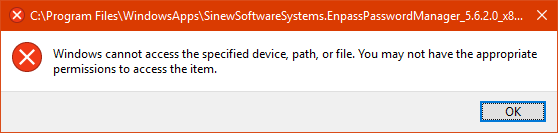
  2. Can't run the new Windows 10 application, not sure why. Don't have issues with any other store apps, just this one. I've looked at the WindowsApps permissions but I'm reluctant to change them. This is the error I get: [Window Title] C:\Program Files\WindowsApps\SinewSoftwareSystems.EnpassPasswordManager_5.6.2.0_x86__fwdy0m65qb6h2\EnpassFiles\Enpass.exe [Content] Windows cannot access the specified device, path, or file. You may not have the appropriate permissions to access the item. [OK]
Account

Navigation

Search

Search

Configure browser push notifications

Chrome (Android)
  1. Tap the lock icon next to the address bar.
  2. Tap Permissions → Notifications.
  3. Adjust your preference.
Chrome (Desktop)
  1. Click the padlock icon in the address bar.
  2. Select Site settings.
  3. Find Notifications and adjust your preference.