


TexasBlueBoy
Members
-
Joined
-
Last visited
Everything posted by TexasBlueBoy
-
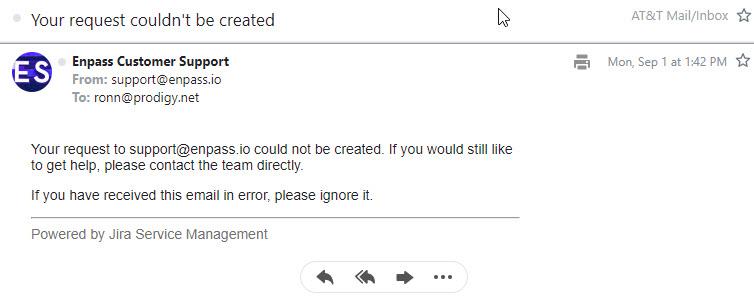
I just tried to send a mp4 file to support@enpass.io and it was rejected.
-
I had been getting very upset that Enpass stopped auto filling UserId and Password on my desktop computer (Microsoft Edge browser). I had even deleted the Enpass Extension and reinstalled it several times to no avail. I finally saw that there was another password extension installed so I deleted it and Enpass began working again. It still doesn't work like it used to but it is working part of the way. It now fills the userid but doesn't do the password. Do you have any ideas what I need to do next?
-
I'm having the same problem on my laptop. Which version of OS and the Build are you using? Windows 10 Home on Toshiba Satellite L655 (64-bit Operating system) Which cloud services are you using to sync? Dropbox Are you facing this problem when you freshly start the app after rebooting the system or on starting new instance too? Mainly on first booting up.