

Skip to content
View in the app

A better way to browse. Learn more.

Enpass Discussion Forum

A full-screen app on your home screen with push notifications, badges and more.

To install this app on iOS and iPadOS
  1. Tap the Share icon in Safari
  2. Scroll the menu and tap Add to Home Screen.
  3. Tap Add in the top-right corner.
To install this app on Android
  1. Tap the 3-dot menu (⋮) in the top-right corner of the browser.
  2. Tap Add to Home screen or Install app.
  3. Confirm by tapping Install.

Manuel_

Members
  • Joined

  • Last visited

  1. Hey Akash, thanks for your answer! It really helped to set this setting manually to a scaling factor of 100%. I don't know why, but this differs from my screen settings in windows, which is set to 200%. Thanks for your help! Best regards, Manuel
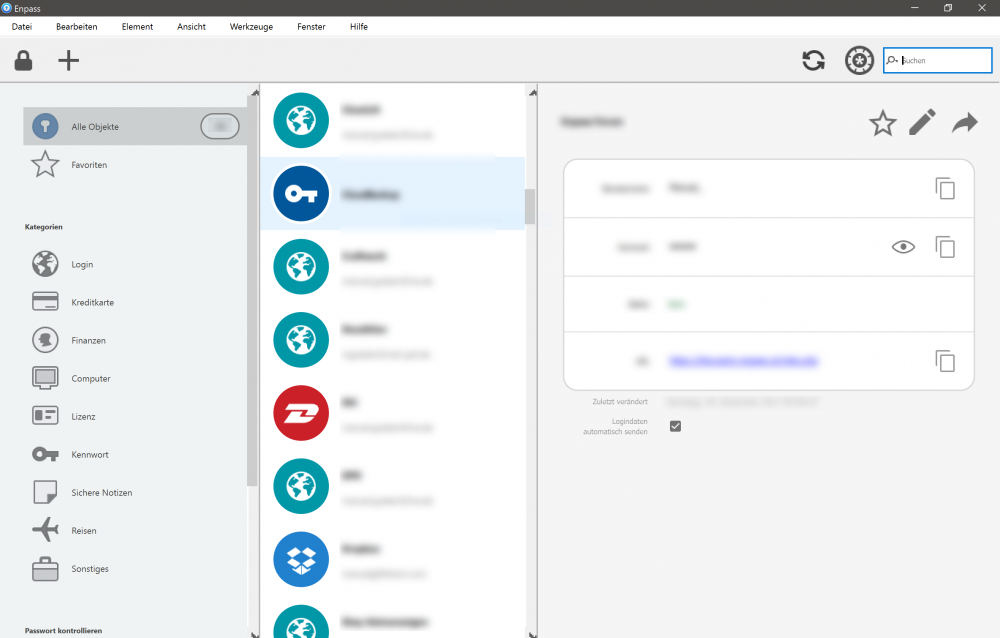
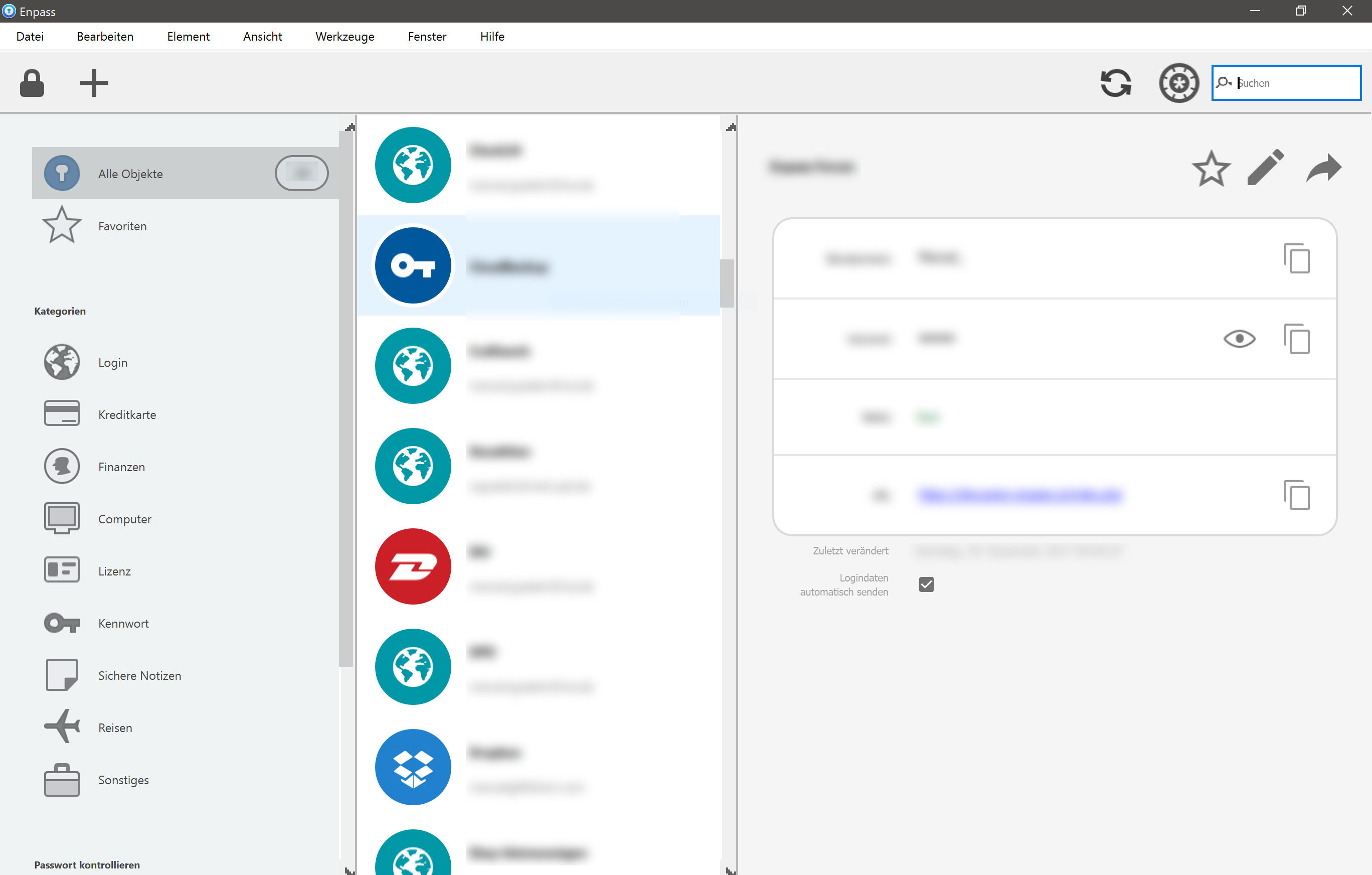
  2. Hey everyone, I've got a scaling Problem on my Surface Pro. It has a native resolution of 2736 x 1824. When I open Enpass, Symbols are way too big. Under Tools > Setting Advanced, the setting for high DPI Displays is enabled, but it seems that the screen is not dermined correctly. The High DPI Settings show a "DISPLAY 1" which has a imagninary resolution of 684 x456. Does anybody have any advice for me? Best regards, Manuel
Account

Navigation

Search

Search

Configure browser push notifications

Chrome (Android)
  1. Tap the lock icon next to the address bar.
  2. Tap Permissions → Notifications.
  3. Adjust your preference.
Chrome (Desktop)
  1. Click the padlock icon in the address bar.
  2. Select Site settings.
  3. Find Notifications and adjust your preference.