

Skip to content
View in the app

A better way to browse. Learn more.

Enpass Discussion Forum

A full-screen app on your home screen with push notifications, badges and more.

To install this app on iOS and iPadOS
  1. Tap the Share icon in Safari
  2. Scroll the menu and tap Add to Home Screen.
  3. Tap Add in the top-right corner.
To install this app on Android
  1. Tap the 3-dot menu (⋮) in the top-right corner of the browser.
  2. Tap Add to Home screen or Install app.
  3. Confirm by tapping Install.

mherold

Members
  • Joined

  • Last visited

  1. mherold posted a topic in Windows
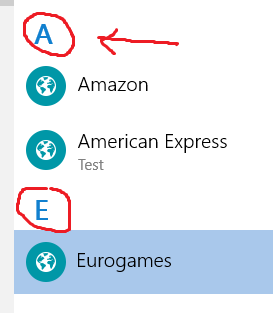
    Is there a way in the windows desktop version to show a letter seperator (see my attachment) like the universal windows app?
  2. I noticed this small flashing window too. Is there a way to hide it?
  3. I have exact the same problem. If i start Enpass manually, windows size is saved and will be restored on the next manual start. If I start Enpass automatically with Windows (enabled the option in the Enpass settings), windows size is not saved and will be restore to a default size on next reboot.

Account

Navigation

Search

Search

Configure browser push notifications

Chrome (Android)
  1. Tap the lock icon next to the address bar.
  2. Tap Permissions → Notifications.
  3. Adjust your preference.
Chrome (Desktop)
  1. Click the padlock icon in the address bar.
  2. Select Site settings.
  3. Find Notifications and adjust your preference.