rauppe31
Members
-
Joined
-
Last visited
-
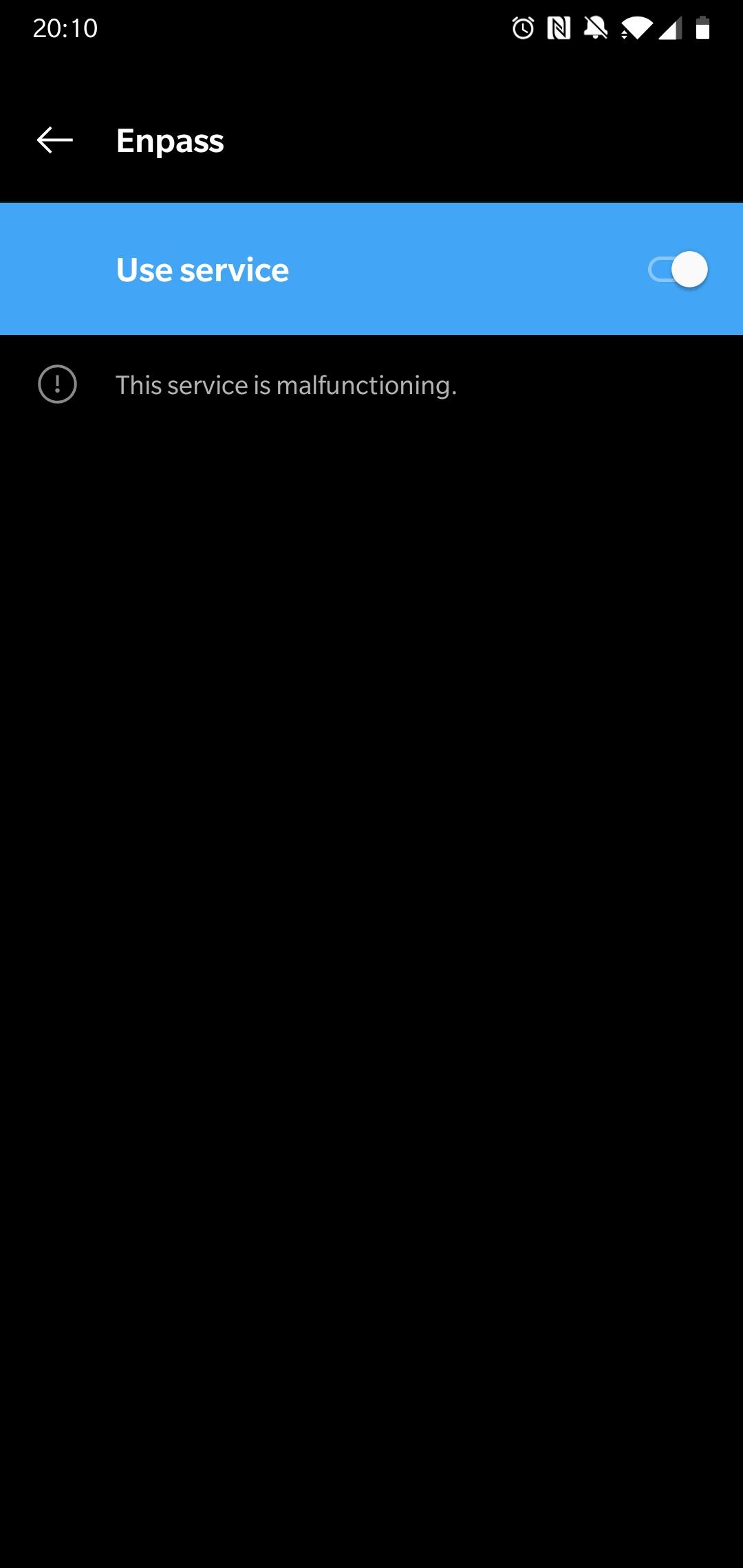
Hello I've a problem with the android app of Enpass on my Oneplus 6. When I activate the Enpass Autofill service using accessibility, the autofill works for a few hours. But after some time, I don't get the notification anymore and when I go to the Enpass autofill service setting it tells me "This service is malfunctioning". I can then disable and enable the service and it works again, for a few hours. Does anyone have a solution for this issue? Best Regards Marco
-
Thanks for your reply. I could solve my Wifi issues by updating the routers firmware. The Qt framework fix is still working fine. I'll then wait for Enpass 6 :-)
-
@Vinod Kumar @Anshu kumar I have this issue again even when setting the system variable. As soon as I start Enpass I get those high pings and the network throughput is terrible slow. Sometimes also when Enpass is closed. I would also like to quote @Vinod Kumar As I can see this (for me) big issue hasn't been fixed in over one year. This is unacceptable.
-
I do have exactly the same problem, but with a normal Windows 10 Version (no preview). I also get those ping peaks and the bandwidth drops as soon as I start Enpass. I've created a video of it so you can see how it looks like: Would be nice if Enpass can fix this as I can't use the application on this computer with this bug.