Skip to content
View in the app

A better way to browse. Learn more.

Enpass Discussion Forum

A full-screen app on your home screen with push notifications, badges and more.

To install this app on iOS and iPadOS
  1. Tap the Share icon in Safari
  2. Scroll the menu and tap Add to Home Screen.
  3. Tap Add in the top-right corner.
To install this app on Android
  1. Tap the 3-dot menu (⋮) in the top-right corner of the browser.
  2. Tap Add to Home screen or Install app.
  3. Confirm by tapping Install.

Philip

Members
  • Joined

  • Last visited

  1. Hey Thanks, Anshu. That worked.
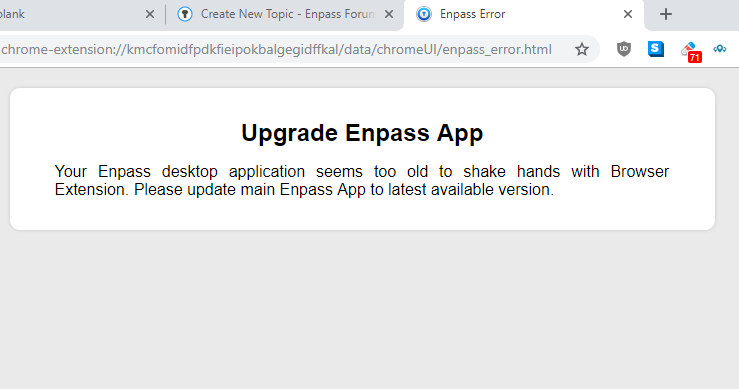
  2. Hi, The chrome extension doesn't work anymore after my windows desktop app updated to version 6. This happened even after uninstalling the extension and reinstalling. Need a fix, guys. regards
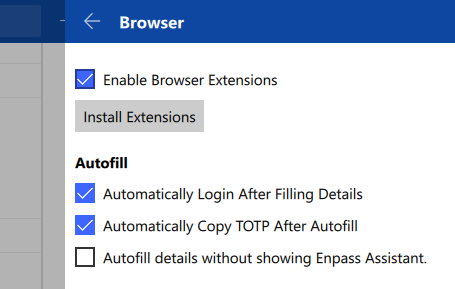
  3. Guys, it's working now. Thanks
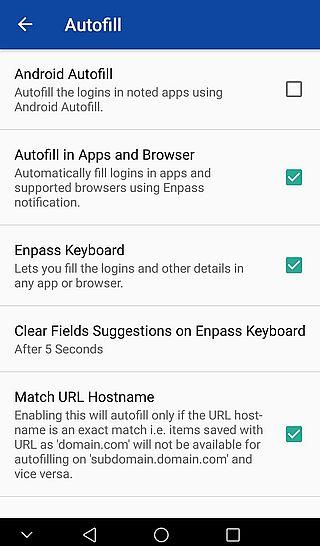
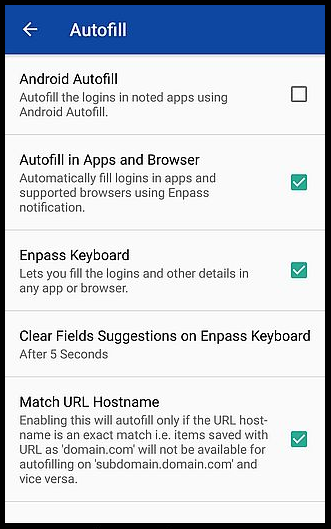
  4. HI! Just wanted to bring to your attention that the android autofill option doesnt work. It allows the box to be ticked, but does not remain so when you exit and come back to the same screen. Hope you guys fix that soon. Thanks Philip

Account

Navigation

Search

Search

Configure browser push notifications

Chrome (Android)
  1. Tap the lock icon next to the address bar.
  2. Tap Permissions → Notifications.
  3. Adjust your preference.
Chrome (Desktop)
  1. Click the padlock icon in the address bar.
  2. Select Site settings.
  3. Find Notifications and adjust your preference.