


Brant
Members
-
Joined
-
Last visited
-
Is there any update that can be shared on when this issue will be fixed?
-
Thanks @Sunil Kumar I was able to rename/delete the walletx.db and resync from the cloud.
-
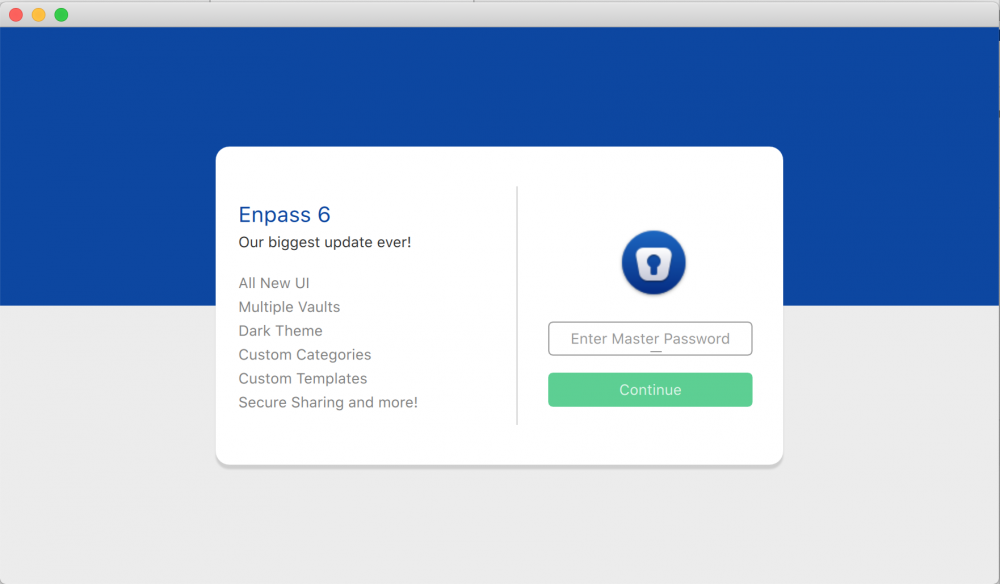
I just installed version 6 from the Mac App Store. When I open the app I am prompted to enter a master password. How can I reset Enpass so that it doesn't think there is a previous database? Any password I enter isn't accepted so I just want to restore from a backup.
-
This same type of scrolling behavior happens on other parts of the app as well. For example adding a new login and viewing settings, basically anywhere scrolling is needed.
-
I've installed version 6.0.0 (250). When "All Items" category is selected and I try to scroll using my mouses scroll wheel the scrolling keeps jumping back to the top. The only way I'm able to scroll is by grabbing the scroll bar and dragging it down. - Brant
-
When trying to use Enpass Autofill on iOS 12 I am getting an error of ENPASS EXTENSION FAILED TO RECEIVE INFORMATION FROM THE APP. and passwords are not able to be autofilled. This happens frequently, but not all the time. There are some apps where autofill has worked, but most do not. I've deleted the app and re-installed to see if that would make a difference.

