Mike_B
Members
-
Joined
-
Last visited
Everything posted by Mike_B
-
My issue finally got fixed, not sure when exactly. It was last modified 3/5/2019. I am running version 6.0.6 (314) now. Hopefully it is fixed for others to.
-
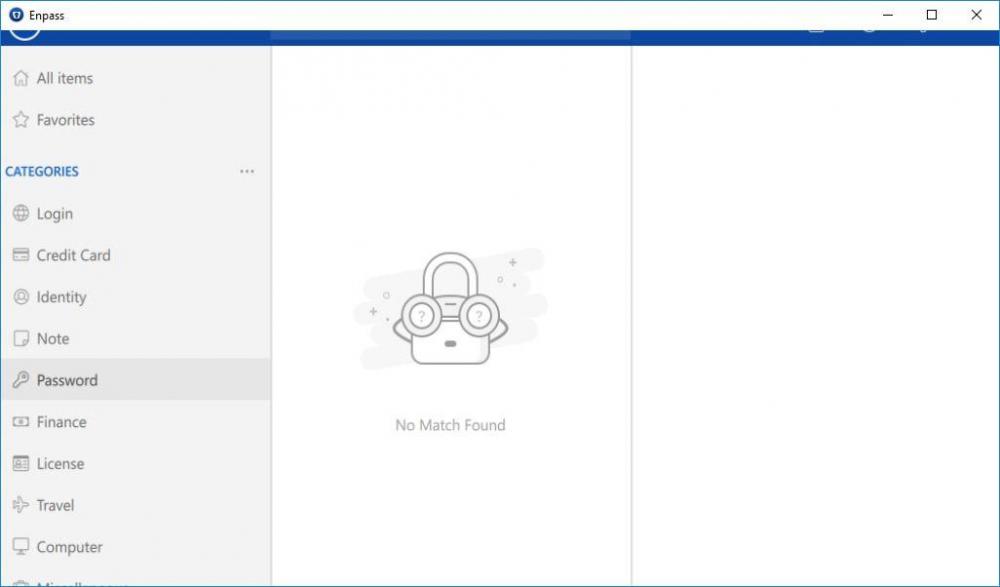
My problem has nothing to do with Resolution, Scaling or Multi monitor. I unplugged my laptop from the dock and tried different resolutions and scale factors with and without the fix blurry apps option on my laptop screen. All the same: the menu bar is cut off. Is there an option to restore the previous version, till this is fixed? Although I opted in for the beta I expected it to run parallel. Which I did before until I got updated all by it self.
-
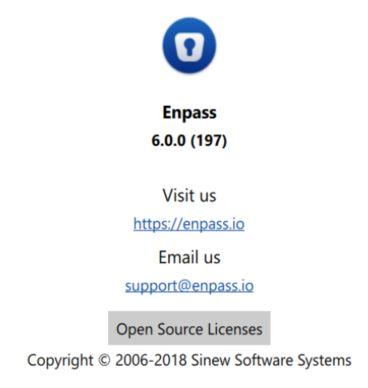
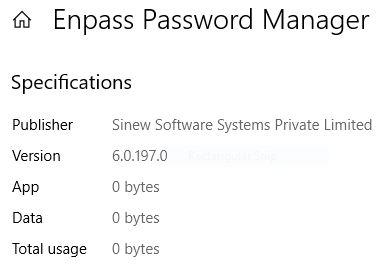
Hi Anshu, Yes it's a multi monitor system (2 monitors) Both monitors with the same settings: 1920 x 1080 and scaling 100% Enpass Version 6.0.0 (197) Check for updates says it's up to date Windows says it's version 6.0.197.0
-
I Have a simulair issue. Got updated out of the blue, still have the issue I had with the beta. The menu bar is cut off: This was already posted here: https://discussion.enpass.io/index.php?/topic/4576-a-new-beta-update-of-enpass-6-is-now-available-for-linux-macos-and-windows/&tab=comments#comment-9517 I'm still on Windows 10 version 1803, though. Also the whole click area seems to be shifted down. I can't exactly see where I click. Need fix soon, can't work with this version!