

Skip to content
View in the app

A better way to browse. Learn more.

Enpass Discussion Forum

A full-screen app on your home screen with push notifications, badges and more.

To install this app on iOS and iPadOS
  1. Tap the Share icon in Safari
  2. Scroll the menu and tap Add to Home Screen.
  3. Tap Add in the top-right corner.
To install this app on Android
  1. Tap the 3-dot menu (⋮) in the top-right corner of the browser.
  2. Tap Add to Home screen or Install app.
  3. Confirm by tapping Install.

PeterM

Members
  • Joined

  • Last visited

  1. PeterM replied to PeterM's topic in Windows
    With another value you can save. But it also shows 'expired' with 500 days. Although the change was 152 days ago.
  2. PeterM replied to PeterM's topic in Windows
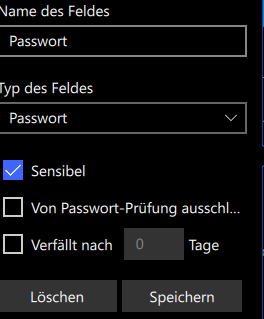
    Mr. Kumar I have clicked on the checkbox, but the program does not allow storage with 0 days. The password check will expire, even though zero days are in the record. I delete the record and create it again. Thanks.
  3. PeterM replied to PeterM's topic in Windows
    I know it, but the counter in the password in question is set to zero.
  4. PeterM replied to PeterM's topic in Windows
    Hi Mr. Kumar, I was wrong. The field 'expires after' is without hooks and zero days. PeterM
  5. PeterM posted a topic in Windows
    Windows 10 (Store), A passport point suddenly "expires" in the exam. There is no field for this.

Account

Navigation

Search

Search

Configure browser push notifications

Chrome (Android)
  1. Tap the lock icon next to the address bar.
  2. Tap Permissions → Notifications.
  3. Adjust your preference.
Chrome (Desktop)
  1. Click the padlock icon in the address bar.
  2. Select Site settings.
  3. Find Notifications and adjust your preference.