Aleks
Members
-
Joined
-
Last visited
-
Currently there is no connection between the chromebook enpass autofill plugin and enpass beta, the menu point from the 5.x version (autofill on chromebook) is not available. Aleks
-
Looks like Enpass 6.0.0 (279) with Enpass plugin 6.0.0.68 fixes this. YAY! The Opening at the position of the mouse pointer is still anoying. It might be better to orientate at the form to be filled. Aleks
-
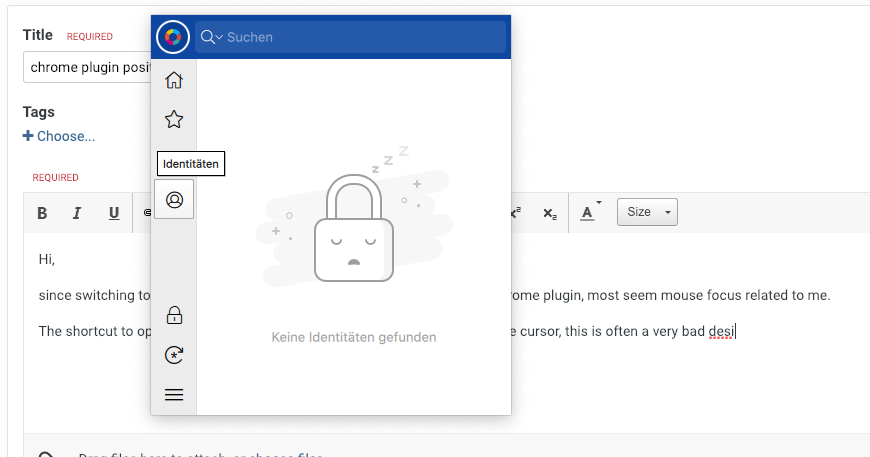
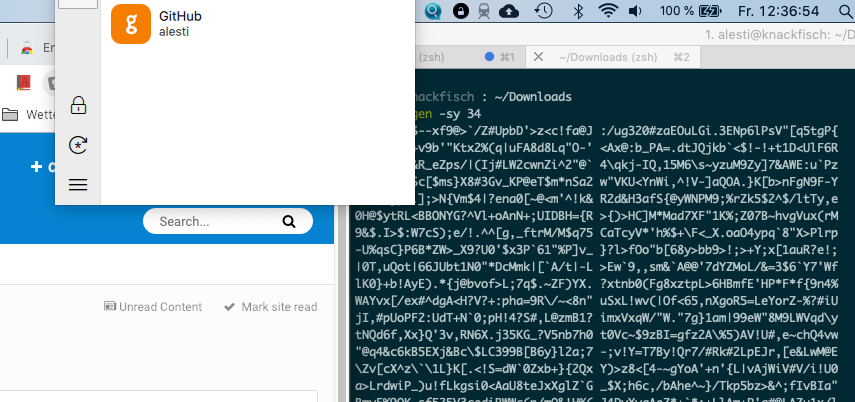
Hi, i made the same experience. Versions: Mac OS 10.14.2 (18C54), Chrome 71.0.3578.98, Enpass plugin 6.0.0.56, Enpass 6.0.0 (250) I can confirm Mike, the helper is only in my secondary (but bigger) screen out of the screen borders, but the setting at the mouse pointer is anoying at all. There are a lot of usebility issues with the chrome plugin, i think the most of them are related to the actual mouse/coursor focus point. The shortcut to open the plugin opens the plugin in the vincinity of the mouse pointer, this is often a bad decision, as you can see in the attached screenshots. That also happens, if the plugin recognizes a new login (happened for me just to subscribe here :D), the window is not viewable, movable and so not usable (no screenshot for this). By the way: enpass beta links into the wrong (5.x) browser plugin site (and chrome store). Aleks