

Skip to content
View in the app

A better way to browse. Learn more.

Enpass Discussion Forum

A full-screen app on your home screen with push notifications, badges and more.

To install this app on iOS and iPadOS
  1. Tap the Share icon in Safari
  2. Scroll the menu and tap Add to Home Screen.
  3. Tap Add in the top-right corner.
To install this app on Android
  1. Tap the 3-dot menu (⋮) in the top-right corner of the browser.
  2. Tap Add to Home screen or Install app.
  3. Confirm by tapping Install.

Atlan

Members
  • Joined

  • Last visited

Everything posted by Atlan

  1. Just to close this. After receiving some further Windows Insider updates, the issue is gone. The Enpass Edge extension shows up and works fine.
  2. @Hemant Kumar, as laibalion replied. that doesn't help. I agree with laibalion, it's probably due to the insider build.
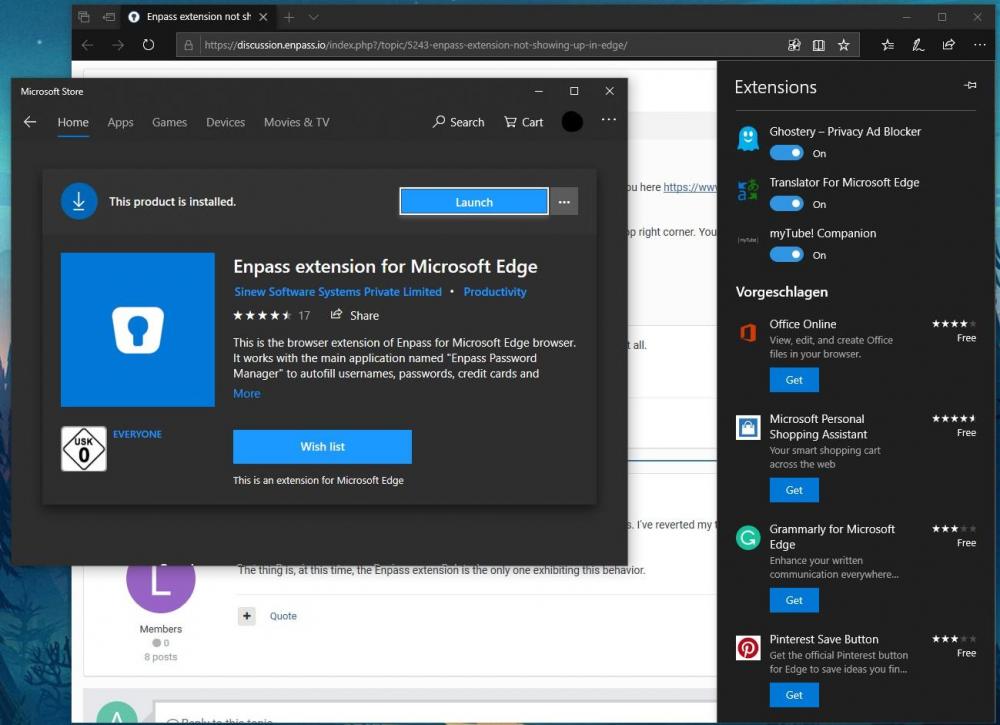
  3. Happy new year :-) I have followed that route and it didn't work. The extension doesn't show up in Edge.
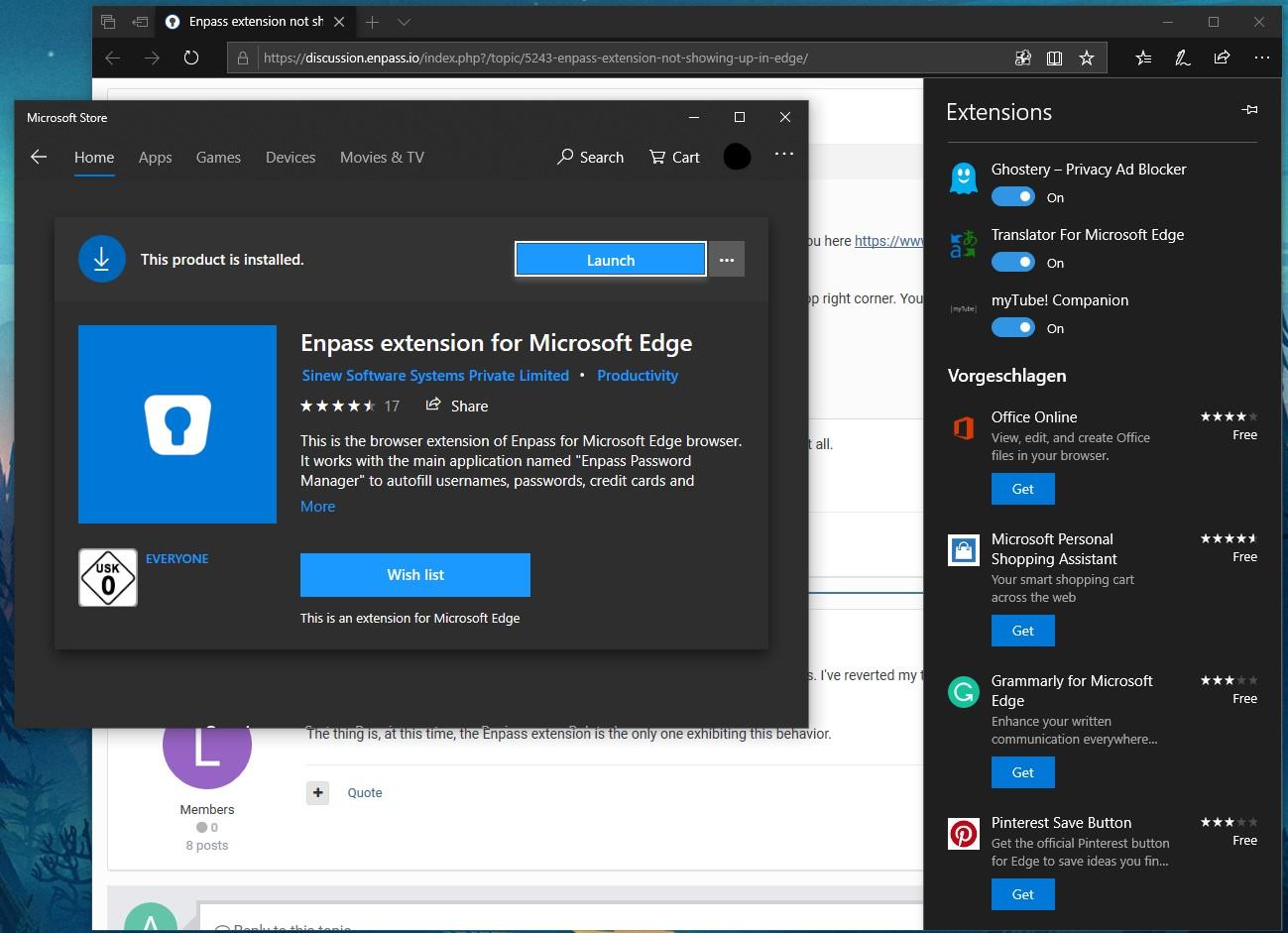
  4. I have installed the Enpass extension for Edge, but it won't show up in Edge's extension list. Am I doing something wrong? My guess is that I have to configure the extension through the extensions menu? I have already uninstalled and reinstalled the extension without success. I am running Win10 insider preview fast ring (18305).
Account

Navigation

Search

Search

Configure browser push notifications

Chrome (Android)
  1. Tap the lock icon next to the address bar.
  2. Tap Permissions → Notifications.
  3. Adjust your preference.
Chrome (Desktop)
  1. Click the padlock icon in the address bar.
  2. Select Site settings.
  3. Find Notifications and adjust your preference.