


wws
Members
-
Joined
-
Last visited
Everything posted by wws
-
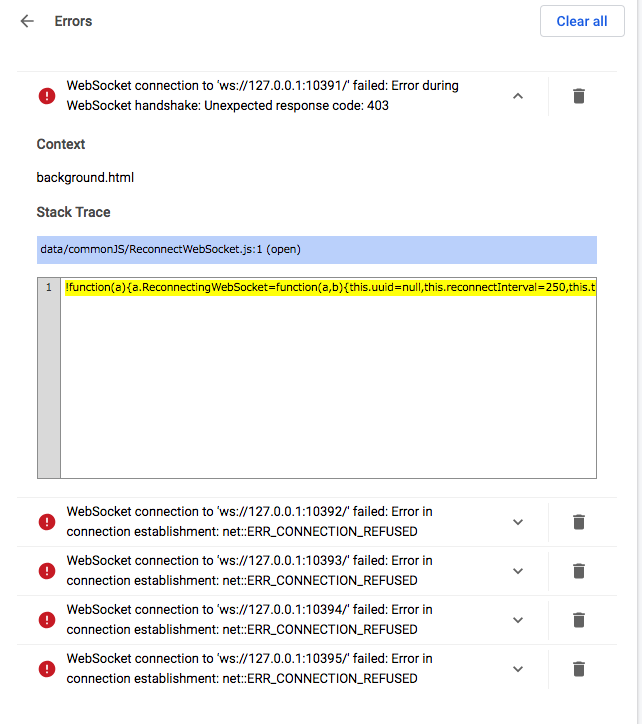
Hello. Thanks for uploading it, however, as mentioned above, loading the unpacked version shows an error with websocket and cannot really be used. And trying to use the extension leads to "Enpass Connection Error". I can see the port 10391 is open on the machine though. I suppose it should go up on the Chrome Web Store as another extension. It would also be nice if you'd keep the version 5 for iOS as well as a legacy app.
-
You said that loading an unpacked extension won't work and it doesn't. Also using it from some random hosted site is absolutely no go when your entire list of password can be at risk. I want an official download please. I like the offline nature of Enpass. I've tried Bitwarden and while it's good for what it does, having one online hack to get you screwed entirely wasn't the best practice in my opinion. I don't understand but that some people will not want the newest version of a software and devs pretty much broke their daily process by just force upgrading on everyone. Now I have to copy and paste every single login everyday from desktop Enpass app.
-
No need to call out as a liar but please prepare a standalone extension for version 5 for Chrome or put it up as Legacy version on the store as suggested. You pretty much broke the app one day all of a sudden and there's no way to get it back at the moment unless forcefully upgrading.
