Skip to content
View in the app

A better way to browse. Learn more.

Enpass Discussion Forum

A full-screen app on your home screen with push notifications, badges and more.

To install this app on iOS and iPadOS
  1. Tap the Share icon in Safari
  2. Scroll the menu and tap Add to Home Screen.
  3. Tap Add in the top-right corner.
To install this app on Android
  1. Tap the 3-dot menu (⋮) in the top-right corner of the browser.
  2. Tap Add to Home screen or Install app.
  3. Confirm by tapping Install.

Grestorn

Members
  • Joined

  • Last visited

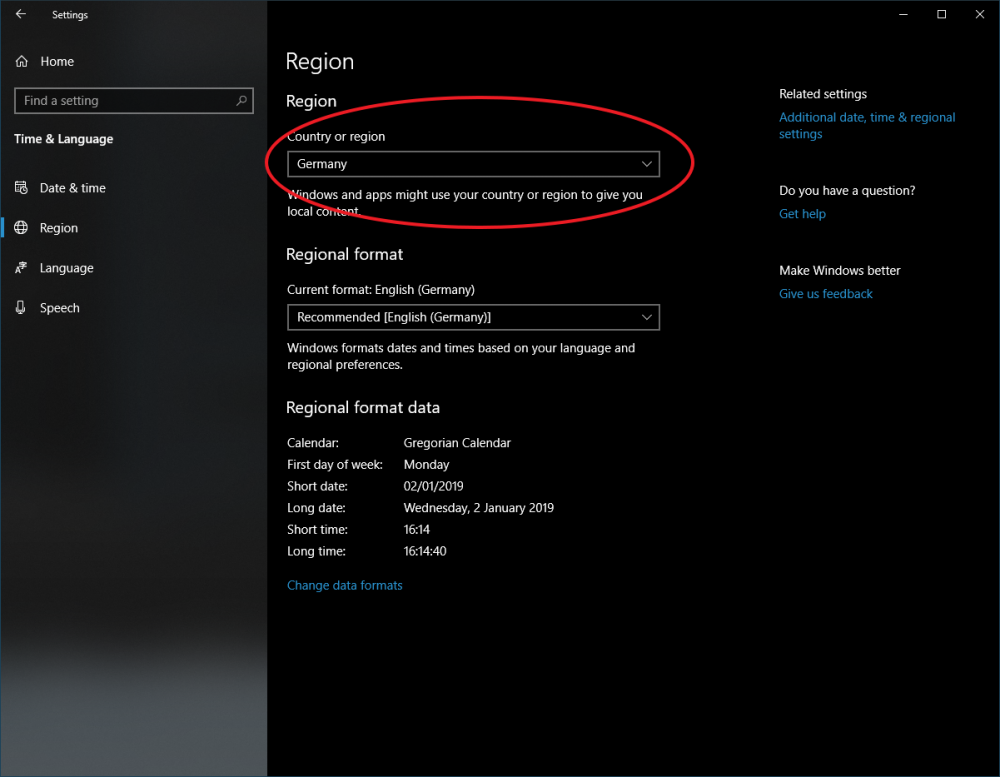
  1. Actually, I was able to solve that issue. In my Windows 10 installation, I had set the "Region" setting set to "USA" (because I had made some tests with Cortana a while ago and forgot about it - never was an issue anywhere, yet, including the shop). Set it to German or wherever you're living and then the shop will work properly:
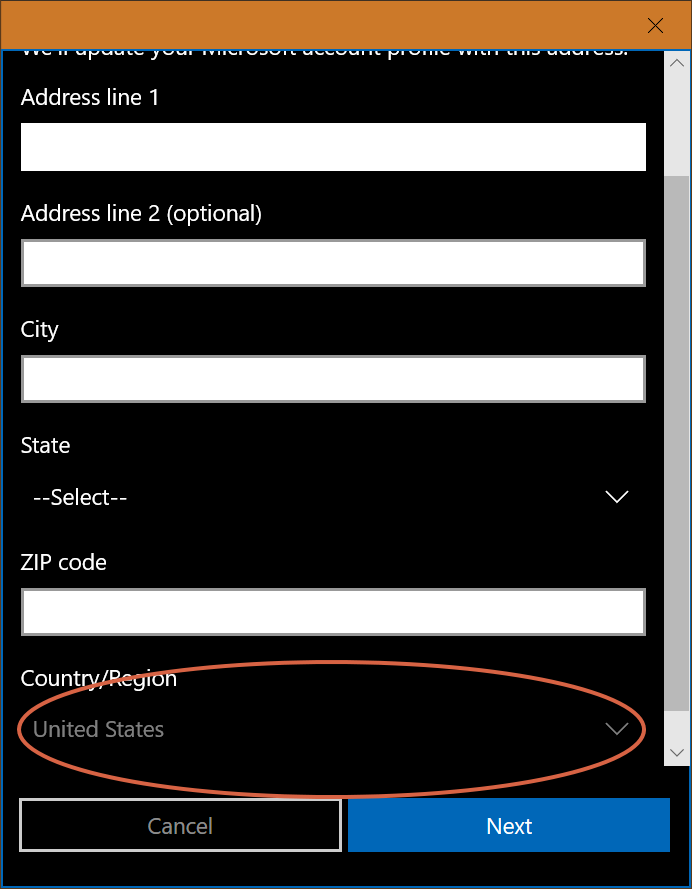
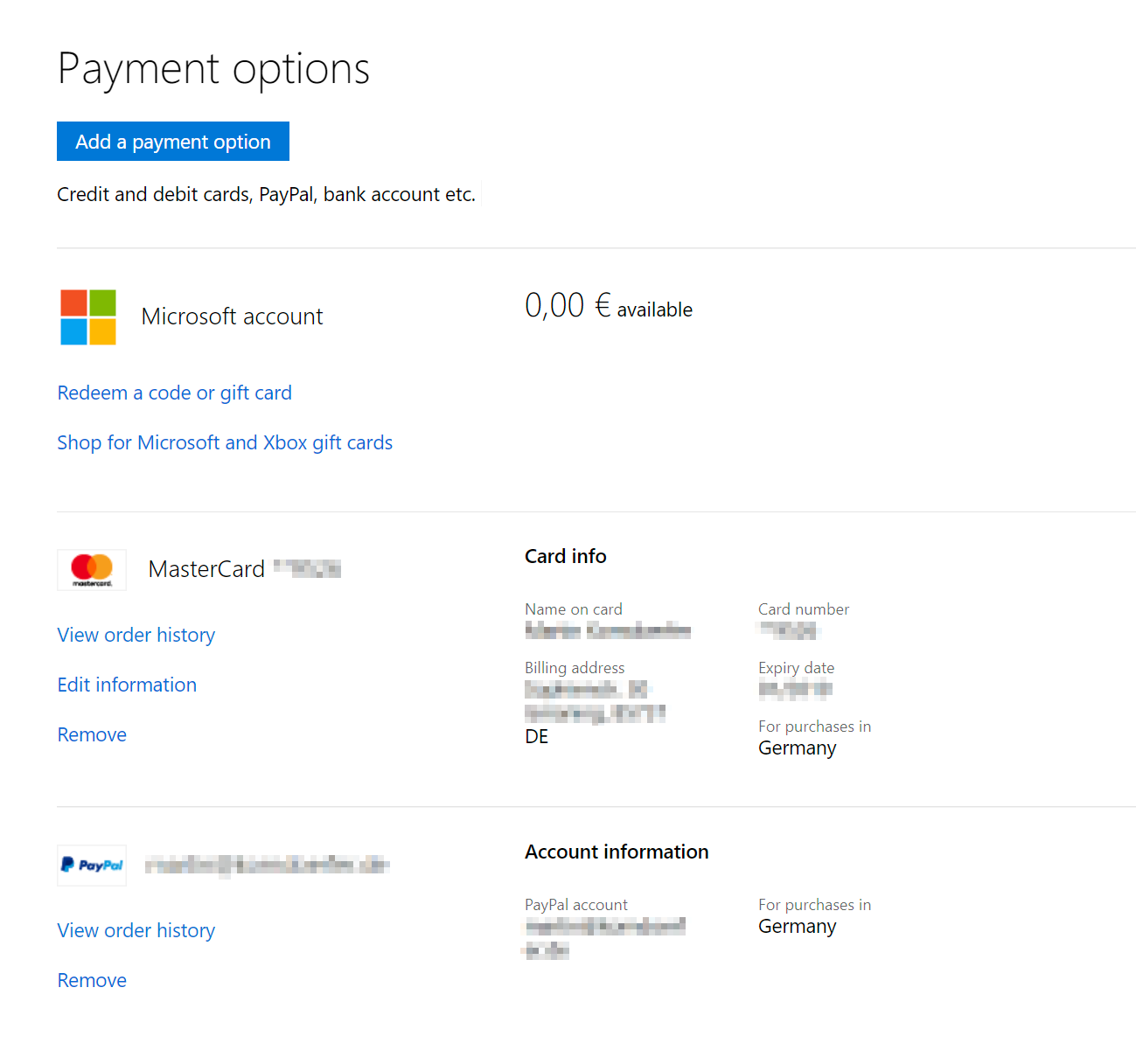
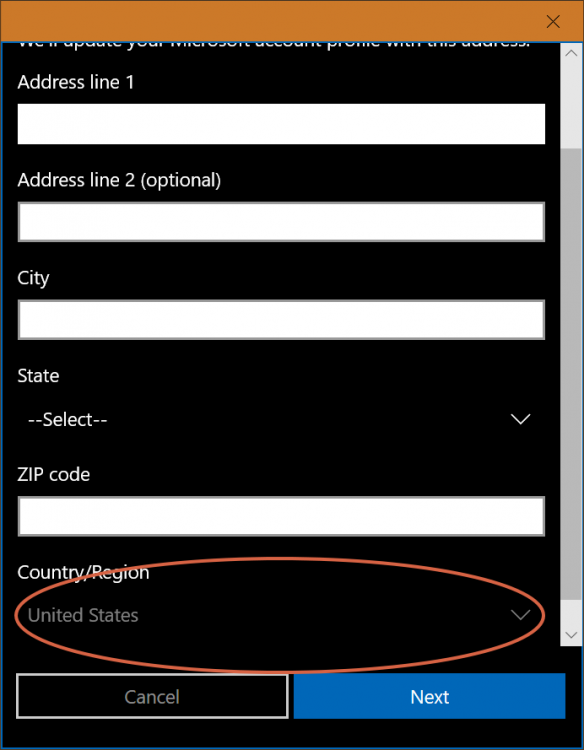
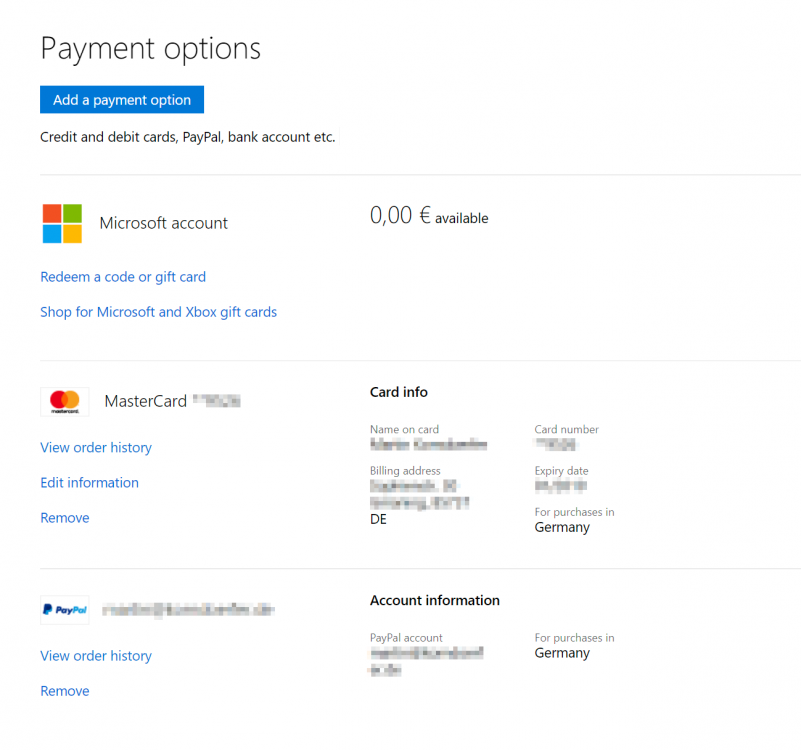
  2. I want to upgrade to the Premium version, since the Microsoft Hello authentification is extremely welcome. However, the in app purchase doesn't work. It insists on entering an US address: My active windows account is properly set to my german home location, though, including the payment options. I am logged in with that account in Windows 10 as well: That keeps me from getting the premium version and is quite frustrating. I hope this can be fixed somehow. Thanks.
Account

Navigation

Search

Search

Configure browser push notifications

Chrome (Android)
  1. Tap the lock icon next to the address bar.
  2. Tap Permissions → Notifications.
  3. Adjust your preference.
Chrome (Desktop)
  1. Click the padlock icon in the address bar.
  2. Select Site settings.
  3. Find Notifications and adjust your preference.