lairdchris
Members
-
Joined
-
Last visited
Everything posted by lairdchris
-
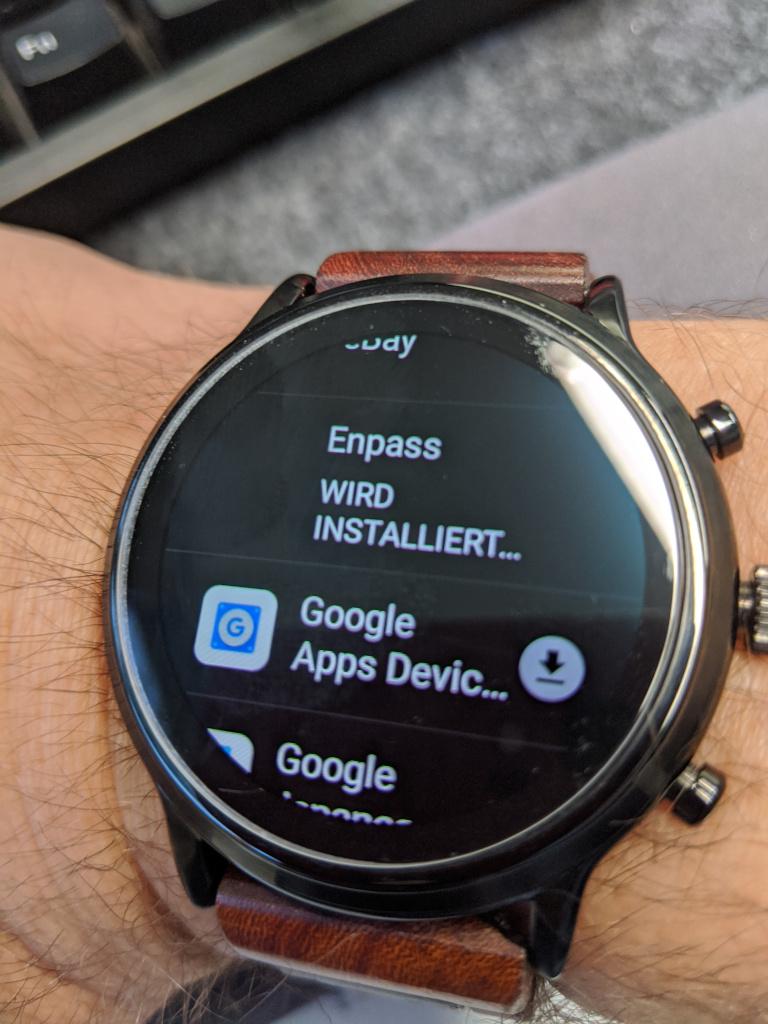
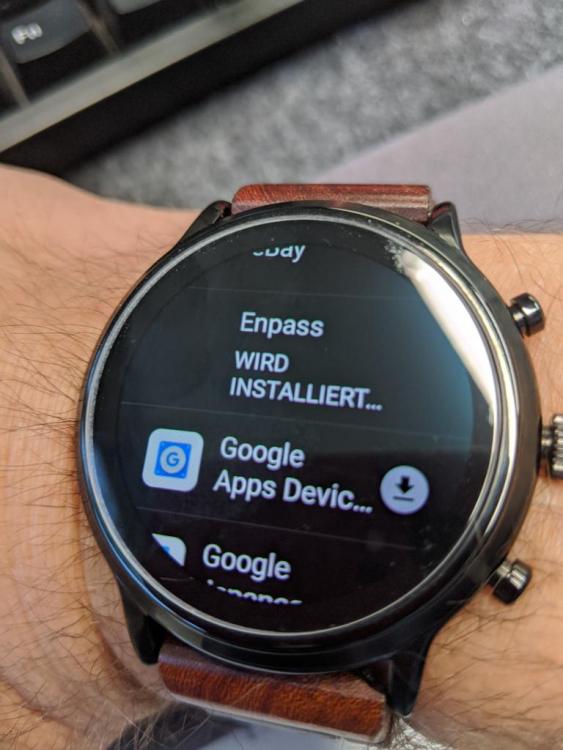
Hi, I recently switched from my good old Asus Zenwatch 3 to a new Fossil Carlyle. Enpass was working without problems on my Zenwatch, but I can't install it on the new watch. Enpass is listed in Play Store under "Apps on my phone", I can select to install it, but then nothing happens. The entry says "installing" for a long time and then cancels without any message.
-
Sorry for posting in this old thread, but the problem still exists. qt.qpa.plugin: Could not find the Qt platform plugin "wayland" in "" This application failed to start because no Qt platform plugin could be initialized. Reinstalling the application may fix this problem. Available platform plugins are: xcb. This is what I get when I start Enpass on my Arch system running Sway Window Manager (Wayland). I have to manually start Enpass with QT_QPA_PLATFORM=xcb enpass to get it running. Other QT applications like Telegram or Calibre are working fine.
-
I'm experiencing a similar problem with the browser extension on Arch linux. I'm using Sway as window manager, which is similar to i3, but using Wayland instead of X. If I press the Enpass icon in my browser, I only see the small Enpass window flashing and it disappears immeadiately. I had no problems with Enpass 5 using exactly the same configuration. Thanks, Chris